> ## Documentation Index
> Fetch the complete documentation index at: https://novu-c5de82d9-docs-homepage-redesign.mintlify.site/llms.txt
> Use this file to discover all available pages before exploring further.
# Quickstart
> Create your first agent and connect it to Slack in under 10 minutes.
This guide covers creating a custom code agent in the dashboard, hooking up Slack, scaffolding the bridge app, and getting a reply in-thread.
By the end, you'll have a working agent that receives messages from Slack and replies based on your handler code.
**Prerequisites:**
* A [Novu account](https://dashboard.novu.co).
* A Slack workspace where you can install apps.
* Node.js on your machine.
Add an agent to my app following instructions from this markdown file: [https://novu.co/agents.md](https://novu.co/agents.md)
Follow my project's existing framework, routing, styling, and TypeScript conventions.
Reference: [https://docs.novu.co/agents/custom-code-agent/quickstart](https://docs.novu.co/agents/custom-code-agent/quickstart)
## Create your agent
1. Go to the Novu dashboard.
2. In the sidebar, click **Agents**.
3. Click **Create agent**.
4. Fill in the required fields:
* **Agent name**: Display name for your agent.
* **Identifier**: Unique slug used in code. Cannot be changed after creation.
* **Description**: Optional.
5. Click **Set up agent**.
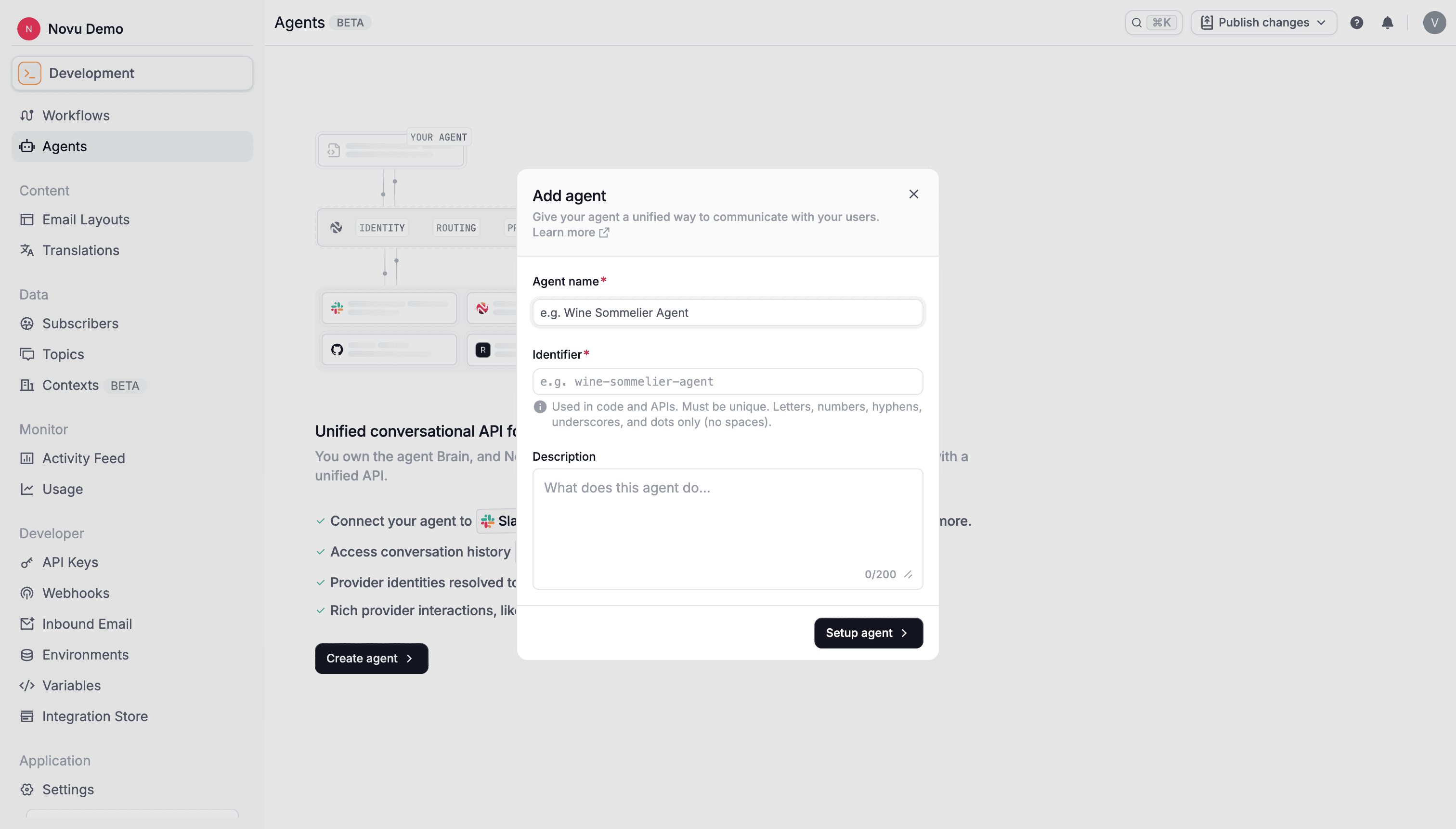 Novu opens the guided setup page after creation.
## Select a provider
1. On the setup page, open **Select provider**.
2. Select **Slack**.
Novu opens the guided setup page after creation.
## Select a provider
1. On the setup page, open **Select provider**.
2. Select **Slack**.
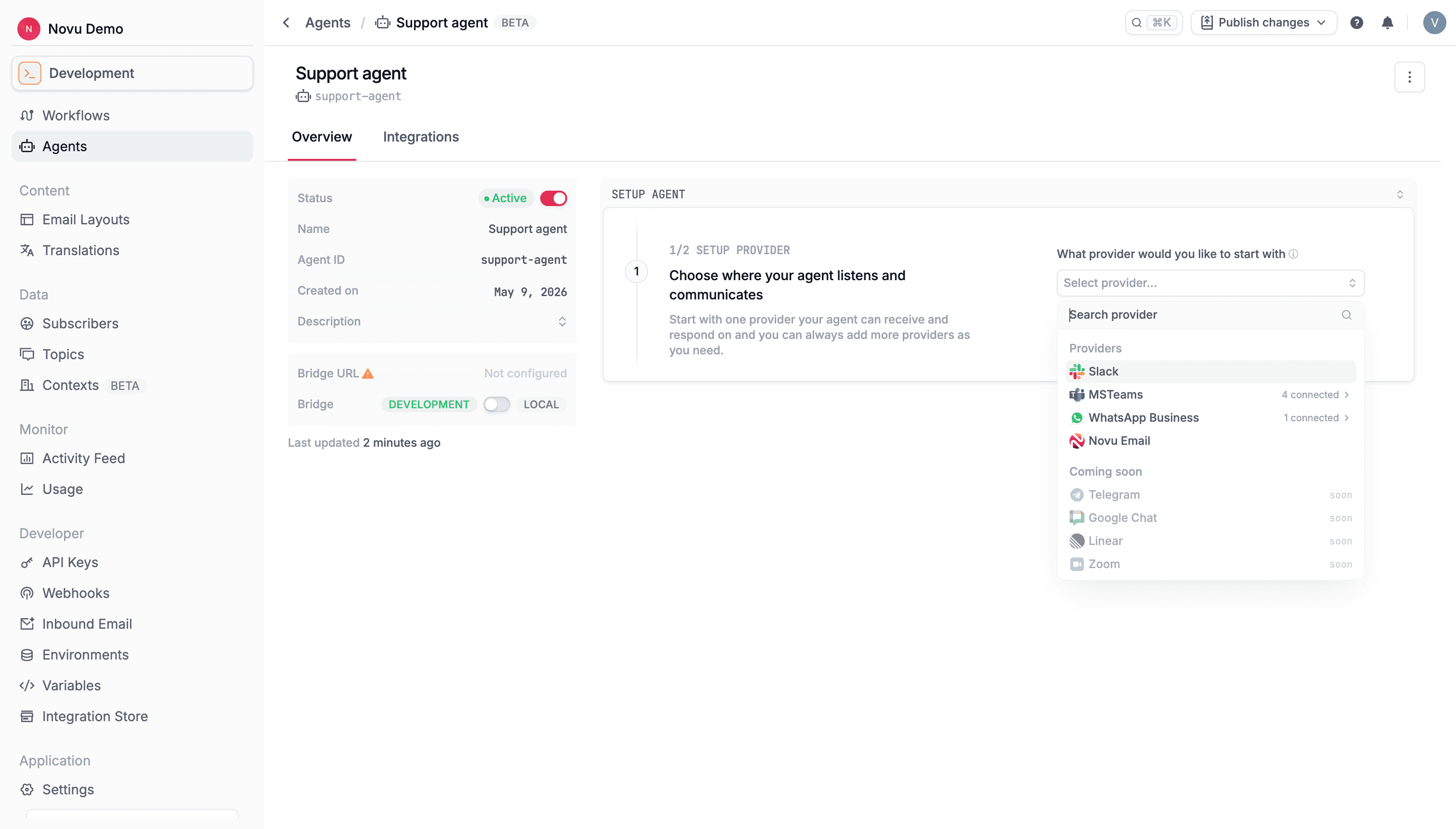 The dashboard unlocks the Slack setup steps.
## Create a Slack app
Novu can create the Slack app using a Slack App Configuration Token.
1. Click **Slack App Configuration Token** to open [Slack API apps](https://api.slack.com/apps).
2. Under **Your App Configuration Tokens**, click **Generate Token**.
The dashboard unlocks the Slack setup steps.
## Create a Slack app
Novu can create the Slack app using a Slack App Configuration Token.
1. Click **Slack App Configuration Token** to open [Slack API apps](https://api.slack.com/apps).
2. Under **Your App Configuration Tokens**, click **Generate Token**.
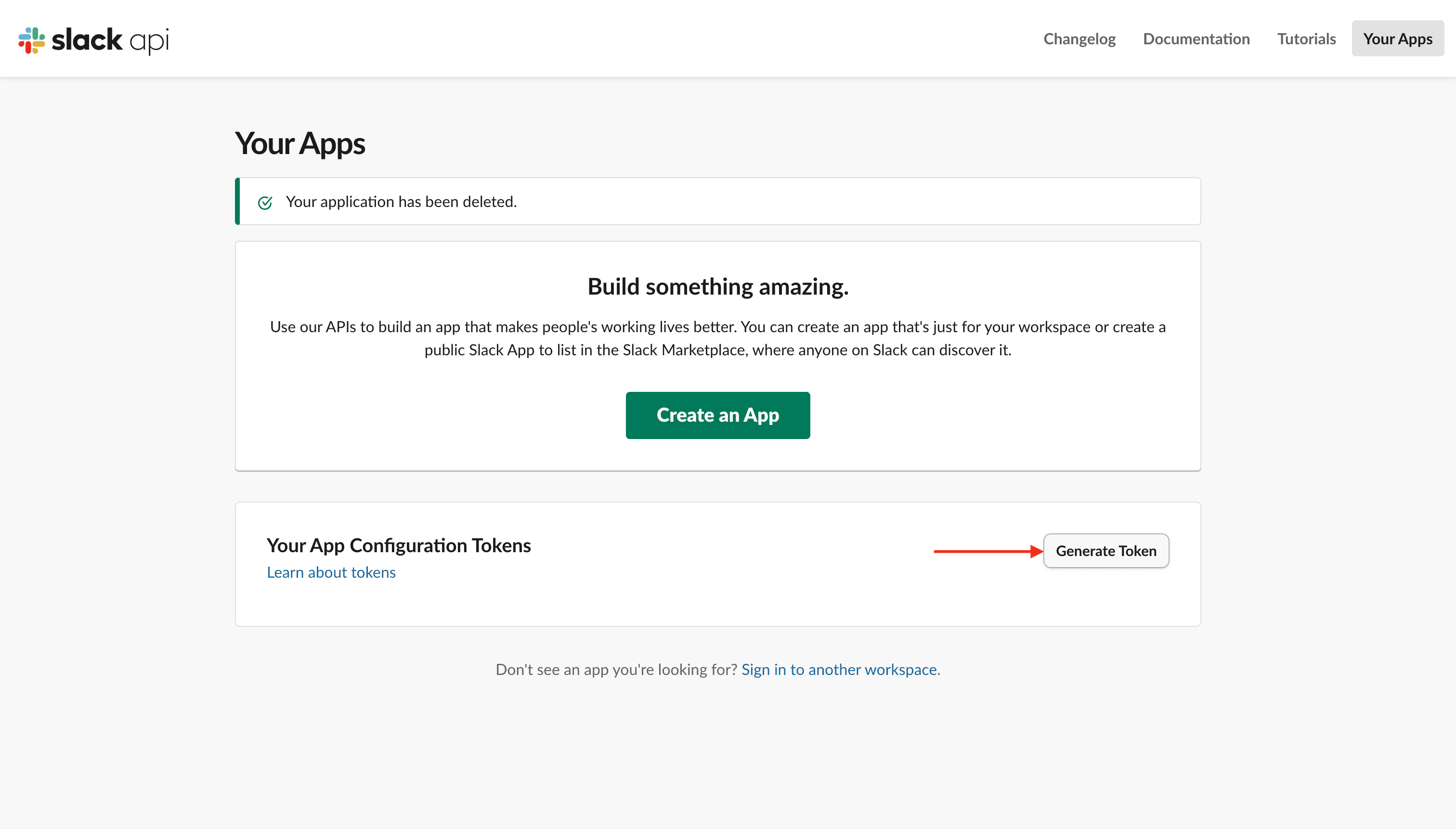 3. Select your workspace and click **Generate**.
4. Copy the token.
5. In Novu, paste the token and click **Create app**.
The configuration token is used once to create your Slack app and is not stored by Novu.
## Install the app in your workspace
1. Click **Install agent** (the label may include your agent name, for example **Install My Agent**).
2. Review permissions in Slack and click **Allow**.
3. Select your workspace and click **Generate**.
4. Copy the token.
5. In Novu, paste the token and click **Create app**.
The configuration token is used once to create your Slack app and is not stored by Novu.
## Install the app in your workspace
1. Click **Install agent** (the label may include your agent name, for example **Install My Agent**).
2. Review permissions in Slack and click **Allow**.
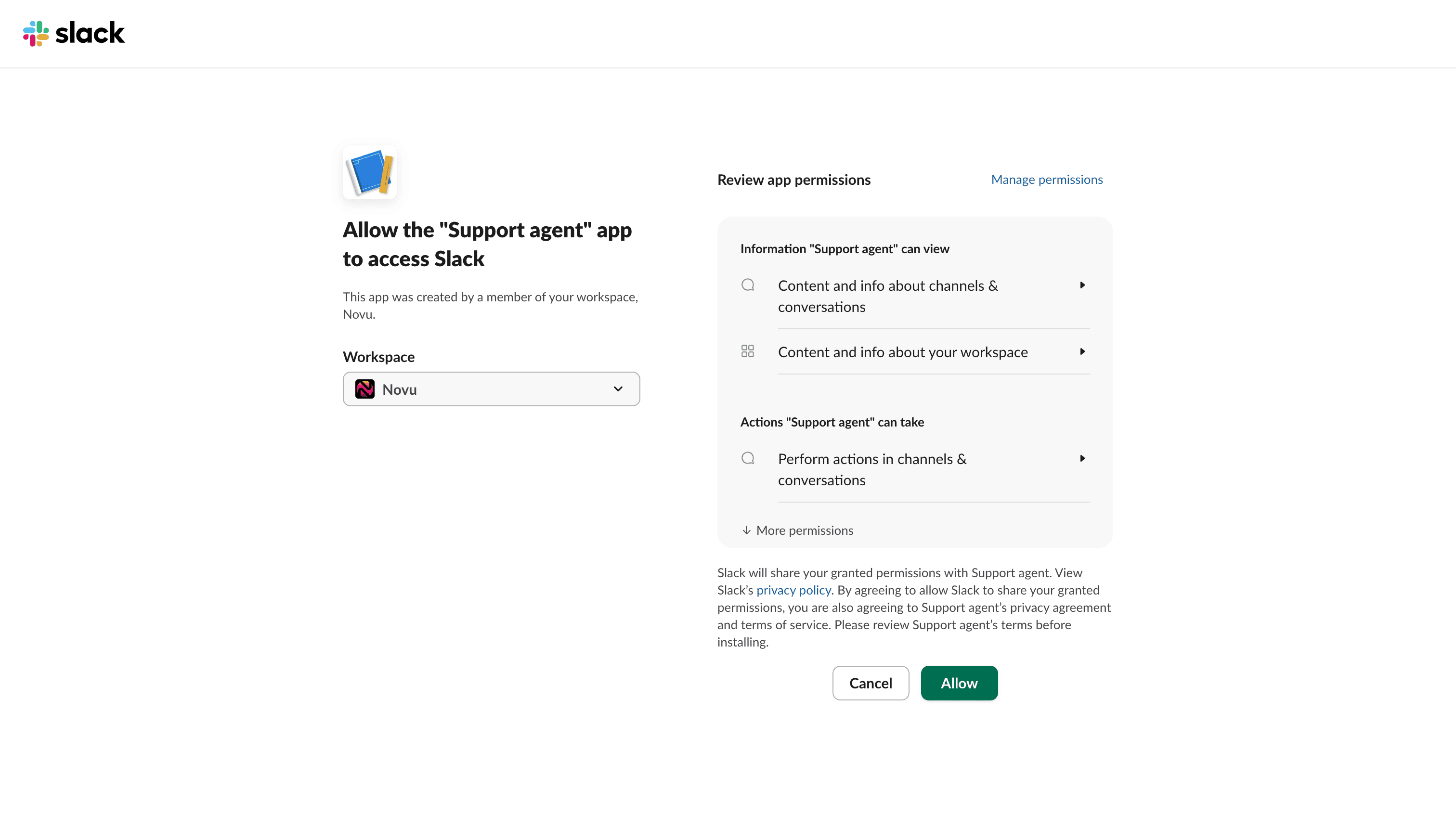 You'll receive a welcome message from the agent when installation completes.
## Scaffold your agent project
Copy the scaffold command from the dashboard:
```bash theme={null}
npx novu@latest init -t agent \
--secret-key= \
--api-url=
```
Run it in the directory where you want the project. See [Scaffold your project](/agents/custom-code-agent/setup-your-agent/scaffold-your-project) for details.
## Start your agent locally
```bash theme={null}
npm run dev:novu
```
This starts your app, opens a dev tunnel, and registers the bridge URL. When connected, you'll see another message from your agent in Slack.
## Send a message
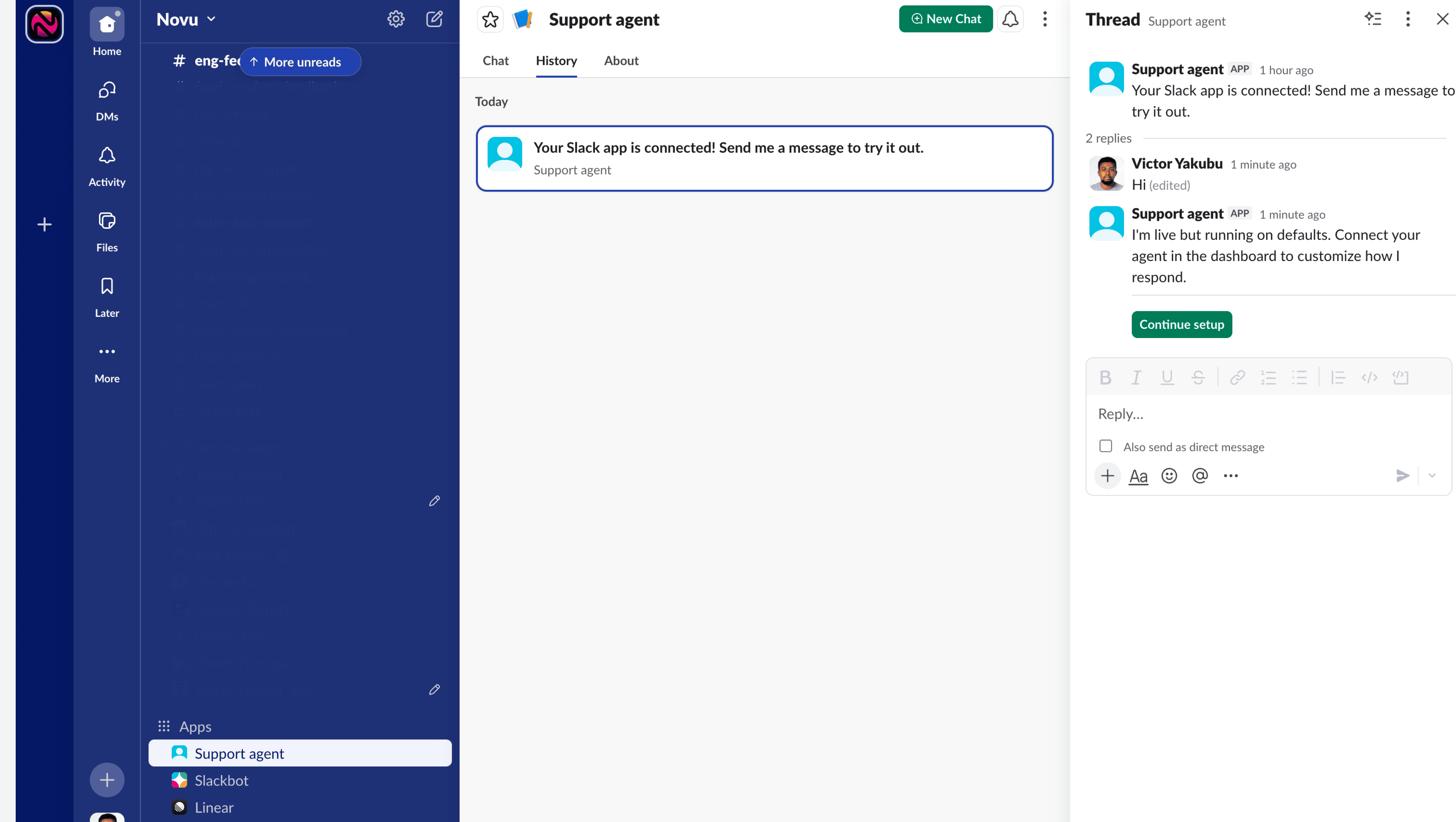
Message your bot in Slack. Your `onMessage` handler runs and the reply appears in the thread.
You'll receive a welcome message from the agent when installation completes.
## Scaffold your agent project
Copy the scaffold command from the dashboard:
```bash theme={null}
npx novu@latest init -t agent \
--secret-key= \
--api-url=
```
Run it in the directory where you want the project. See [Scaffold your project](/agents/custom-code-agent/setup-your-agent/scaffold-your-project) for details.
## Start your agent locally
```bash theme={null}
npm run dev:novu
```
This starts your app, opens a dev tunnel, and registers the bridge URL. When connected, you'll see another message from your agent in Slack.
## Send a message
Message your bot in Slack. Your `onMessage` handler runs and the reply appears in the thread.
 Edit files in `app/novu/agents/` to customize behavior. See [Handle events](/agents/custom-code-agent/setup-your-agent/handle-events) for all event types.
## Next steps
Respond to actions, reactions, and resolution events.
Markdown, attachments, and interactive cards.
Metadata, workflow triggers, and conversation resolution.
Full support-bot walkthrough with an LLM.
Edit files in `app/novu/agents/` to customize behavior. See [Handle events](/agents/custom-code-agent/setup-your-agent/handle-events) for all event types.
## Next steps
Respond to actions, reactions, and resolution events.
Markdown, attachments, and interactive cards.
Metadata, workflow triggers, and conversation resolution.
Full support-bot walkthrough with an LLM.