> ## Documentation Index
> Fetch the complete documentation index at: https://novu-c5de82d9-docs-homepage-redesign.mintlify.site/llms.txt
> Use this file to discover all available pages before exploring further.
# MS Teams Chat Integration with Novu
> Connect MS Teams to Novu to send chat notifications through notification workflows. Step-by-step credential setup.
This feature is currently in public beta, please contact us at [support@novu.co](mailto:support@novu.co) to enable it for your organization.
The Novu Microsoft Teams integration enables you to send notifications to Teams channels and direct messages (DMs) across different customer workspaces using a single multi-tenant bot.
You create and host a Microsoft Teams bot in your Azure environment, and your customers then approve the app (via Admin Consent) and install it in their Teams tenants.
Once a customer connects their workspace, Novu establishes a secure channel connection using your bot's credentials. You then map specific destinations, whether the destinations involve public channels or individual users to channel endpoints, allowing Novu to route notifications dynamically to the correct tenant and conversation context.
Check out the [agents](/agents) documentation for more information on how to build agents using Microsoft Teams.
## Prerequisites
* Access to [Azure Portal](https://portal.azure.com/) with App Registration permissions.
* Access to [Microsoft Teams Developer Portal](https://dev.teams.microsoft.com/home)
* Administrator privileges for granting API permissions
* Access to [Novu dashboard](https://dashboard.novu.co)
## Azure and Teams configuration
Before you can configure Novu, you must create the infrastructure that hosts your bot. This involves two distinct portals:
* **Azure portal**: To create the identity (App Registration) and infrastructure (Bot Service).
* **Teams Developer Portal**: To create the app package that your customers can install.
### Create the app identity (Azure AD)
First, create a multi-tenant identity for your bot.
Log in to the [Azure Portal](https://portal.azure.com/).
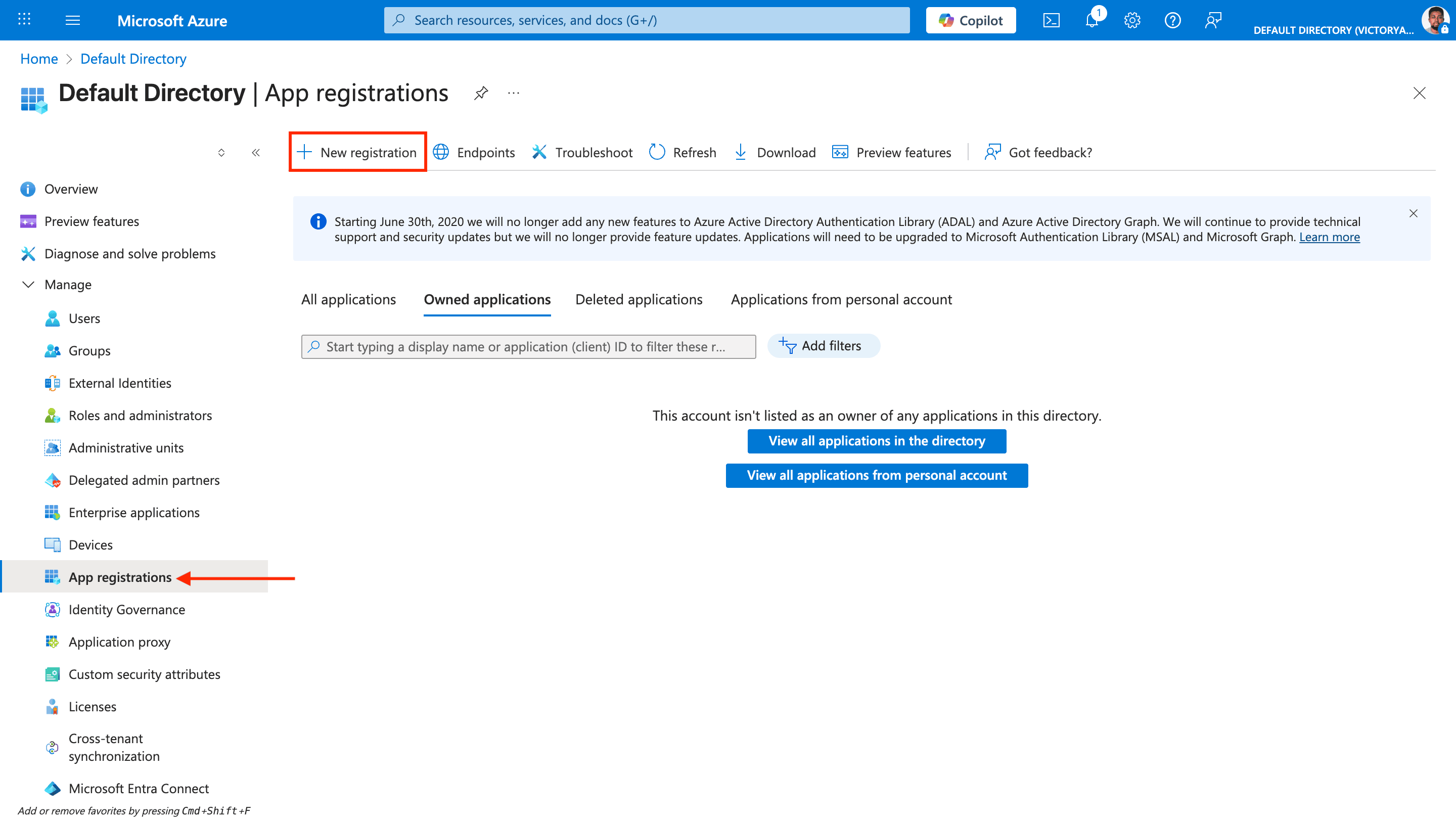
In the menu, click **Microsoft Entra ID** (formerly Azure Active Directory).
In the Manage section, click **App registrations**.
To create an app, click **New registration**.
 Fill in the form:
* **Name**: Enter any name of your choice.
* **Supported account types**: Select **Accounts in any organizational directory (Any Microsoft Entra ID directory - Multitenant)**.
Fill in the form:
* **Name**: Enter any name of your choice.
* **Supported account types**: Select **Accounts in any organizational directory (Any Microsoft Entra ID directory - Multitenant)**.
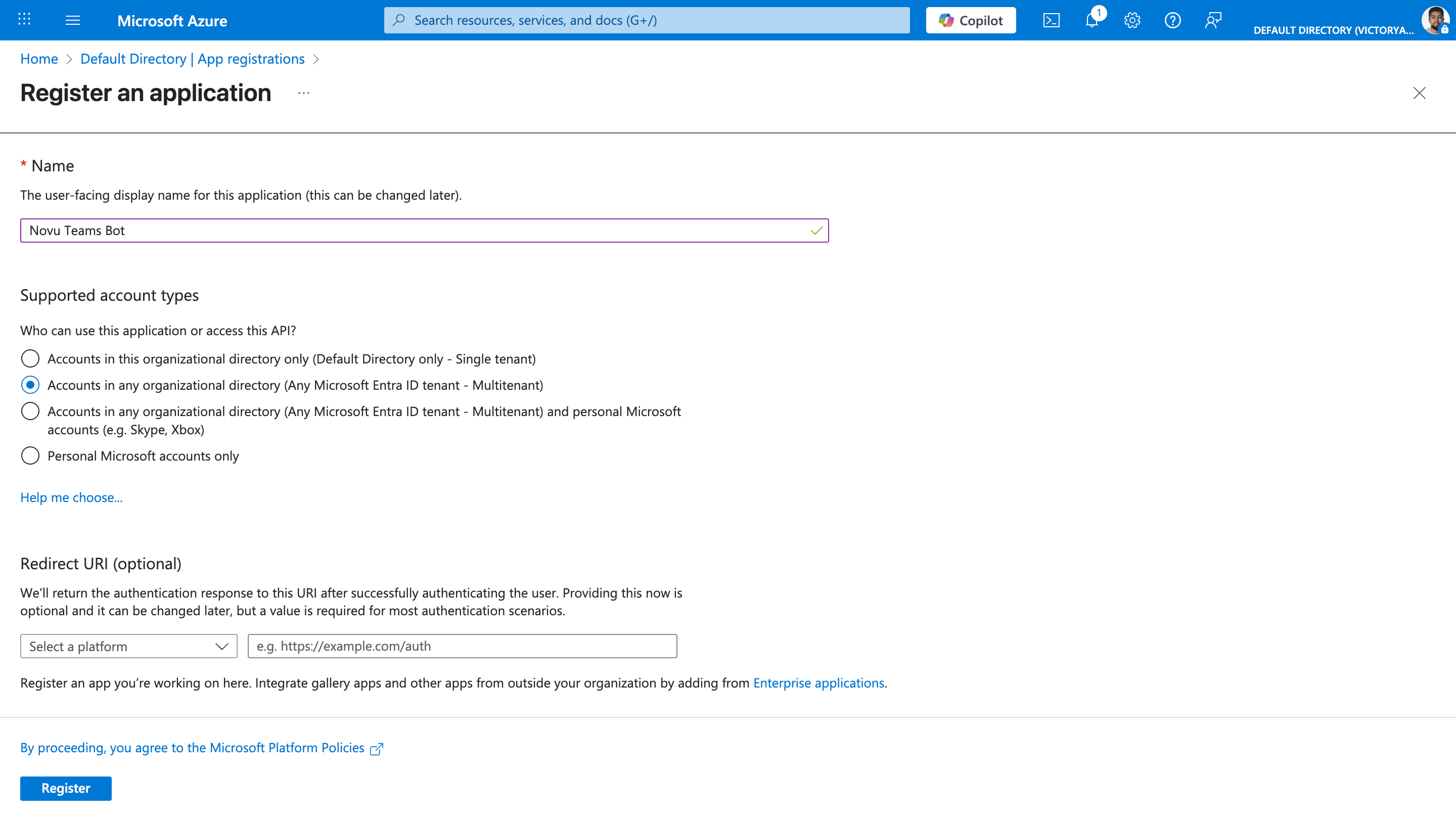 Click **Register**.
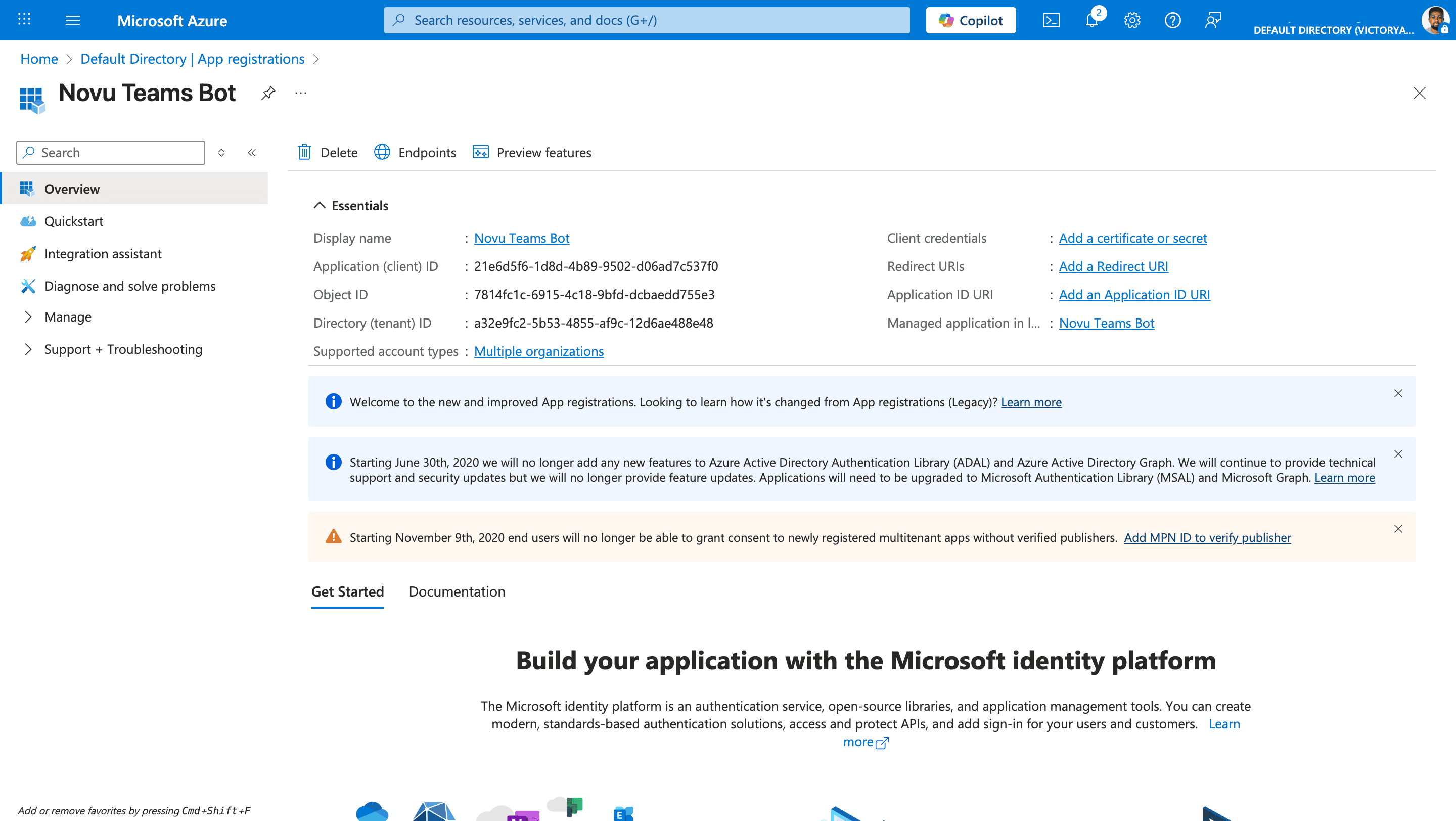 After creating the app, note the Application (client) ID and Directory (tenant) ID. You need these values to configure Microsoft Teams in Novu.
### Configure client secret
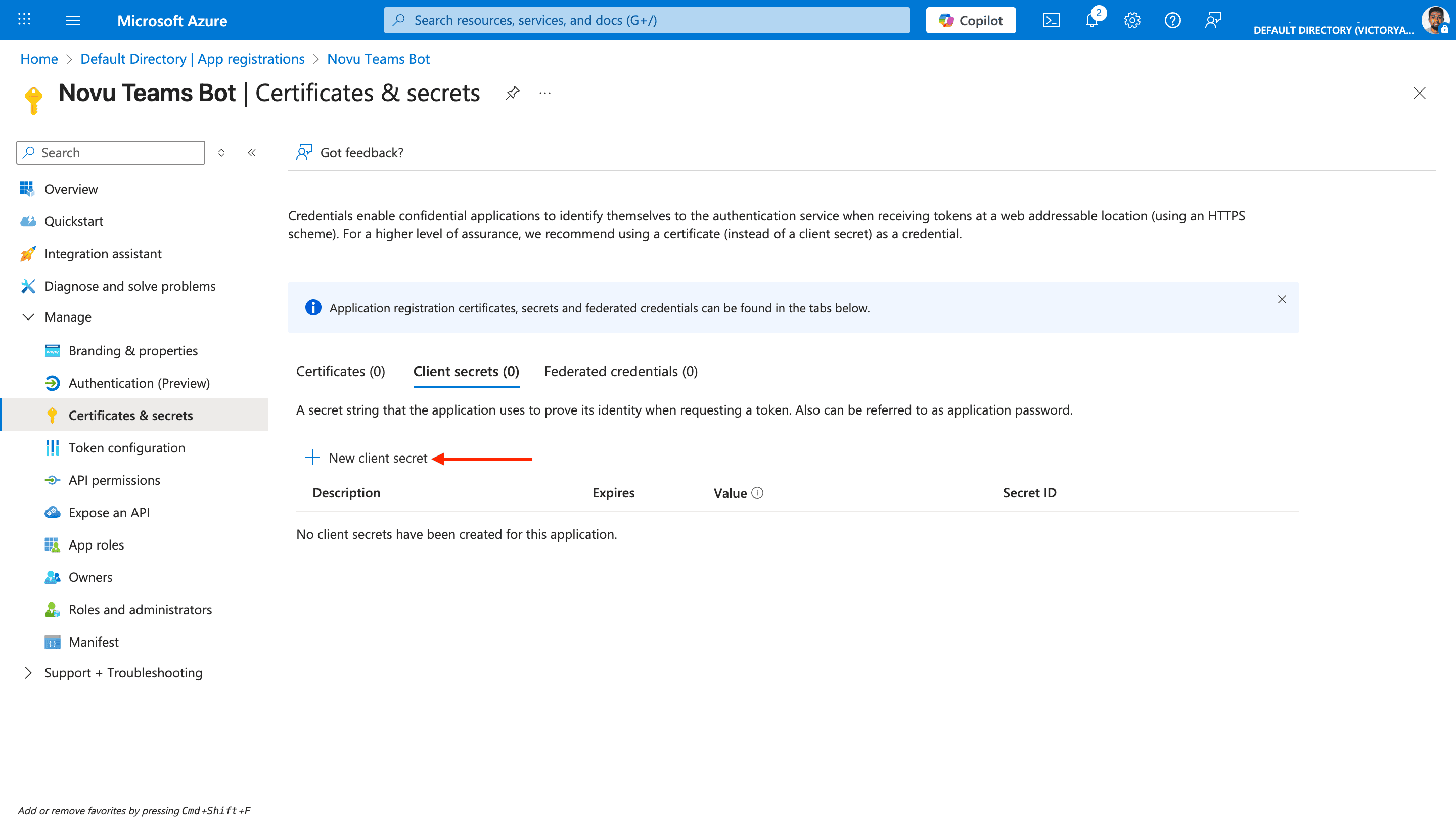
On your new app's overview page, click **Certificates & secrets**.
Click **New client secret**.
After creating the app, note the Application (client) ID and Directory (tenant) ID. You need these values to configure Microsoft Teams in Novu.
### Configure client secret
On your new app's overview page, click **Certificates & secrets**.
Click **New client secret**.
 Add a description.
Set an expiry date.
Click **Add**.
Add a description.
Set an expiry date.
Click **Add**.
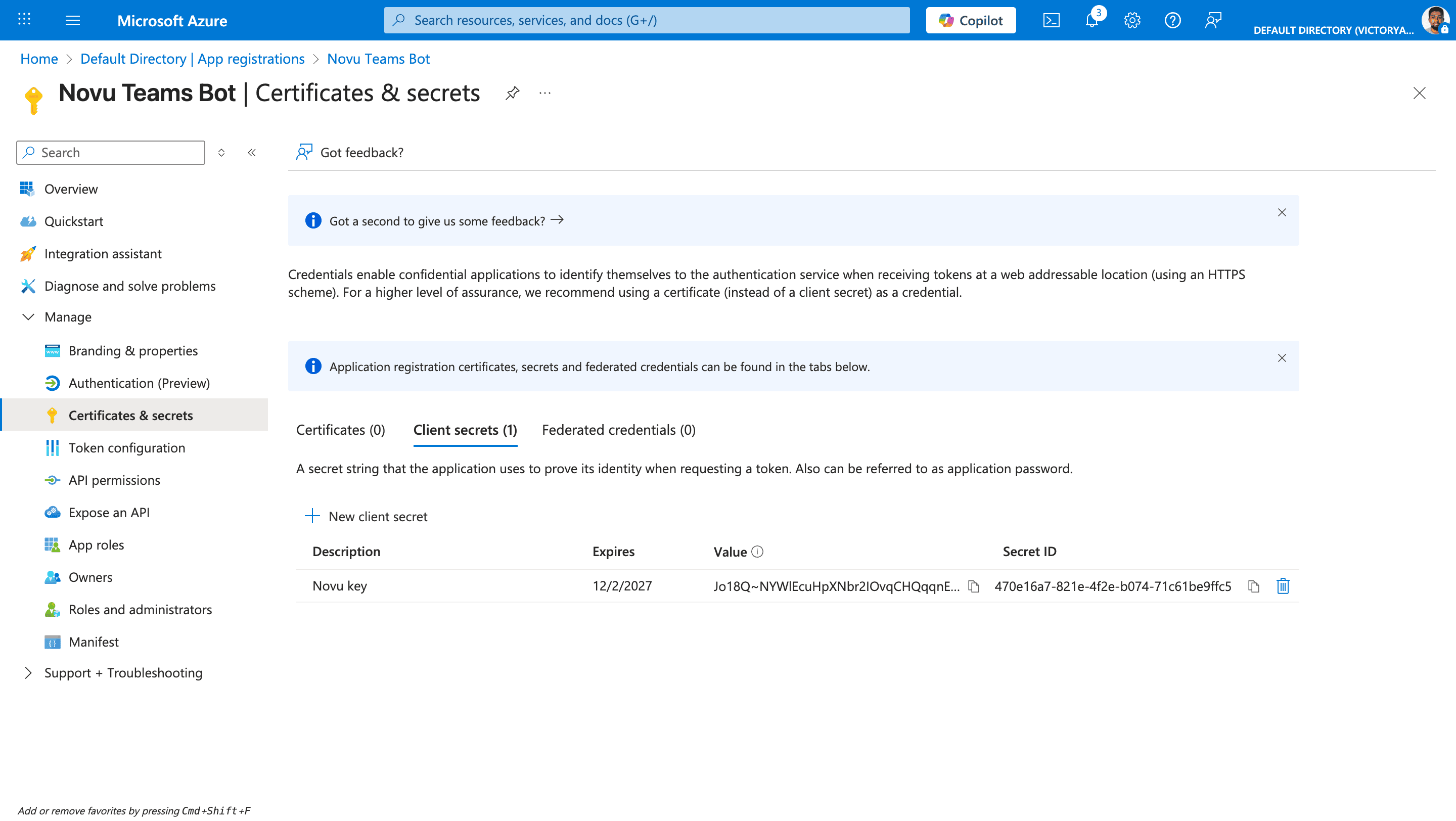 Copy the value. This value becomes your `BOT_APP_SECRET`, and you’ll paste it into Novu. You can view the secret only once right after you create it, so save it before you leave the page.
### Add Novu’s redirect URI
When a tenant administrator accepts admin consent, Microsoft redirects the browser to Novu at this URL. Register it in **Azure** on your app registration during setup — before any organization connects Teams.
This is not the optional **Redirect URL** on the Novu integration. That Novu field only controls where the administrator is sent in **your application** after Novu finishes processing the callback.
Click **Authentication (Preview)**.
Click **Add Redirect URI**.
In the menu that appears, click **Web**.
In the **Redirect URI** field, set the redirect URI to the Novu OAuth callback URL:
* US region
```bash theme={null}
https://api.novu.co/v1/integrations/chat/oauth/callback
```
* EU region
```bash theme={null}
https://eu.api.novu.co/v1/integrations/chat/oauth/callback
```
Copy the value. This value becomes your `BOT_APP_SECRET`, and you’ll paste it into Novu. You can view the secret only once right after you create it, so save it before you leave the page.
### Add Novu’s redirect URI
When a tenant administrator accepts admin consent, Microsoft redirects the browser to Novu at this URL. Register it in **Azure** on your app registration during setup — before any organization connects Teams.
This is not the optional **Redirect URL** on the Novu integration. That Novu field only controls where the administrator is sent in **your application** after Novu finishes processing the callback.
Click **Authentication (Preview)**.
Click **Add Redirect URI**.
In the menu that appears, click **Web**.
In the **Redirect URI** field, set the redirect URI to the Novu OAuth callback URL:
* US region
```bash theme={null}
https://api.novu.co/v1/integrations/chat/oauth/callback
```
* EU region
```bash theme={null}
https://eu.api.novu.co/v1/integrations/chat/oauth/callback
```
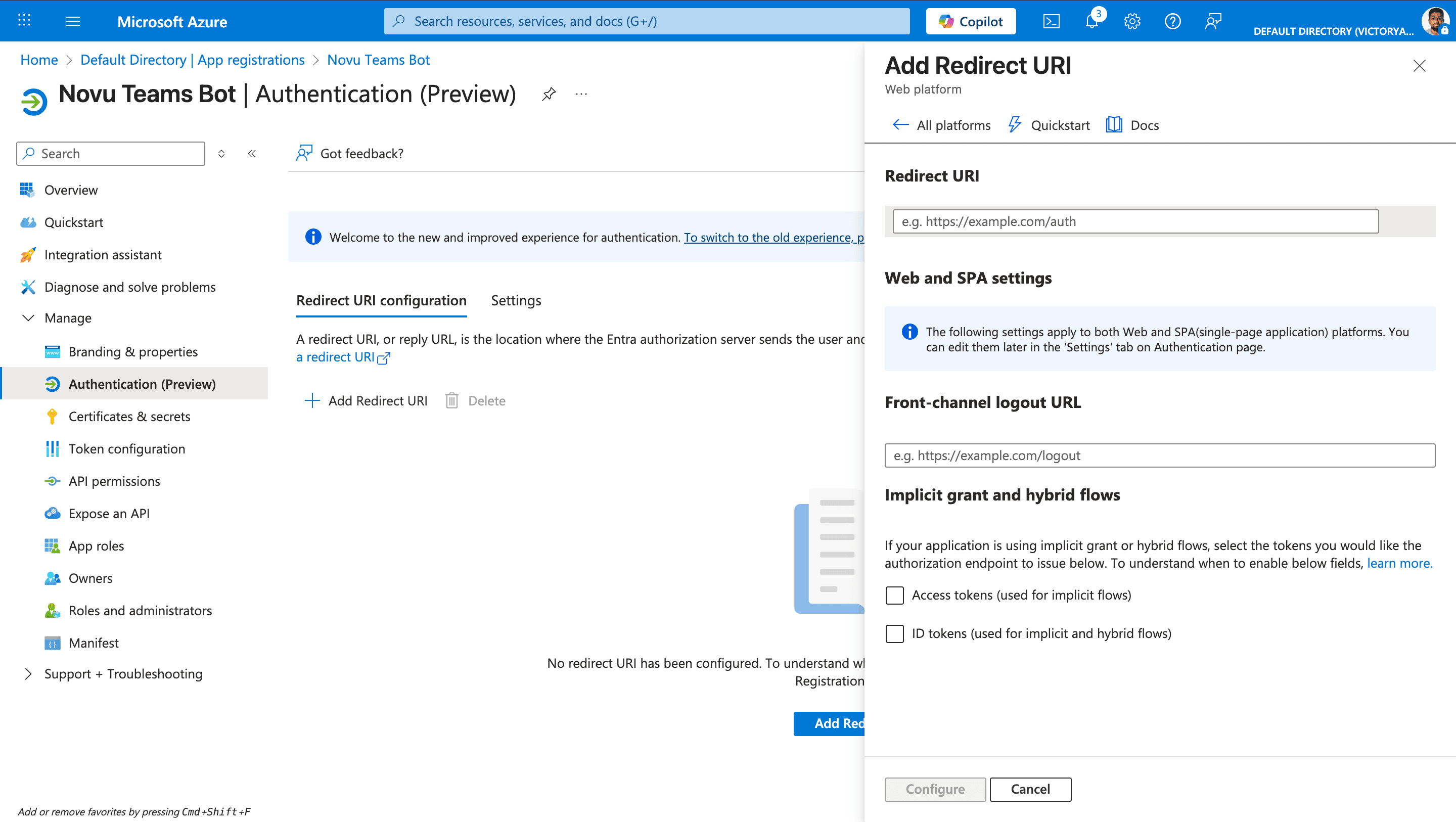 Click **Configure**.
### Add Microsoft Graph app permissions
These permissions let your app list teams and channels and decide where to send messages.
Click **API permissions**.
Click **Add a permission**.
Click **Microsoft Graph**.
Click **Configure**.
### Add Microsoft Graph app permissions
These permissions let your app list teams and channels and decide where to send messages.
Click **API permissions**.
Click **Add a permission**.
Click **Microsoft Graph**.
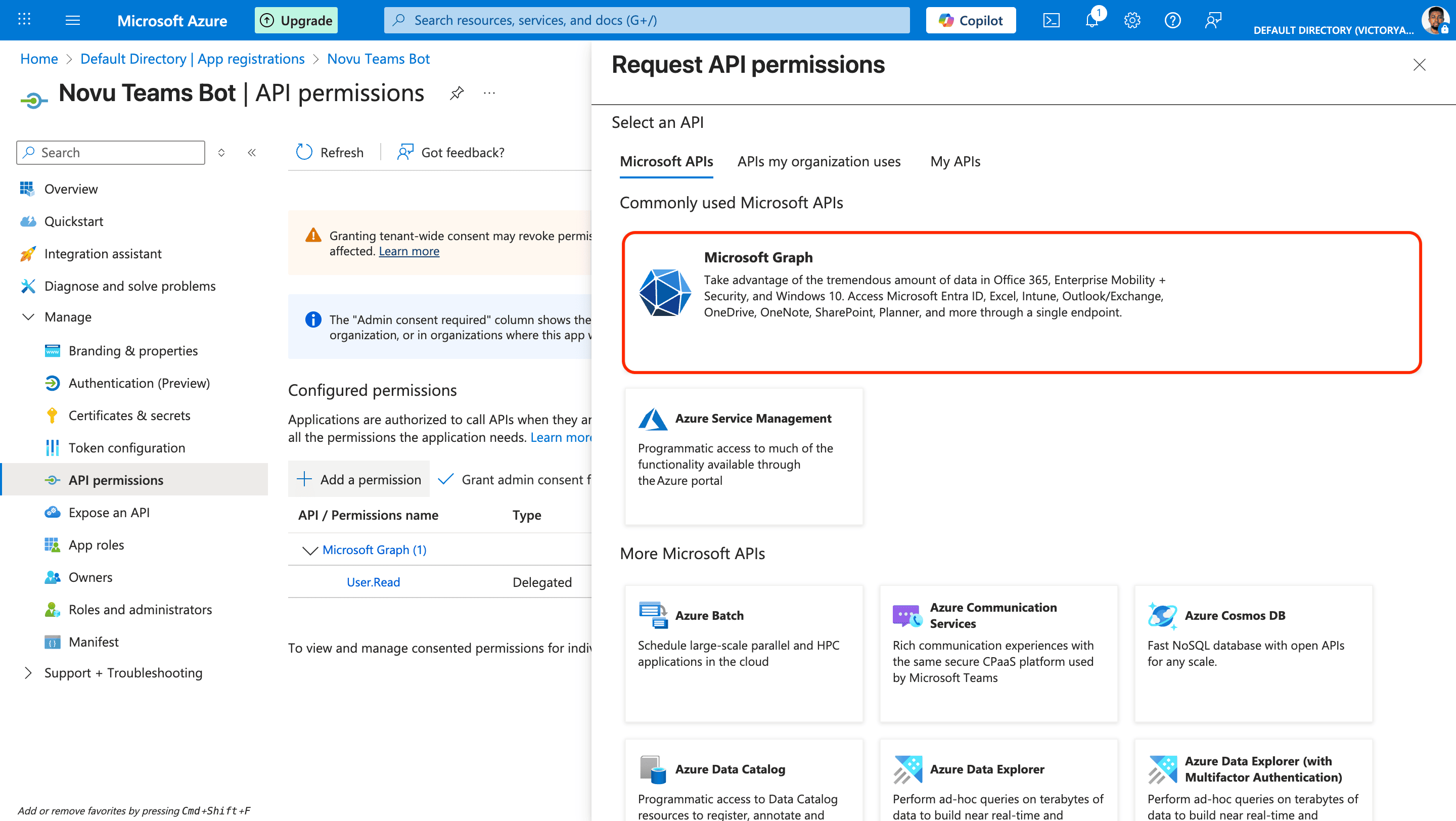 Click **Application permissions**.
Search for and select the following **Application** permissions:
* `Team.ReadBasic.All` — list teams in a connected tenant
* `Channel.ReadBasic.All` — list channels in a team
* `AppCatalog.Read.All` — resolve your Teams app in the org catalog
* `TeamsAppInstallation.ReadWriteSelfForTeam.All` (optional) — programmatically install the app into a team
* `TeamsAppInstallation.ReadWriteSelfForUser.All` (required only for [OAuth DM linking](#link-a-subscriber-for-direct-messages)) — install the app for a user during the link-user flow
Click **Add permissions**.
If you plan to link subscribers for direct messages via OAuth, also add this **Delegated** permission under **Microsoft Graph**:
* `User.Read`
Novu also requests `openid` and `profile` during the link-user OAuth flow; Azure includes these automatically for sign-in. Application permissions (above) cover tenant connect and channel messaging. Delegated `User.Read` is only needed for the separate link-user flow.
On the **API permissions** page, click **Grant admin consent for \[your tenant]** and confirm. This applies the application permissions in the tenant where you registered the app. Each organization that connects Teams later grants consent separately through the Novu OAuth flow.
### Create an Azure Bot resource
Now you register your bot with the Azure AI Bot Service and link it to the app registration that you just created.
In the Azure portal menu, click **Create a resource**.
Search for “Azure Bot”, and then click the Azure Bot resource.
Click **Application permissions**.
Search for and select the following **Application** permissions:
* `Team.ReadBasic.All` — list teams in a connected tenant
* `Channel.ReadBasic.All` — list channels in a team
* `AppCatalog.Read.All` — resolve your Teams app in the org catalog
* `TeamsAppInstallation.ReadWriteSelfForTeam.All` (optional) — programmatically install the app into a team
* `TeamsAppInstallation.ReadWriteSelfForUser.All` (required only for [OAuth DM linking](#link-a-subscriber-for-direct-messages)) — install the app for a user during the link-user flow
Click **Add permissions**.
If you plan to link subscribers for direct messages via OAuth, also add this **Delegated** permission under **Microsoft Graph**:
* `User.Read`
Novu also requests `openid` and `profile` during the link-user OAuth flow; Azure includes these automatically for sign-in. Application permissions (above) cover tenant connect and channel messaging. Delegated `User.Read` is only needed for the separate link-user flow.
On the **API permissions** page, click **Grant admin consent for \[your tenant]** and confirm. This applies the application permissions in the tenant where you registered the app. Each organization that connects Teams later grants consent separately through the Novu OAuth flow.
### Create an Azure Bot resource
Now you register your bot with the Azure AI Bot Service and link it to the app registration that you just created.
In the Azure portal menu, click **Create a resource**.
Search for “Azure Bot”, and then click the Azure Bot resource.
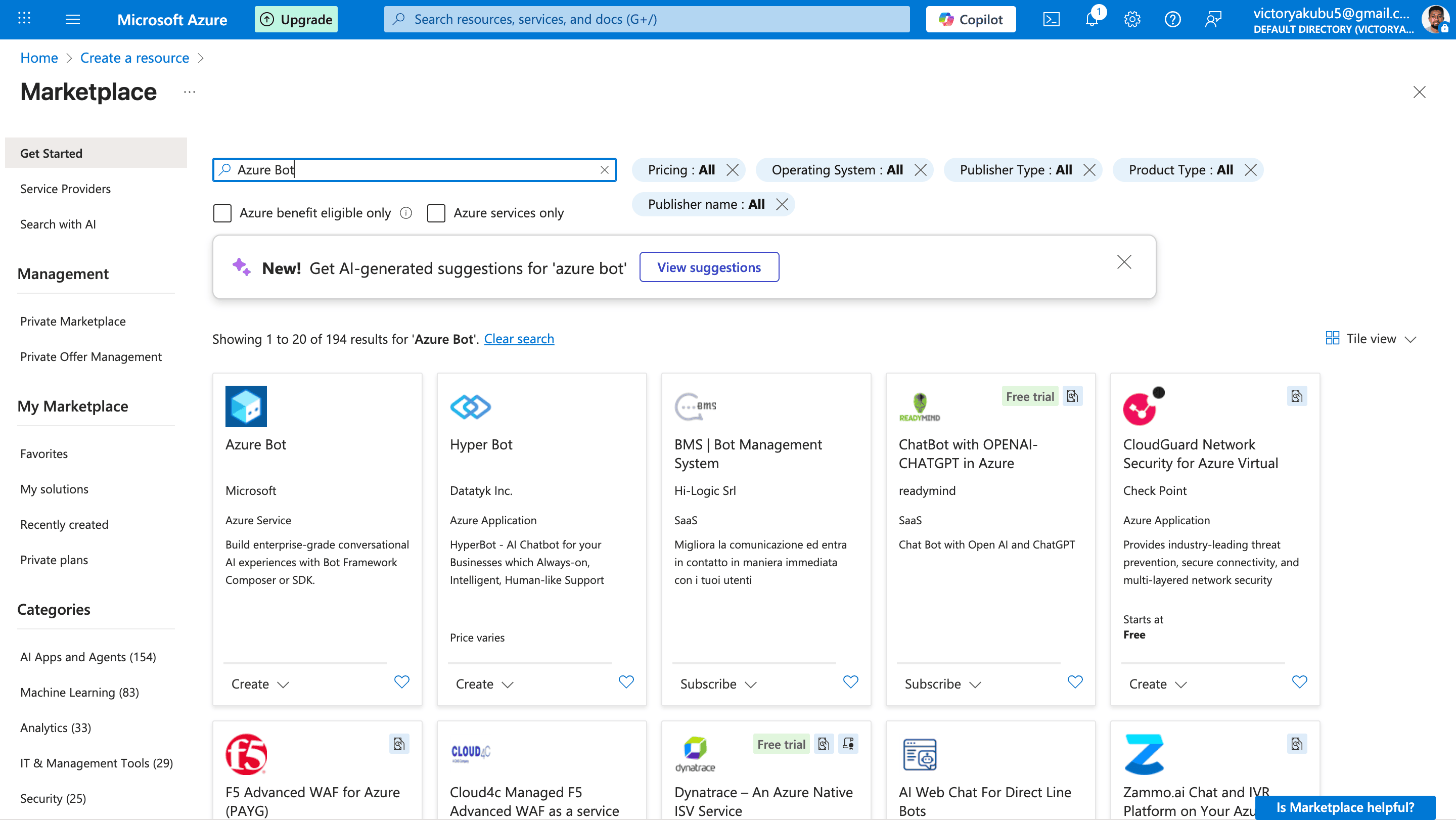 Click **Create**.
Fill in the basics:
* **Bot handle**: The unique display name in Azure.
* **Subscription**: Select the Azure subscription.
* **Resource group**: A collection of resources that share the same lifecycle, permissions, and policies, you can either select or create one.
* **Data residency**: Specify an option for data residency, either global or regional.
Under **Microsoft App ID**:
* **Type of app**: Select Single-tenant app registration.
* **Creation type**: Choose “Use existing app registration” and use app IDs [you created earlier](/platform/integrations/chat/ms-teams#create-the-app-identity-azure-ad):
* **App ID**: Replace with the Application (client) ID.
* **App tenant ID**: Replace with the Directory (tenant) ID.
Click **Create**.
Fill in the basics:
* **Bot handle**: The unique display name in Azure.
* **Subscription**: Select the Azure subscription.
* **Resource group**: A collection of resources that share the same lifecycle, permissions, and policies, you can either select or create one.
* **Data residency**: Specify an option for data residency, either global or regional.
Under **Microsoft App ID**:
* **Type of app**: Select Single-tenant app registration.
* **Creation type**: Choose “Use existing app registration” and use app IDs [you created earlier](/platform/integrations/chat/ms-teams#create-the-app-identity-azure-ad):
* **App ID**: Replace with the Application (client) ID.
* **App tenant ID**: Replace with the Directory (tenant) ID.
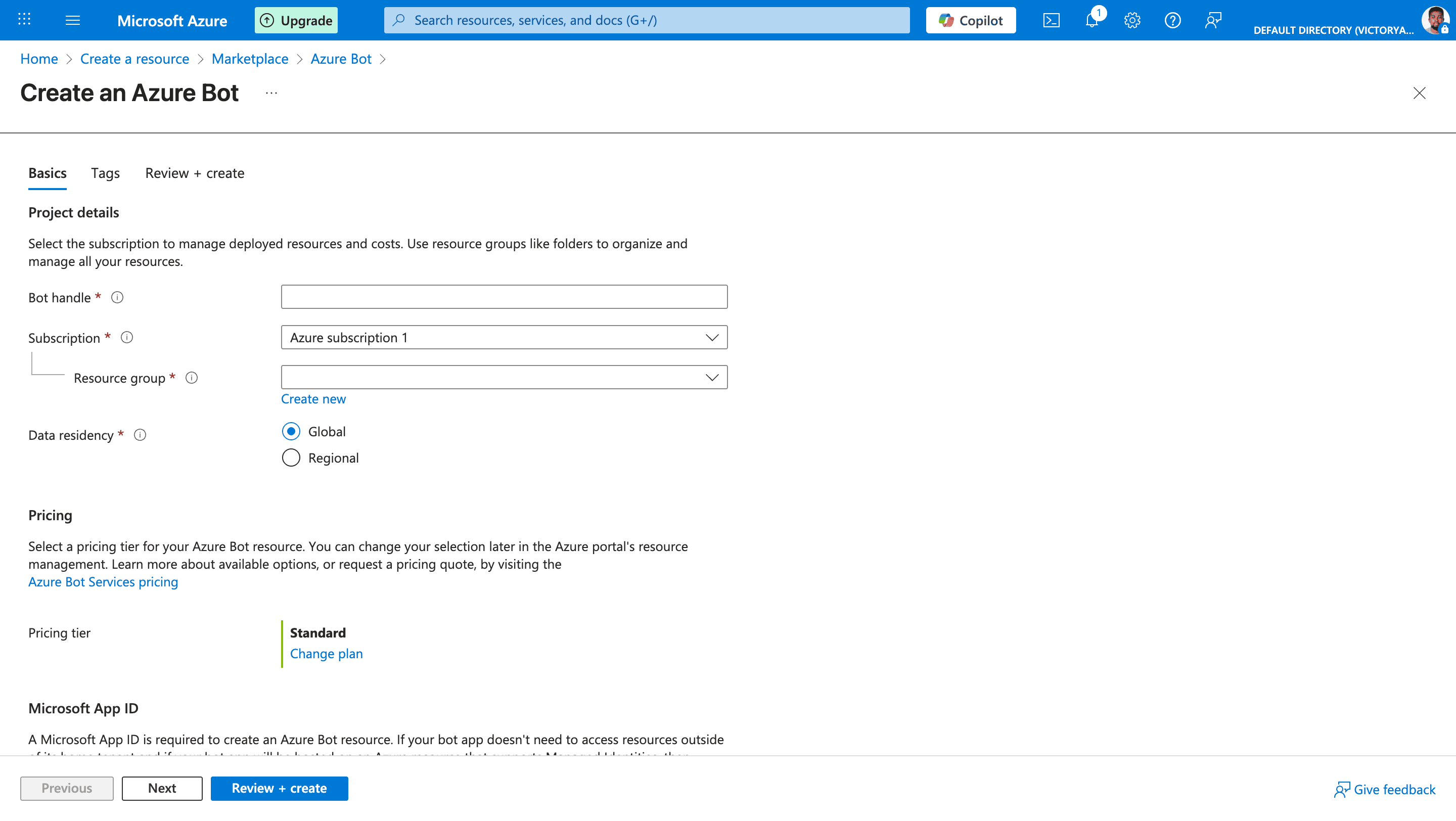 Click **Review + create**.
Click **Create**.
### Enable the Microsoft Teams channel
This connects your bot resource to Teams and lets your Teams app install cleanly.
Once the deployment finishes, click **Go to resource**.
Click **Review + create**.
Click **Create**.
### Enable the Microsoft Teams channel
This connects your bot resource to Teams and lets your Teams app install cleanly.
Once the deployment finishes, click **Go to resource**.
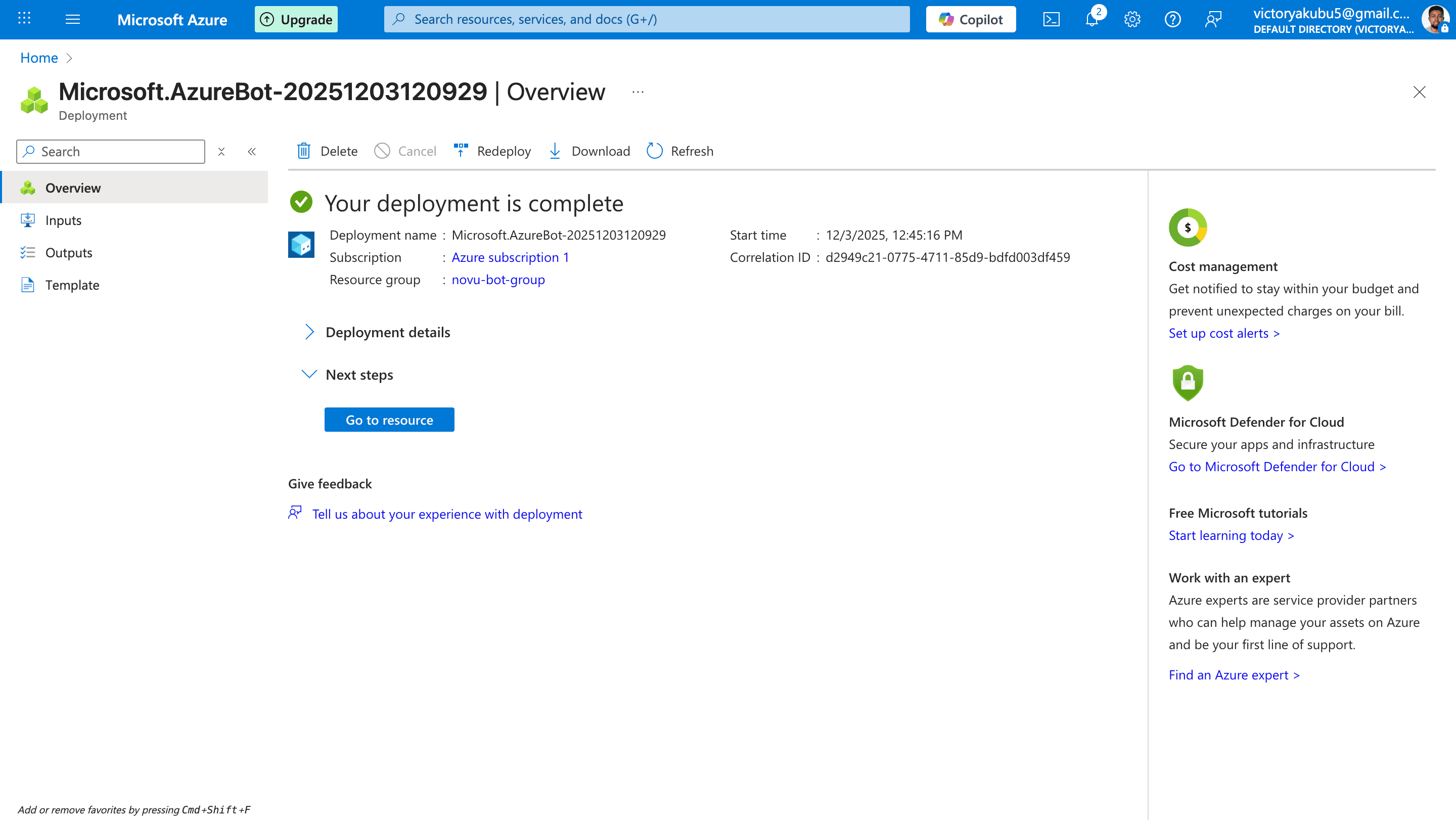 Click **Settings**.
Click **Channels**.
In the available channels section, click **Microsoft Teams**.
In the menu that appears, accept the terms of services.
In the **Messaging** section, choose the appropriate environment, typically **Microsoft Teams Commercial**.
Click **Apply**.
### Create a Teams app
Now you create the Teams “wrapper” around your app registration and bot.
Open the [Teams client](https://teams.microsoft.com/v2/) (desktop or web).
In the left sidebar, click **Apps**.
Search for **Developer Portal** and click **Add**, then open it.
Click **Settings**.
Click **Channels**.
In the available channels section, click **Microsoft Teams**.
In the menu that appears, accept the terms of services.
In the **Messaging** section, choose the appropriate environment, typically **Microsoft Teams Commercial**.
Click **Apply**.
### Create a Teams app
Now you create the Teams “wrapper” around your app registration and bot.
Open the [Teams client](https://teams.microsoft.com/v2/) (desktop or web).
In the left sidebar, click **Apps**.
Search for **Developer Portal** and click **Add**, then open it.
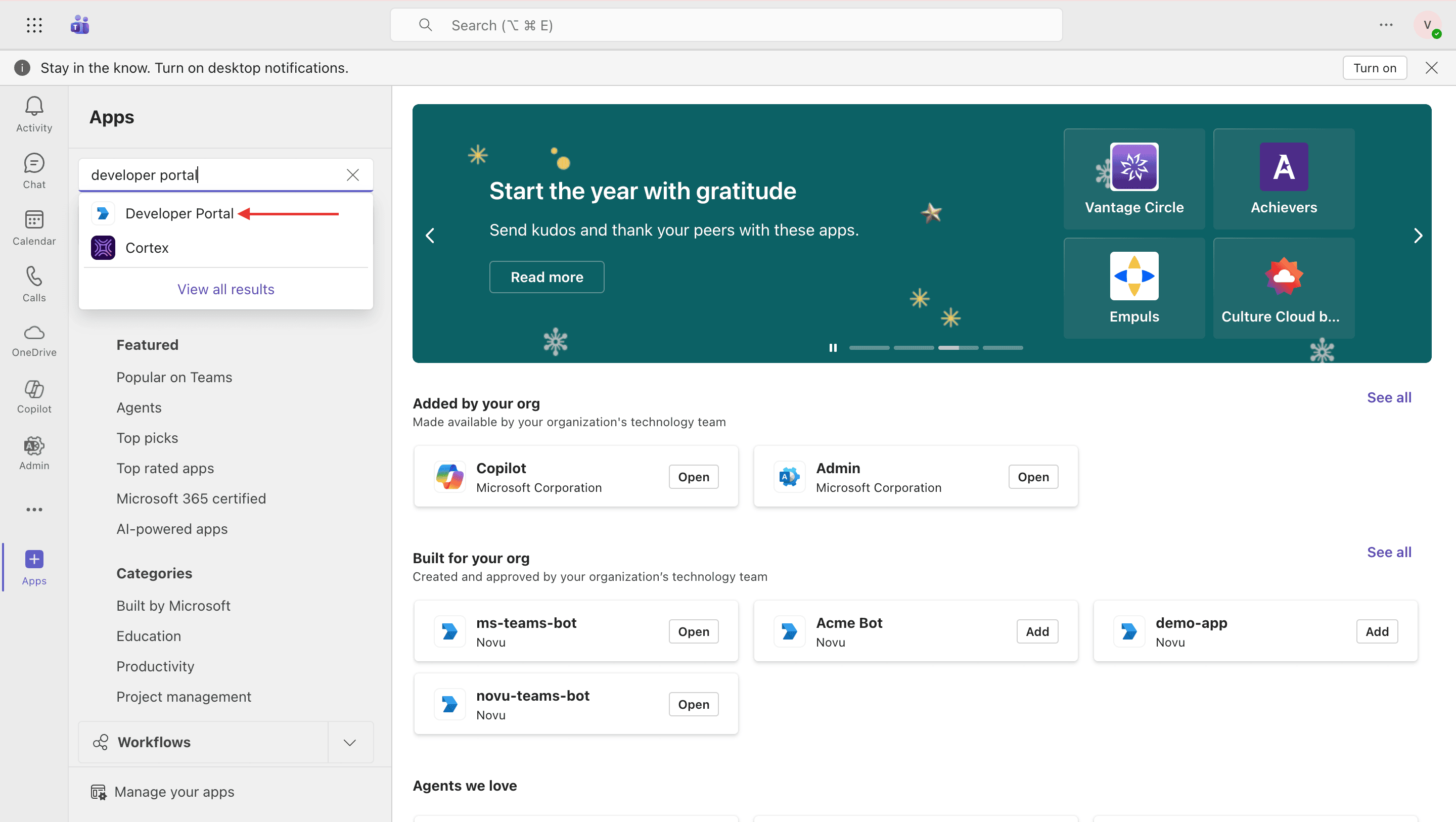 In the Developer Portal dashboard, click **Create a new app**.
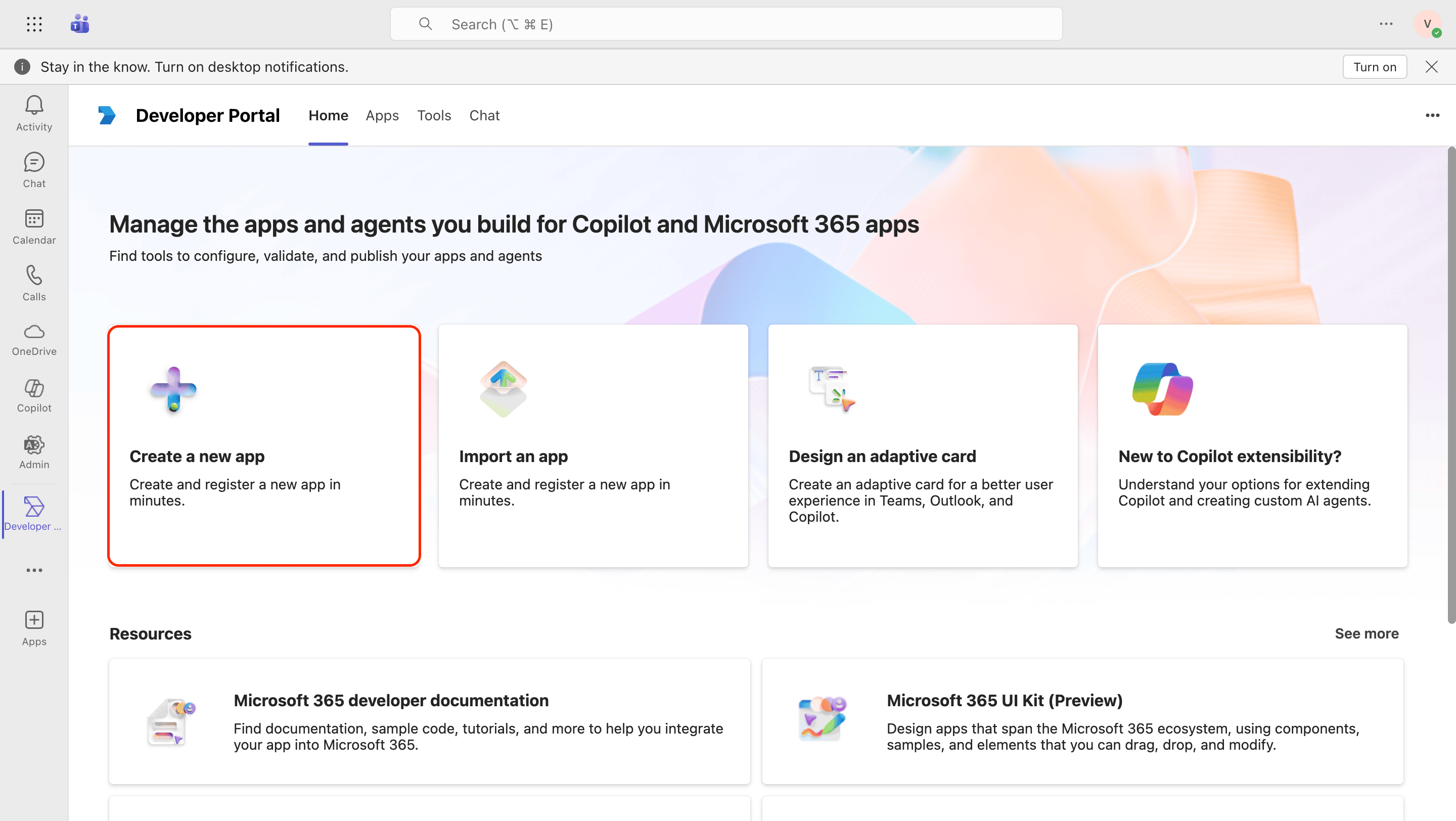 Enter a name of your choice and click **Create**.
In the left sidebar, click **Basic information**.
Fill in the required fields (names, descriptions, developer info, URLs) and then click **Save**.
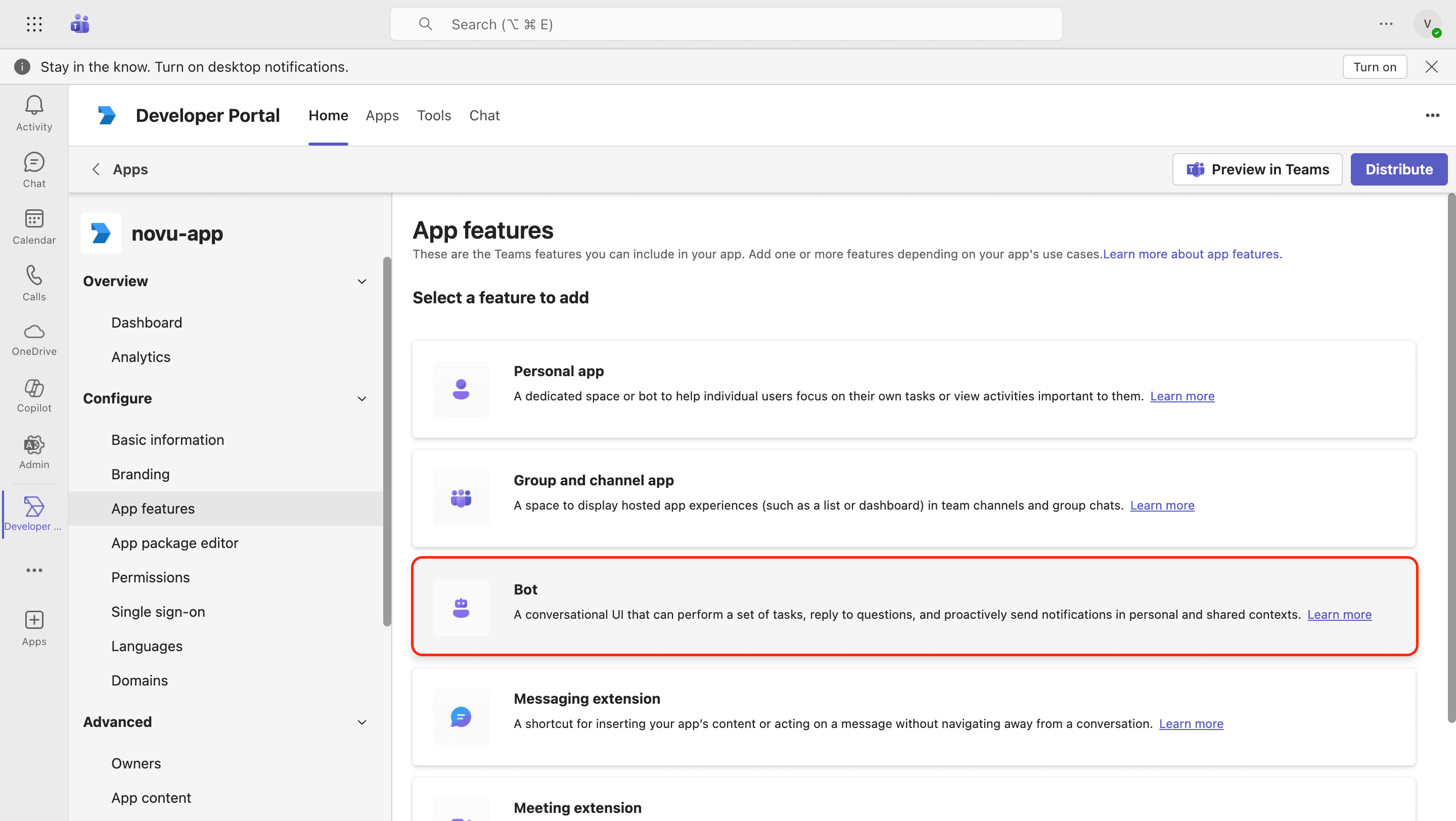
In the sidebar, click **App features**.
Select **Bot**.
Enter a name of your choice and click **Create**.
In the left sidebar, click **Basic information**.
Fill in the required fields (names, descriptions, developer info, URLs) and then click **Save**.
In the sidebar, click **App features**.
Select **Bot**.
 Under **Identify your bot**, select **Enter a bot ID** and then paste your Application (client) ID from Microsoft Azure.
In the **What can your bot do?** section, select "Only send notification" (at minimum).
Under **Select the scopes where people can use your bot**, enable the scopes based on your use case:
* **Team**
* **Personal**
* **Group chat**
If you enabled the **Team** scope, add the `supportsChannelFeatures` property to your app manifest. Without it, uploading or installing the app fails with:
> Applications with manifest version 1.25 or higher that support the 'team' scope must include the 'supportsChannelFeatures' property.
In the Developer Portal, go to **Configure** → **App package editor** → **manifest.json**, and add `"supportsChannelFeatures": "tier1"` at the root level of the manifest. `tier1` is the only supported value.
```json theme={null}
{
"$schema": "https://developer.microsoft.com/en-us/json-schemas/teams/v1.25/MicrosoftTeams.schema.json",
"manifestVersion": "1.25",
"bots": [
{
"botId": "YOUR_BOT_APP_ID",
"scopes": ["team", "groupChat", "personal"],
"isNotificationOnly": true,
"supportsCalling": false,
"supportsVideo": false,
"supportsFiles": false
}
],
"supportsChannelFeatures": "tier1"
}
```
Click **Save**.
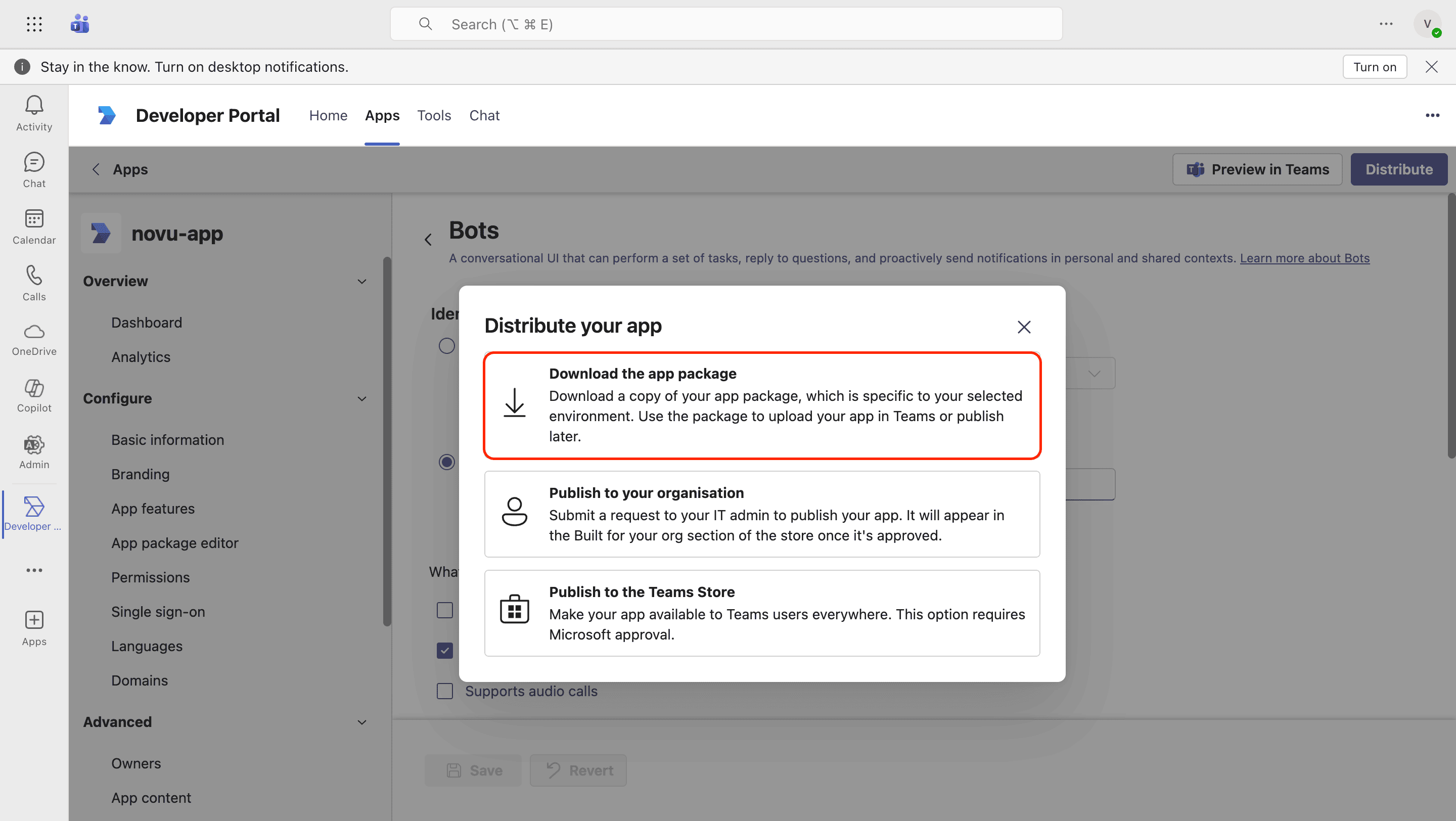
In the top right, click **Distribute** and then click **Download the app package**. This will save a copy of the app package to your computer in ZIP format.
Under **Identify your bot**, select **Enter a bot ID** and then paste your Application (client) ID from Microsoft Azure.
In the **What can your bot do?** section, select "Only send notification" (at minimum).
Under **Select the scopes where people can use your bot**, enable the scopes based on your use case:
* **Team**
* **Personal**
* **Group chat**
If you enabled the **Team** scope, add the `supportsChannelFeatures` property to your app manifest. Without it, uploading or installing the app fails with:
> Applications with manifest version 1.25 or higher that support the 'team' scope must include the 'supportsChannelFeatures' property.
In the Developer Portal, go to **Configure** → **App package editor** → **manifest.json**, and add `"supportsChannelFeatures": "tier1"` at the root level of the manifest. `tier1` is the only supported value.
```json theme={null}
{
"$schema": "https://developer.microsoft.com/en-us/json-schemas/teams/v1.25/MicrosoftTeams.schema.json",
"manifestVersion": "1.25",
"bots": [
{
"botId": "YOUR_BOT_APP_ID",
"scopes": ["team", "groupChat", "personal"],
"isNotificationOnly": true,
"supportsCalling": false,
"supportsVideo": false,
"supportsFiles": false
}
],
"supportsChannelFeatures": "tier1"
}
```
Click **Save**.
In the top right, click **Distribute** and then click **Download the app package**. This will save a copy of the app package to your computer in ZIP format.
 ### Upload your app
Next, you must install the app into a specific Team or for a specific User.
Follow the steps in the [Microsoft Teams documentation](https://learn.microsoft.com/en-us/microsoftteams/platform/concepts/deploy-and-publish/apps-upload#upload-your-app) to learn how to upload the just downloaded app package and also how to add the app to a specific location.
## Configure the Teams (Bot) integration in Novu
Now that you’ve configured your Azure Bot, provide Novu with the credentials to integrate it.
Log in to the Novu dashboard.
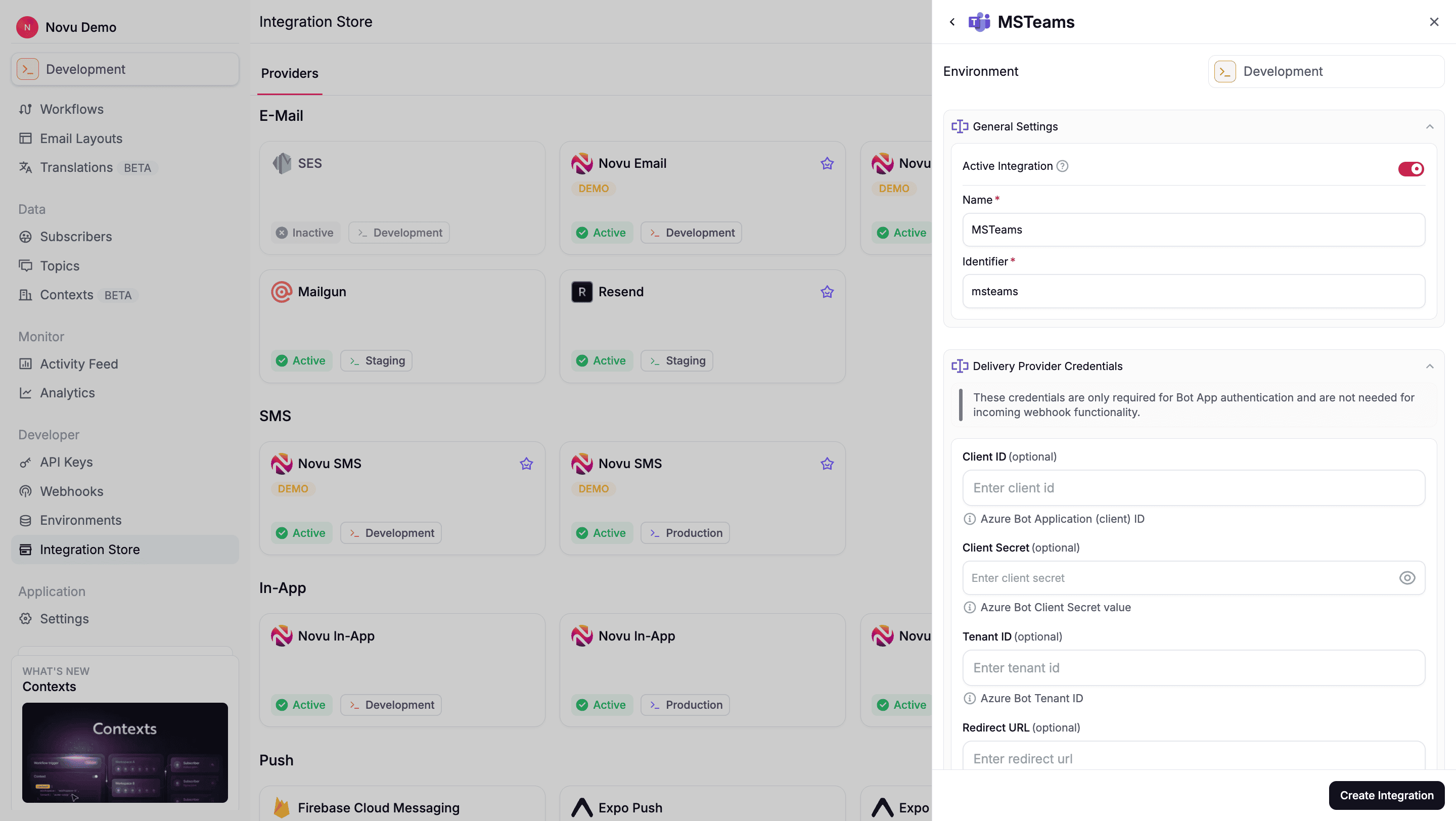
In the sidebar, click Integrations Store.
Click **Connect Provider**.
Select **Chat** and click **MSTeams**.
Enter the credentials you saved from the Azure Portal:
* **Client ID**: Enter your `BOT_APP_ID`.
* **Client Secret**: Enter your `BOT_APP_SECRET`.
* **App Tenant ID**: Enter your `APP_TENANT_ID`. This value identifies the tenant where you registered the app.
* **Redirect URL** (Optional): Where the **tenant administrator** is sent in **your application** after Novu processes the OAuth callback. This is not the Azure redirect URI — see [Add Novu's redirect URI](#add-novus-redirect-uri).
### Upload your app
Next, you must install the app into a specific Team or for a specific User.
Follow the steps in the [Microsoft Teams documentation](https://learn.microsoft.com/en-us/microsoftteams/platform/concepts/deploy-and-publish/apps-upload#upload-your-app) to learn how to upload the just downloaded app package and also how to add the app to a specific location.
## Configure the Teams (Bot) integration in Novu
Now that you’ve configured your Azure Bot, provide Novu with the credentials to integrate it.
Log in to the Novu dashboard.
In the sidebar, click Integrations Store.
Click **Connect Provider**.
Select **Chat** and click **MSTeams**.
Enter the credentials you saved from the Azure Portal:
* **Client ID**: Enter your `BOT_APP_ID`.
* **Client Secret**: Enter your `BOT_APP_SECRET`.
* **App Tenant ID**: Enter your `APP_TENANT_ID`. This value identifies the tenant where you registered the app.
* **Redirect URL** (Optional): Where the **tenant administrator** is sent in **your application** after Novu processes the OAuth callback. This is not the Azure redirect URI — see [Add Novu's redirect URI](#add-novus-redirect-uri).
 Click **Create Integration**.
From now on, Novu can send messages as your bot once an organization's tenant is connected and the app is installed in Teams.
**Try the Microsoft Teams integration with a demo app**
If you’ve completed the previous steps, you can test your bot configuration end to end with this [demo app](https://github.com/novuhq/ms-teams-example).
## Let organizations connect their Microsoft 365 tenant
Each organization you notify has its own Microsoft 365 tenant. Before you can send Teams messages on their behalf, a **tenant administrator** from that organization must grant your app a one-time **admin consent**. This authorizes your bot in their tenant using **application permissions** (app-only / client credentials).
**Tenant connect and user linking are separate steps.** Admin consent connects the organization's Microsoft 365 tenant. Linking a Novu **subscriber** for direct messages is a separate OAuth flow — see [Link a subscriber for direct messages](#link-a-subscriber-for-direct-messages).
### Generate a Connect Teams URL
Call this from **your backend** when someone starts the connect flow in your product (for example, when a tenant administrator clicks **Connect Microsoft Teams**).
The generated OAuth URL is valid for only 5 minutes. Do not cache it — generate a new URL each time someone starts connect.
```tsx theme={null}
import { Novu } from '@novu/api';
const novu = new Novu({ secretKey: "", });
const response = await novu.integrations.generateConnectOAuthUrl({
integrationIdentifier: 'ms-teams-bot',
context: { tenant: 'acme-corp' }, // or subscriberId — at least one is required
autoLinkUser: false, // required for tenant-only admin consent (see note below)
});
// response.url is the Microsoft admin consent URL
```
Call `POST /v1/integrations/channel-connections/oauth` with the same body if you are not using the TypeScript SDK. Authenticate with your Novu **secret key**.
Novu returns a URL pointing to Microsoft's administrator consent endpoint (`login.microsoftonline.com/organizations/v2.0/adminconsent`). It includes your Client ID, redirect URI, and the `https://graph.microsoft.com/.default` scope.
Provide either `subscriberId` or `context` to scope the channel connection in Novu. If you pass `subscriberId`, that subscriber must already exist in your Novu environment.
For tenant-wide admin consent, prefer `context` and set **`autoLinkUser: false`** (or omit `autoLinkUser` — the API treats omitted as `false`). Only when `autoLinkUser` is explicitly `true` **and** `subscriberId` is set does Novu chain a second OAuth flow after admin consent to link that subscriber for DMs.
**`@novu/react` `MsTeamsConnectButton`** defaults `autoLinkUser` to `true` in subscriber mode. That is intended for in-app end-user connect flows. For server-side tenant admin consent (Java, REST, or `@novu/api`), pass `autoLinkUser: false` explicitly.
### Show it in your UI
Open the URL in a new tab or window when the tenant administrator is ready to consent:
```tsx theme={null}
window.open(response.url, '_blank');
```
### What the tenant administrator does
The tenant administrator is someone at the **connecting organization** (not a Novu dashboard user). They grant consent in Microsoft — they do not need a Novu account.
The tenant administrator signs in to your application.
They click **Connect Microsoft Teams**. Your backend generates a fresh OAuth URL and opens it.
Microsoft shows a consent page listing the application permissions.
They click **Accept**.
Microsoft redirects to Novu with `admin_consent=True` and the organization's `tenant` ID. Novu stores the tenant on a channel connection and the flow is complete. You do not handle the callback yourself.
If you set an optional **Redirect URL** on the MS Teams integration in the Novu dashboard, the administrator is sent there after success; otherwise the consent window shows a success message and can be closed.
### Install the app in Teams
Admin consent only authorizes your bot in the organization's tenant. It does not add the bot to a specific team or chat.
For the bot to send messages, someone must install the app where notifications should appear:
* **For channel messages**: Install the app in the specific Team.
* **For direct messages**: Install the app for the specific user in their personal scope.
The tenant administrator can install your app from the Teams app store or their org catalog, depending on how you published. If you requested the `TeamsAppInstallation.ReadWriteSelfForTeam.All` permission, your backend can programmatically install the app into a specific Team using the Microsoft Graph API.
## Tell Novu where to send the messages
Decide where notifications should land in Teams, collect the required IDs, and register them as channel endpoints in Novu.
You can choose between two destination types:
* **Channels**: Send a message to a specific channel within a Team.
* **Users**: Send a direct message to a specific user.
### Sending message to channels
To send a notification to a specific channel, you must discover the Team ID and Channel ID from Microsoft, and then register them in Novu.
#### Find the Team and Channel IDs (Microsoft Graph)
You can discover these IDs using the Microsoft Graph API. This requires an App-Only Token (Client credentials) scoped to the customer's tenant.
Get a Graph access token:
```bash theme={null}
POST https://login.microsoftonline.com/{SUBSCRIBER_TENANT_ID}/oauth2/v2.0/token
Content-Type: application/x-www-form-urlencoded
client_id={BOT_APP_ID}
&client_secret={BOT_APP_SECRET}
&scope=https%3A%2F%2Fgraph.microsoft.com%2F.default
&grant_type=client_credentials
```
The `SUBSCRIBER_TENANT_ID` represents the customer's tenant ID, which Novu stored on the `ChannelConnection` object after completing the Admin Consent flow.
```bash theme={null}
GET /v1/channel-connections
{
"identifier": "chconn-eeybt4",
"integrationIdentifier": "msteams",
"providerId": "msteams",
"channel": "chat",
"subscriberId": "689c4a87c5bdaa96aaef0cfd",
"workspace": {
"id": "e6633b86-ef94-4416-863f-f0f409700ca0" // the customer's tenant workspace ID
},
"auth": {
"accessToken": "app-only"
},
}
```
List Teams:
```bash theme={null}
GET https://graph.microsoft.com/v1.0/teams
Authorization: Bearer {ACCESS_TOKEN}
```
List channels in a Team:
```bash theme={null}
GET https://graph.microsoft.com/v1.0/teams/{TEAM_ID}/channels
Authorization: Bearer {ACCESS_TOKEN}
```
#### Register the channel endpoint (Novu)
Once you have the IDs, create an `ms_teams_channel` endpoint in Novu. This maps a subscriber to that specific channel.
```bash theme={null}
POST /v1/channel-endpoints
Authorization: ApiKey {CUSTOMER_API_KEY}
Content-Type: application/json
{
"identifier": "msteams-main-notifications",
"integrationIdentifier": "ms-teams-bot-1",
"providerId": "msteams",
"channel": "chat",
"subscriberId": "workspace_abc",
"connectionIdentifier": "msteams-tenant-subscriberX",
"type": "ms_teams_channel",
"endpoint": {
"teamId": "TEAM_ID",
"channelId": "CHANNEL_ID"
},
}
```
Novu stores this as `ChannelEndpoint<'ms_teams_channel'>`. You can later target it from workflows via `subscriberId` + `context`.
### Send a direct message to a user
To send a direct message (DM), register an `ms_teams_user` channel endpoint for the subscriber. You can do this with OAuth or by supplying the Teams user ID manually.
#### Link a subscriber for direct messages
Prerequisites:
* Admin consent has already connected the organization's tenant (see above).
* The subscriber exists in Novu.
* Application permission `TeamsAppInstallation.ReadWriteSelfForUser.All` and delegated `User.Read` are configured in Azure (see [Add Microsoft Graph app permissions](#add-microsoft-graph-app-permissions)).
Run a **separate** OAuth flow — do not set `autoLinkUser: true` on `generateConnectOAuthUrl`. Use `generateLinkUserOAuthUrl` instead:
```tsx theme={null}
const response = await novu.integrations.generateLinkUserOAuthUrl({
integrationIdentifier: 'ms-teams-bot',
subscriberId: 'user_123', // must already exist in Novu
connectionIdentifier: 'msteams-tenant-acme', // recommended — the connection created by admin consent
});
```
Call `POST /v1/integrations/channel-endpoints/oauth` with the same body when using the REST API.
This opens a Microsoft sign-in flow with delegated scopes (`openid`, `profile`, `User.Read`). Novu reads the user's identity from the token, installs the bot for that user when possible, and creates an `ms_teams_user` channel endpoint.
The generated OAuth URL expires after 5 minutes. Generate it when the subscriber is ready to sign in.
#### Find the user ID manually (Bot framework)
Alternatively, discover the Teams user ID yourself and register the endpoint without OAuth.
Use the [Bot framework API](https://learn.microsoft.com/en-us/azure/bot-service/rest-api/bot-framework-rest-overview?view=azure-bot-service-4.0) to inspect the roster of the Team where you installed the bot.
Install the bot in at least one Team that includes the target user.
Get a Bot Framework token:
```bash theme={null}
POST https://login.microsoftonline.com/botframework.com/oauth2/v2.0/token
Content-Type: application/x-www-form-urlencoded
grant_type=client_credentials&
client_id={BOT_APP_ID}&
client_secret={BOT_APP_SECRET}&
scope=https%3A%2F%2Fapi.botframework.com%2F.default
```
Call the roster API for that Team, using the Team’s `19:...@thread.tacv2` id as `{TEAM_CONVERSATION_ID}`:
```bash theme={null}
GET https://smba.trafficmanager.net/teams/v3/conversations/{TEAM_CONVERSATION_ID}/members
Authorization: Bearer {BOT_ACCESS_TOKEN}
```
From the returned members, take the member’s `id`; this value represents the Teams user ID (`29:...`) you’ll use as `userId`.
#### Register the user endpoint (Novu)
Once you have the IDs, create the endpoint in Novu using the `ms_teams_user` type.
```bash theme={null}
POST /v1/channel-endpoints
Authorization: ApiKey {CUSTOMER_API_KEY}
Content-Type: application/json
{
"identifier": "msteams-user-alice",
"integrationIdentifier": "ms-teams-bot-1",
"providerId": "msteams",
"channel": "chat",
"subscriberId": "user_123",
"connectionIdentifier": "msteams-tenant-subscriberX",
"type": "ms_teams_user",
"endpoint": {
"userId": "29:1GcS4EyB_oSI8A88XmWB..."
},
"contextKeys": []
}
```
Novu stores this as `ChannelEndpoint<'ms_teams_user'>`. From here, any workflow that resolves to this endpoint can send a DM from your bot to that user.
## Workflows for Teams (Webhook-style)
If you don't need a full Bot identity or Direct Message capabilities, then you can support a simplified, channel-only integration using Workflows for Microsoft Teams.
This approach relies on a unique Webhook URL generated by the Teams client. It requires no Azure app registration and no administrator consent.
### User generates the webhook URL (Teams client)
The setup begins inside the Microsoft Teams app. Instruct your users to follow these steps:
In Microsoft Teams, go to **Apps** in the sidebar.
Search for and open **Workflows**.
Click **Create new flow**, either from blank or template.
Choose a trigger, such as “When a Teams webhook request is received”.
Add an action to post a message into a specific channel.
Save the workflow.
Once created, the workflow generates a unique URL. The user must copy this URL.
### Register the webhook endpoint (Novu)
Unlike the Bot integration, you don't use `ms_teams_channel` here. Instead, you treat this as a generic webhook endpoint. Your app should provide a form where the user can paste the URL they generated in the previous step.
```bash theme={null}
await novu.channelEndpoints.create({
type: 'webhook',
identifier: 'teams-workflow-alerts',
integrationIdentifier: 'ms-teams-workflow',
subscriberId: 'customer-account-id',
context: { tenant: 'acme' },
endpoint: {
url: 'https://prod-00.westeurope.logic.azure.com:443/workflows/...' // workflow URL
},
});
```
### Sending the notification
When you trigger a workflow that targets this subscriber:
Novu sends a standard HTTP POST payload to the Teams Workflow URL.
Workflows for Teams receives the payload.
The Workflow runs and posts the message content into the configured channel.
## Using Microsoft Teams with agents
Microsoft Teams is a supported [agent provider](/agents/get-started/agents-and-providers). Connect your Teams bot to an agent so users can message the bot and get replies in the same chat — without building Bot Framework webhook handling yourself.
Learn how Novu agents work, including managed and custom code agents.
### What you get
When Teams is connected to an agent:
* Users message your bot in Teams and your agent responds in the same chat
* Conversations appear in the dashboard under **Agent Conversations**
* Supported content includes text, markdown, files, and interactive cards
See [agent conversations](/agents/conversations#supported-platforms) for capabilities across all providers.
### Agent conversations vs. workflow notifications
| Use case | What happens |
| ------------------------- | ------------------------------------------------------------------------------------------------------------------------ |
| **Agent conversation** | The user messages your bot and your agent replies in the same Teams chat. |
| **Workflow notification** | You trigger a workflow with a Chat step and Novu sends a one-way message via your Teams integration or workflow webhook. |
## Related
Connect Teams and other providers to an agent.
Click **Create Integration**.
From now on, Novu can send messages as your bot once an organization's tenant is connected and the app is installed in Teams.
**Try the Microsoft Teams integration with a demo app**
If you’ve completed the previous steps, you can test your bot configuration end to end with this [demo app](https://github.com/novuhq/ms-teams-example).
## Let organizations connect their Microsoft 365 tenant
Each organization you notify has its own Microsoft 365 tenant. Before you can send Teams messages on their behalf, a **tenant administrator** from that organization must grant your app a one-time **admin consent**. This authorizes your bot in their tenant using **application permissions** (app-only / client credentials).
**Tenant connect and user linking are separate steps.** Admin consent connects the organization's Microsoft 365 tenant. Linking a Novu **subscriber** for direct messages is a separate OAuth flow — see [Link a subscriber for direct messages](#link-a-subscriber-for-direct-messages).
### Generate a Connect Teams URL
Call this from **your backend** when someone starts the connect flow in your product (for example, when a tenant administrator clicks **Connect Microsoft Teams**).
The generated OAuth URL is valid for only 5 minutes. Do not cache it — generate a new URL each time someone starts connect.
```tsx theme={null}
import { Novu } from '@novu/api';
const novu = new Novu({ secretKey: "", });
const response = await novu.integrations.generateConnectOAuthUrl({
integrationIdentifier: 'ms-teams-bot',
context: { tenant: 'acme-corp' }, // or subscriberId — at least one is required
autoLinkUser: false, // required for tenant-only admin consent (see note below)
});
// response.url is the Microsoft admin consent URL
```
Call `POST /v1/integrations/channel-connections/oauth` with the same body if you are not using the TypeScript SDK. Authenticate with your Novu **secret key**.
Novu returns a URL pointing to Microsoft's administrator consent endpoint (`login.microsoftonline.com/organizations/v2.0/adminconsent`). It includes your Client ID, redirect URI, and the `https://graph.microsoft.com/.default` scope.
Provide either `subscriberId` or `context` to scope the channel connection in Novu. If you pass `subscriberId`, that subscriber must already exist in your Novu environment.
For tenant-wide admin consent, prefer `context` and set **`autoLinkUser: false`** (or omit `autoLinkUser` — the API treats omitted as `false`). Only when `autoLinkUser` is explicitly `true` **and** `subscriberId` is set does Novu chain a second OAuth flow after admin consent to link that subscriber for DMs.
**`@novu/react` `MsTeamsConnectButton`** defaults `autoLinkUser` to `true` in subscriber mode. That is intended for in-app end-user connect flows. For server-side tenant admin consent (Java, REST, or `@novu/api`), pass `autoLinkUser: false` explicitly.
### Show it in your UI
Open the URL in a new tab or window when the tenant administrator is ready to consent:
```tsx theme={null}
window.open(response.url, '_blank');
```
### What the tenant administrator does
The tenant administrator is someone at the **connecting organization** (not a Novu dashboard user). They grant consent in Microsoft — they do not need a Novu account.
The tenant administrator signs in to your application.
They click **Connect Microsoft Teams**. Your backend generates a fresh OAuth URL and opens it.
Microsoft shows a consent page listing the application permissions.
They click **Accept**.
Microsoft redirects to Novu with `admin_consent=True` and the organization's `tenant` ID. Novu stores the tenant on a channel connection and the flow is complete. You do not handle the callback yourself.
If you set an optional **Redirect URL** on the MS Teams integration in the Novu dashboard, the administrator is sent there after success; otherwise the consent window shows a success message and can be closed.
### Install the app in Teams
Admin consent only authorizes your bot in the organization's tenant. It does not add the bot to a specific team or chat.
For the bot to send messages, someone must install the app where notifications should appear:
* **For channel messages**: Install the app in the specific Team.
* **For direct messages**: Install the app for the specific user in their personal scope.
The tenant administrator can install your app from the Teams app store or their org catalog, depending on how you published. If you requested the `TeamsAppInstallation.ReadWriteSelfForTeam.All` permission, your backend can programmatically install the app into a specific Team using the Microsoft Graph API.
## Tell Novu where to send the messages
Decide where notifications should land in Teams, collect the required IDs, and register them as channel endpoints in Novu.
You can choose between two destination types:
* **Channels**: Send a message to a specific channel within a Team.
* **Users**: Send a direct message to a specific user.
### Sending message to channels
To send a notification to a specific channel, you must discover the Team ID and Channel ID from Microsoft, and then register them in Novu.
#### Find the Team and Channel IDs (Microsoft Graph)
You can discover these IDs using the Microsoft Graph API. This requires an App-Only Token (Client credentials) scoped to the customer's tenant.
Get a Graph access token:
```bash theme={null}
POST https://login.microsoftonline.com/{SUBSCRIBER_TENANT_ID}/oauth2/v2.0/token
Content-Type: application/x-www-form-urlencoded
client_id={BOT_APP_ID}
&client_secret={BOT_APP_SECRET}
&scope=https%3A%2F%2Fgraph.microsoft.com%2F.default
&grant_type=client_credentials
```
The `SUBSCRIBER_TENANT_ID` represents the customer's tenant ID, which Novu stored on the `ChannelConnection` object after completing the Admin Consent flow.
```bash theme={null}
GET /v1/channel-connections
{
"identifier": "chconn-eeybt4",
"integrationIdentifier": "msteams",
"providerId": "msteams",
"channel": "chat",
"subscriberId": "689c4a87c5bdaa96aaef0cfd",
"workspace": {
"id": "e6633b86-ef94-4416-863f-f0f409700ca0" // the customer's tenant workspace ID
},
"auth": {
"accessToken": "app-only"
},
}
```
List Teams:
```bash theme={null}
GET https://graph.microsoft.com/v1.0/teams
Authorization: Bearer {ACCESS_TOKEN}
```
List channels in a Team:
```bash theme={null}
GET https://graph.microsoft.com/v1.0/teams/{TEAM_ID}/channels
Authorization: Bearer {ACCESS_TOKEN}
```
#### Register the channel endpoint (Novu)
Once you have the IDs, create an `ms_teams_channel` endpoint in Novu. This maps a subscriber to that specific channel.
```bash theme={null}
POST /v1/channel-endpoints
Authorization: ApiKey {CUSTOMER_API_KEY}
Content-Type: application/json
{
"identifier": "msteams-main-notifications",
"integrationIdentifier": "ms-teams-bot-1",
"providerId": "msteams",
"channel": "chat",
"subscriberId": "workspace_abc",
"connectionIdentifier": "msteams-tenant-subscriberX",
"type": "ms_teams_channel",
"endpoint": {
"teamId": "TEAM_ID",
"channelId": "CHANNEL_ID"
},
}
```
Novu stores this as `ChannelEndpoint<'ms_teams_channel'>`. You can later target it from workflows via `subscriberId` + `context`.
### Send a direct message to a user
To send a direct message (DM), register an `ms_teams_user` channel endpoint for the subscriber. You can do this with OAuth or by supplying the Teams user ID manually.
#### Link a subscriber for direct messages
Prerequisites:
* Admin consent has already connected the organization's tenant (see above).
* The subscriber exists in Novu.
* Application permission `TeamsAppInstallation.ReadWriteSelfForUser.All` and delegated `User.Read` are configured in Azure (see [Add Microsoft Graph app permissions](#add-microsoft-graph-app-permissions)).
Run a **separate** OAuth flow — do not set `autoLinkUser: true` on `generateConnectOAuthUrl`. Use `generateLinkUserOAuthUrl` instead:
```tsx theme={null}
const response = await novu.integrations.generateLinkUserOAuthUrl({
integrationIdentifier: 'ms-teams-bot',
subscriberId: 'user_123', // must already exist in Novu
connectionIdentifier: 'msteams-tenant-acme', // recommended — the connection created by admin consent
});
```
Call `POST /v1/integrations/channel-endpoints/oauth` with the same body when using the REST API.
This opens a Microsoft sign-in flow with delegated scopes (`openid`, `profile`, `User.Read`). Novu reads the user's identity from the token, installs the bot for that user when possible, and creates an `ms_teams_user` channel endpoint.
The generated OAuth URL expires after 5 minutes. Generate it when the subscriber is ready to sign in.
#### Find the user ID manually (Bot framework)
Alternatively, discover the Teams user ID yourself and register the endpoint without OAuth.
Use the [Bot framework API](https://learn.microsoft.com/en-us/azure/bot-service/rest-api/bot-framework-rest-overview?view=azure-bot-service-4.0) to inspect the roster of the Team where you installed the bot.
Install the bot in at least one Team that includes the target user.
Get a Bot Framework token:
```bash theme={null}
POST https://login.microsoftonline.com/botframework.com/oauth2/v2.0/token
Content-Type: application/x-www-form-urlencoded
grant_type=client_credentials&
client_id={BOT_APP_ID}&
client_secret={BOT_APP_SECRET}&
scope=https%3A%2F%2Fapi.botframework.com%2F.default
```
Call the roster API for that Team, using the Team’s `19:...@thread.tacv2` id as `{TEAM_CONVERSATION_ID}`:
```bash theme={null}
GET https://smba.trafficmanager.net/teams/v3/conversations/{TEAM_CONVERSATION_ID}/members
Authorization: Bearer {BOT_ACCESS_TOKEN}
```
From the returned members, take the member’s `id`; this value represents the Teams user ID (`29:...`) you’ll use as `userId`.
#### Register the user endpoint (Novu)
Once you have the IDs, create the endpoint in Novu using the `ms_teams_user` type.
```bash theme={null}
POST /v1/channel-endpoints
Authorization: ApiKey {CUSTOMER_API_KEY}
Content-Type: application/json
{
"identifier": "msteams-user-alice",
"integrationIdentifier": "ms-teams-bot-1",
"providerId": "msteams",
"channel": "chat",
"subscriberId": "user_123",
"connectionIdentifier": "msteams-tenant-subscriberX",
"type": "ms_teams_user",
"endpoint": {
"userId": "29:1GcS4EyB_oSI8A88XmWB..."
},
"contextKeys": []
}
```
Novu stores this as `ChannelEndpoint<'ms_teams_user'>`. From here, any workflow that resolves to this endpoint can send a DM from your bot to that user.
## Workflows for Teams (Webhook-style)
If you don't need a full Bot identity or Direct Message capabilities, then you can support a simplified, channel-only integration using Workflows for Microsoft Teams.
This approach relies on a unique Webhook URL generated by the Teams client. It requires no Azure app registration and no administrator consent.
### User generates the webhook URL (Teams client)
The setup begins inside the Microsoft Teams app. Instruct your users to follow these steps:
In Microsoft Teams, go to **Apps** in the sidebar.
Search for and open **Workflows**.
Click **Create new flow**, either from blank or template.
Choose a trigger, such as “When a Teams webhook request is received”.
Add an action to post a message into a specific channel.
Save the workflow.
Once created, the workflow generates a unique URL. The user must copy this URL.
### Register the webhook endpoint (Novu)
Unlike the Bot integration, you don't use `ms_teams_channel` here. Instead, you treat this as a generic webhook endpoint. Your app should provide a form where the user can paste the URL they generated in the previous step.
```bash theme={null}
await novu.channelEndpoints.create({
type: 'webhook',
identifier: 'teams-workflow-alerts',
integrationIdentifier: 'ms-teams-workflow',
subscriberId: 'customer-account-id',
context: { tenant: 'acme' },
endpoint: {
url: 'https://prod-00.westeurope.logic.azure.com:443/workflows/...' // workflow URL
},
});
```
### Sending the notification
When you trigger a workflow that targets this subscriber:
Novu sends a standard HTTP POST payload to the Teams Workflow URL.
Workflows for Teams receives the payload.
The Workflow runs and posts the message content into the configured channel.
## Using Microsoft Teams with agents
Microsoft Teams is a supported [agent provider](/agents/get-started/agents-and-providers). Connect your Teams bot to an agent so users can message the bot and get replies in the same chat — without building Bot Framework webhook handling yourself.
Learn how Novu agents work, including managed and custom code agents.
### What you get
When Teams is connected to an agent:
* Users message your bot in Teams and your agent responds in the same chat
* Conversations appear in the dashboard under **Agent Conversations**
* Supported content includes text, markdown, files, and interactive cards
See [agent conversations](/agents/conversations#supported-platforms) for capabilities across all providers.
### Agent conversations vs. workflow notifications
| Use case | What happens |
| ------------------------- | ------------------------------------------------------------------------------------------------------------------------ |
| **Agent conversation** | The user messages your bot and your agent replies in the same Teams chat. |
| **Workflow notification** | You trigger a workflow with a Chat step and Novu sends a one-way message via your Teams integration or workflow webhook. |
## Related
Connect Teams and other providers to an agent.