> ## Documentation Index
> Fetch the complete documentation index at: https://novu-c5de82d9-docs-homepage-redesign.mintlify.site/llms.txt
> Use this file to discover all available pages before exploring further.
# Slack Chat Integration with Novu
> Connect Slack to Novu to send chat notifications through notification workflows. Step-by-step credential setup.
This feature is currently in public beta, please contact us at [support@novu.co](mailto:support@novu.co) to enable it for your organization.
The Slack chat integration lets your application send notifications directly to your subscribers' Slack workspaces using their own Slack accounts and workspace permissions. With this integration, Novu can deliver messages to Slack channels, direct messages (DMs) to Slack users, and incoming webhooks. For incoming webhooks, Novu can use Slack's native channel picker during OAuth.
Novu handles the full lifecycle of Slack connections and message delivery. You define where notifications should be delivered, and Novu automatically routes each message to the correct Slack workspace, channel, or user.
This guide walks you through setting up Slack chat, connect workspaces, and deliver notifications to the exact Slack destinations your users expect it.
Check out the [agents](/agents) documentation for more information on how to build agents using Slack.
## Configure a Slack app
Before integrating Slack chat with Novu, you must create and configure a Slack app. The Slack app manages the OAuth permissions, bot token scopes, and redirect URLs needed for Novu to connect to your users' workspaces securely.
### Create a Slack app
First, you need to create a Slack app. This provides you with the credential you need to create a Slack integration in Novu.
Go to the [Slack API dashboard](https://api.slack.com/apps).
Click **Create an App**.
Select **From scratch**.
Enter an app name of your choice in the **App Name** field.
Pick a Slack workspace to develop your app in.
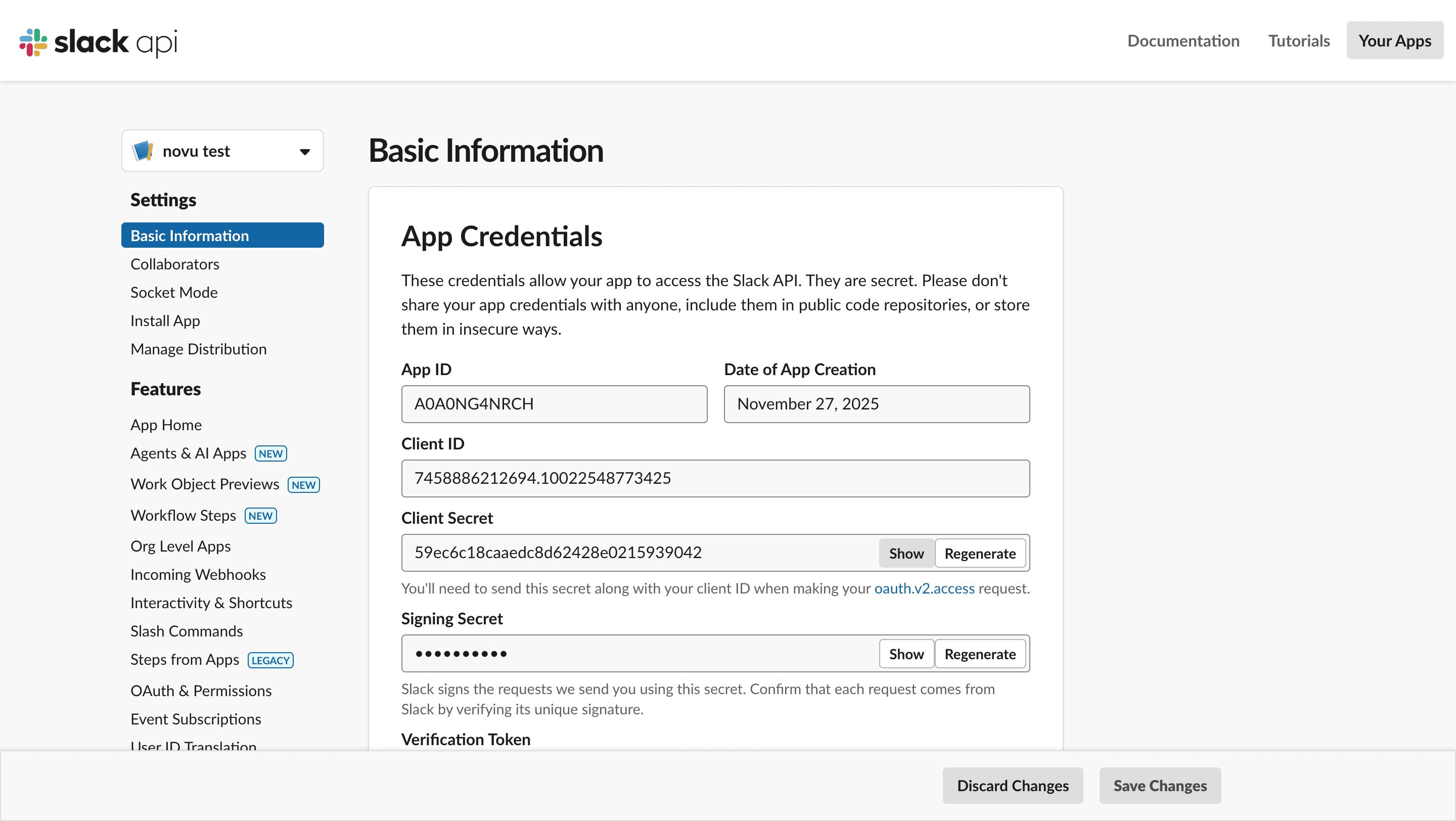
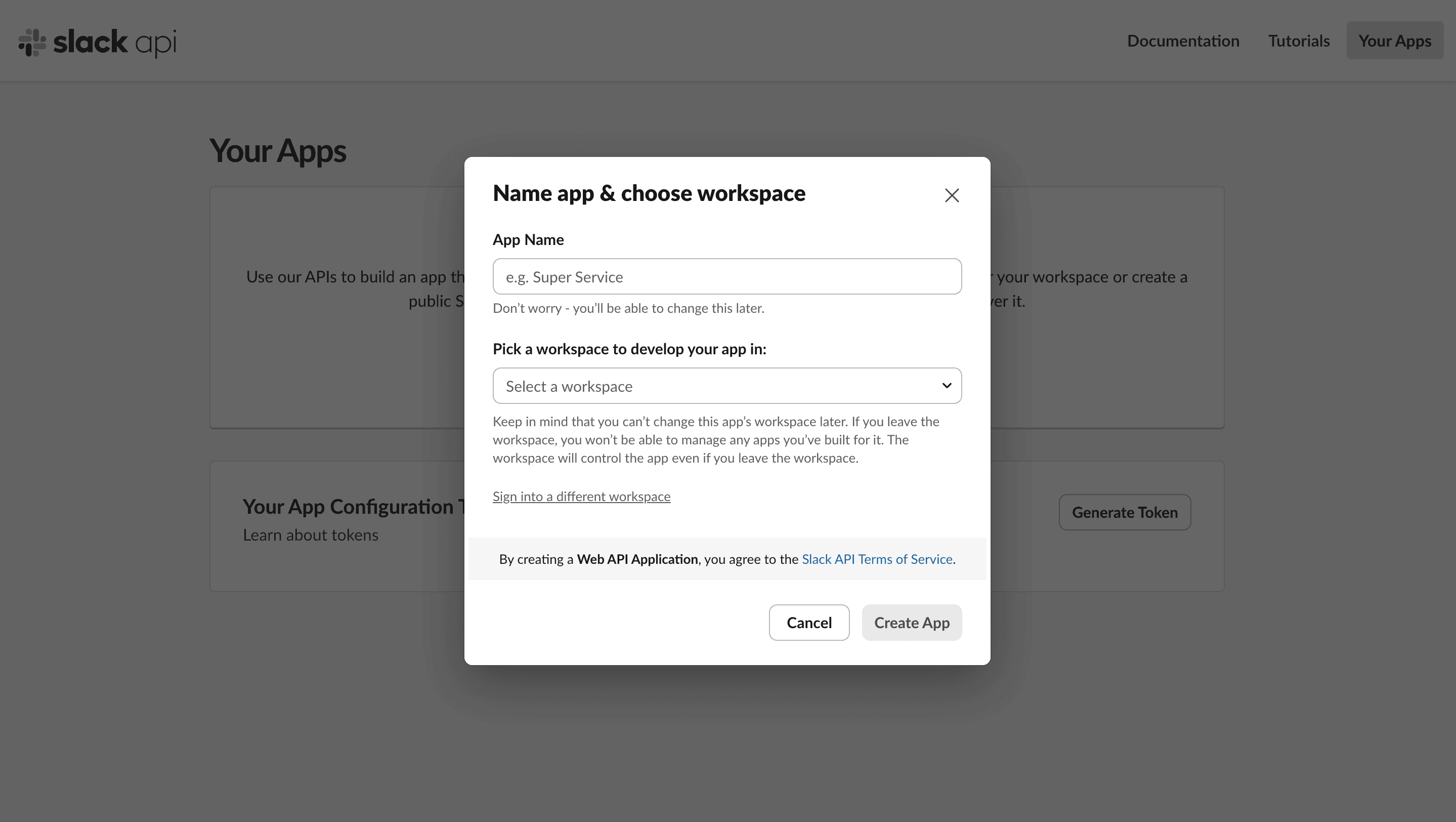 Click **Create App**. You'll be directed to the **Basic Application** for the Slack app which contains the credentials you need for configuring Slack chat inside Novu:
* App ID
* Client ID
* Client Secret
Click **Create App**. You'll be directed to the **Basic Application** for the Slack app which contains the credentials you need for configuring Slack chat inside Novu:
* App ID
* Client ID
* Client Secret
 ### Configure scopes (Permissions)
Your app needs permission to perform actions like sending messages or reading channel lists.
In the sidebar, select **OAuth & Permissions**.
Scroll down to the **Scopes** section.
Under Bot Token Scopes, click **Add an OAuth Scope**.
### Configure scopes (Permissions)
Your app needs permission to perform actions like sending messages or reading channel lists.
In the sidebar, select **OAuth & Permissions**.
Scroll down to the **Scopes** section.
Under Bot Token Scopes, click **Add an OAuth Scope**.
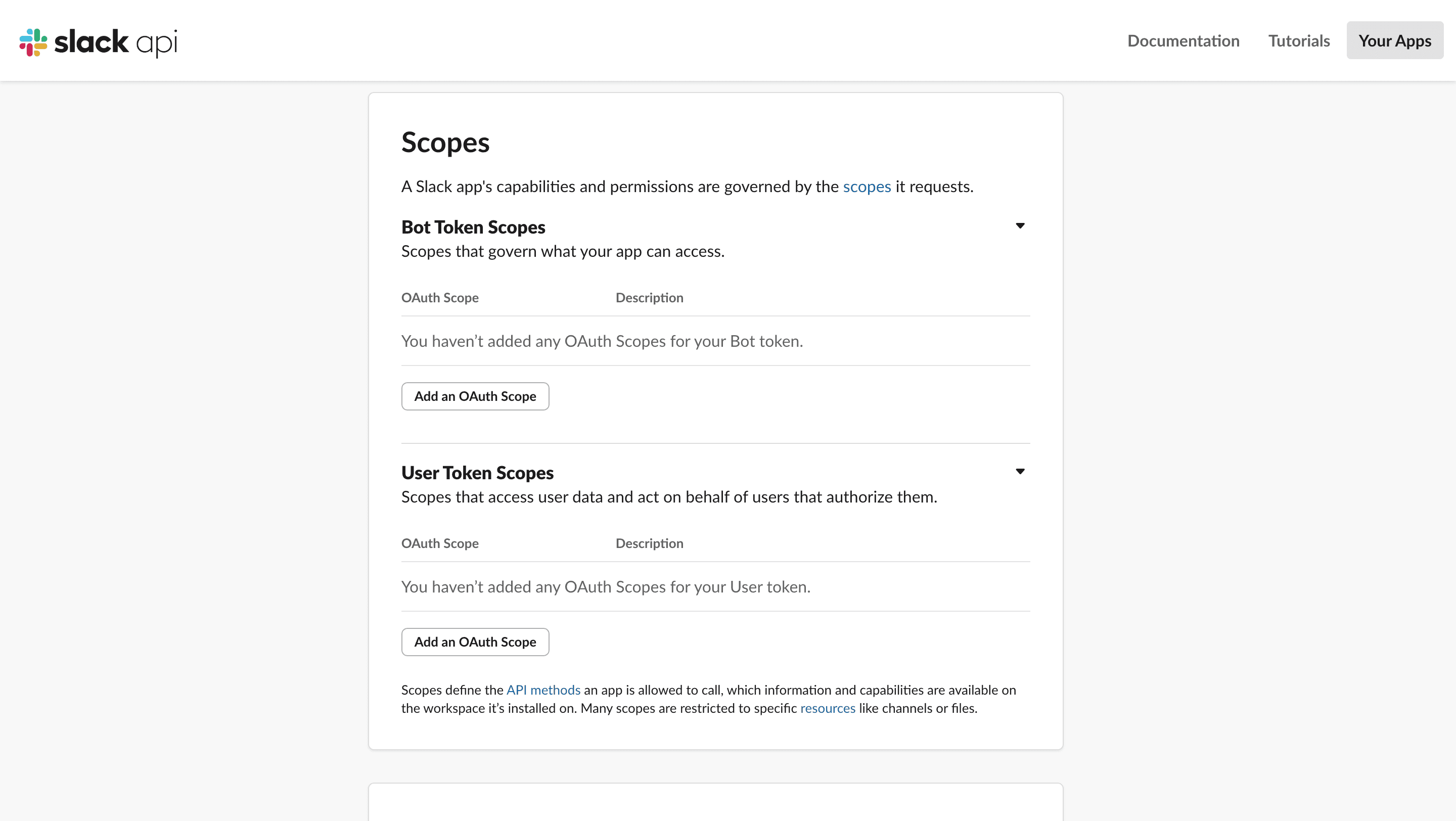 Add the following recommended scopes:
* `chat:write`
* `chat:write.public`
* `channels:read`
* `groups:read`
* `users:read`
* `users:read.email`
* (optional) `incoming-webhook` if you want Slack's built-in channel picker.
These scopes are required for Novu to send messages, read channels and read users (for DMs and pickers). If you remove some of them, then certain features like channel or user selection might not work.
### Set the redirect URL
This tells Slack where to send the user after they successfully authorize your app.
In the sidebar, select **OAuth & Permissions**.
Scroll down to the **Redirect URLs** section.
Click **Add New Redirect URL**.
Add the following recommended scopes:
* `chat:write`
* `chat:write.public`
* `channels:read`
* `groups:read`
* `users:read`
* `users:read.email`
* (optional) `incoming-webhook` if you want Slack's built-in channel picker.
These scopes are required for Novu to send messages, read channels and read users (for DMs and pickers). If you remove some of them, then certain features like channel or user selection might not work.
### Set the redirect URL
This tells Slack where to send the user after they successfully authorize your app.
In the sidebar, select **OAuth & Permissions**.
Scroll down to the **Redirect URLs** section.
Click **Add New Redirect URL**.
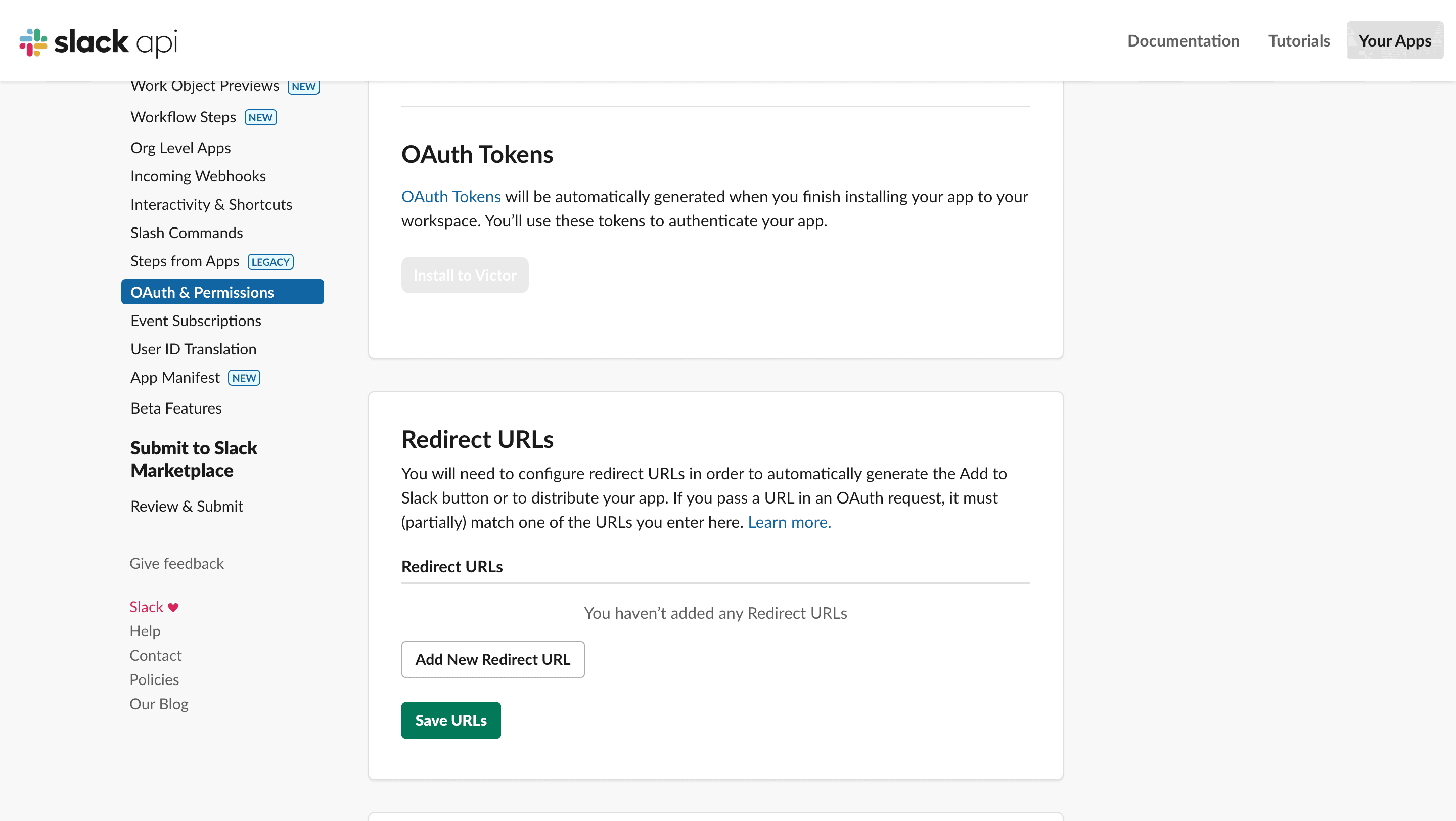 Paste the Novu OAuth callback URL. Add the redirect URL that matches your Novu region:
```bash title="US region" theme={null}
https://api.novu.co/v1/integrations/chat/oauth/callback
```
```bash title="EU region" theme={null}
https://api.eu.novu.co/v1/integrations/chat/oauth/callback
```
Click **Add** to save the URLs. If you use a self-hosted Novu instance, then add your instance's callback URL instead.
## Configure Slack integration in Novu
Once your Slack app is set up, the next step is to configure the Slack Chat integration inside Novu.
Log in to the Novu dashboard.
In the sidebar, click **Integrations Store**.
Click **Connect Provider**
Select **Chat** and click **Slack**.
Fill in the required fields using the credentials from your Slack app:
* **Application Id**: Paste your Slack app App ID.
* **Client ID**: Paste your Slack App Client ID.
* **Client Secret**: Paste your Slack App Client Secret.
* **Redirect URL (Optional)**: Enter the URL where you want users to be redirected to after they successfully connect their workspace. If there is no redirect URL, then Novu closes the tab immediately after the OAuth flow completes.
Paste the Novu OAuth callback URL. Add the redirect URL that matches your Novu region:
```bash title="US region" theme={null}
https://api.novu.co/v1/integrations/chat/oauth/callback
```
```bash title="EU region" theme={null}
https://api.eu.novu.co/v1/integrations/chat/oauth/callback
```
Click **Add** to save the URLs. If you use a self-hosted Novu instance, then add your instance's callback URL instead.
## Configure Slack integration in Novu
Once your Slack app is set up, the next step is to configure the Slack Chat integration inside Novu.
Log in to the Novu dashboard.
In the sidebar, click **Integrations Store**.
Click **Connect Provider**
Select **Chat** and click **Slack**.
Fill in the required fields using the credentials from your Slack app:
* **Application Id**: Paste your Slack app App ID.
* **Client ID**: Paste your Slack App Client ID.
* **Client Secret**: Paste your Slack App Client Secret.
* **Redirect URL (Optional)**: Enter the URL where you want users to be redirected to after they successfully connect their workspace. If there is no redirect URL, then Novu closes the tab immediately after the OAuth flow completes.
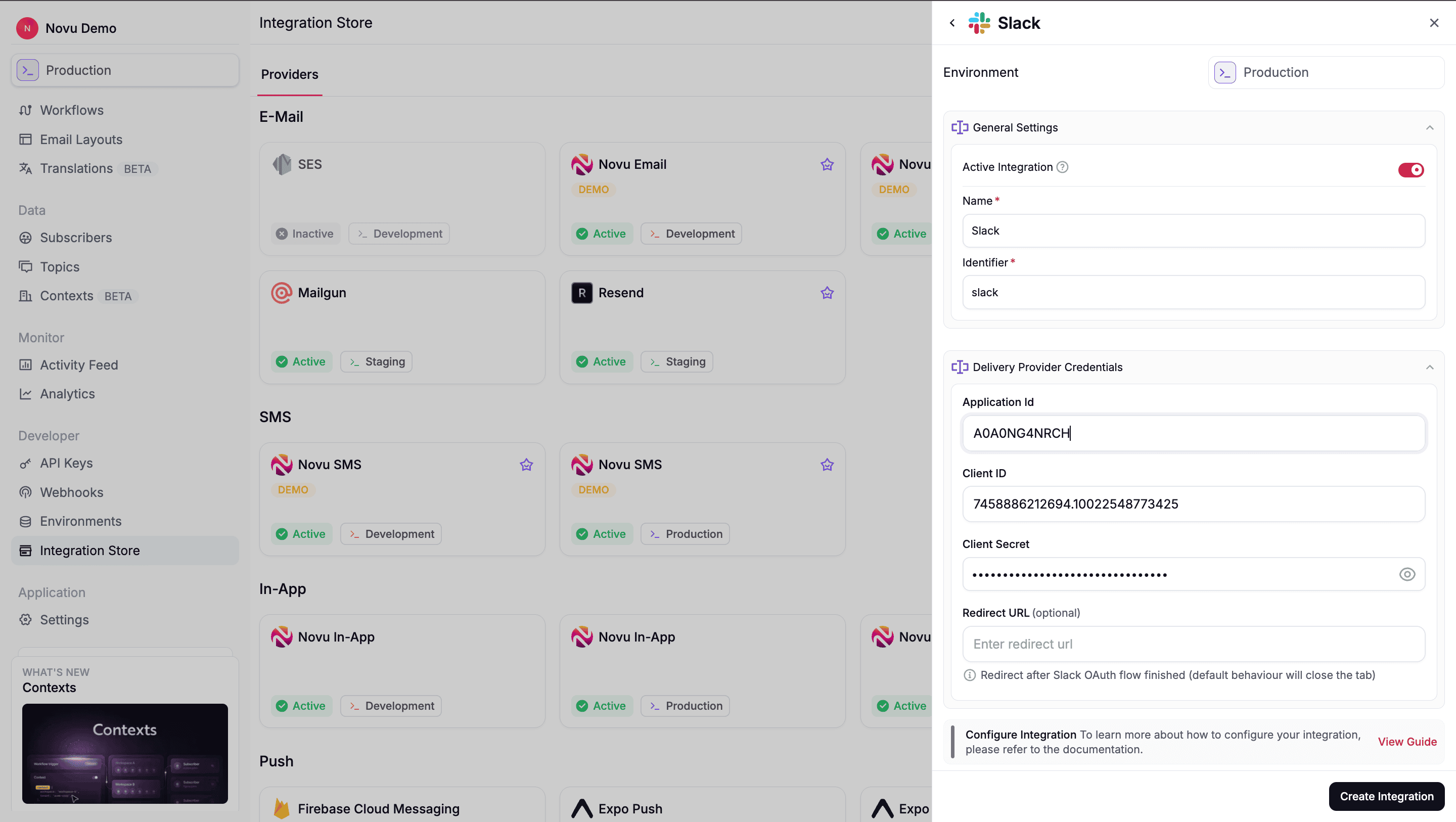 Click **Create Integration** to create the Slack integration. Once saved, Novu is able to:
* Generate OAuth (Connect Slack) URLs for your users
* Receive Slack's OAuth callback.
* Store workspace tokens as connections.
You are now ready to implement the frontend flow to let users connect their workspaces.
## Let users connect their Slack workspace
To send messages to Slack, your users must first authorize Novu to access one of their Slack workspaces. This authorization happens through Slack's OAuth flow, which Novu generates and manages for you.
### Generate the OAuth URL
When a user clicks **Connect Slack** in your application, your backend should request a unique authorization URL from Novu.
This URL is specific to the Subscriber or the Context (Tenant) it will be generated for.
The generated OAuth URL is valid for only 5 minutes. Do not cache this URL; generate it dynamically when the user initiates the flow.
```tsx theme={null}
import { Novu } from '@novu/api';
const novu = new Novu({ secretKey: "", });
// This function should be called by your API when the user requests to connect
async function getSlackUrl(user, orgId) {
const oauthUrl = await novu.integrations.generateChatOAuthUrl({
integrationIdentifier: 'slack',
subscriberId: user.id, // The ID of the user performing the action
context: { tenant: orgId }, // The tenant/workspace context
});
return oauthUrl;
}
```
Your application can support multiple Slack workspace connections per user or per tenant by triggering separate OAuth flows.
Novu allows one connection per (integration + subscriber + context). To connect multiple workspaces, provide different combinations of subscriber or context.
### Redirect the user
Once your backend returns the `oauthUrl`, open it in a new tab or window.
```tsx theme={null}
window.open(oauthUrl, '_blank');
```
Slack then guides the user through:
Reviewing your app's requested permissions
Approving the authorization
Redirecting back to Novu's callback URL
After the user approves access, Novu handles the rest of the OAuth flow automatically.
Novu exchanges the code for a Slack token.
Novu creates a Slack connection for that workspace, it is referenced by `connectionIdentifier` when creating endpoints.You can also provider a custom `connectionIdentifier` to the `generateChatOAuthUrl()` and then connection with such identifier will be created instead of randomly generated one.
## Choose delivery destinations
After a workspace is connected, you or users decide where in Slack to send the messages. This can either be a Slack channel, to a user or an incoming webhook URLs. After the delivery location has been selected, a Slack endpoint is then created for that location.
This is the typical flow for sending notifications to public or private channels.
**Get the channel ID**: First, the channel where the message will be sent to must be selected, one way to do this is by using your Slack app token to list channels in your own UI.
```bash theme={null}
curl -X GET "https://slack.com/api/conversations.list" \
-H "Authorization: Bearer "
```
To learn more about using [Slack conversations API](https://docs.slack.dev/apis/web-api/using-the-conversations-api) to either get public or private channels, refer Slack documentation.
**Create the endpoint**: Once the user selects a channel, save it as an endpoint in Novu.
```tsx theme={null}
await novu.channelEndpoints.create({
subscriberId: 'user-123',
integrationIdentifier: 'slack',
connectionIdentifier: 'conn_slack_acme', // The identifier of the connection created in Step 2
context: { tenant: 'acme' },
type: 'slack_channel', // TYPE: Channel
endpoint: {
channelId: 'C012345' // Slack channel ID of the channel selected by the user
}
});
```
Use this to send personal messages and notifications directly to a specific user.
**Get the Slack user ID**: You can use Slack’s users API to get user IDs.
```bash theme={null}
curl -X GET "https://slack.com/api/users.list" \
-H "Authorization: Bearer "
```
For example, you can look up a Slack user ID by their email address, if you requested the `users:read.email` scope.
To learn more about using [Slack `users.list` method](https://docs.slack.dev/reference/methods/users.list), refer Slack documentation.
Create the endpoint: Save the returned User ID as the endpoint.
```tsx theme={null}
await novu.channelEndpoints.create({
type: 'slack_user',
subscriberId: 'user-123',
integrationIdentifier: 'slack',
connectionIdentifier: 'conn_slack_acme',
context: { tenant: 'acme' },
endpoint: {
userId: 'U01234567', // Slack user ID
},
});
```
If `incoming-webhook` scope was included when configuring the OAuth and permissions scopes in [Step 1.1](/platform/integrations/chat/slack#configure-scopes-permissions). Slack would show its own channel picker during the OAuth flow:
The user selects a channel directly in Slack.
Slack returns an `incoming_webhook.url`.
Novu automatically creates a webhook endpoint for that subscriber using that URL.
You don’t need to collect `channelId` yourself in this mode, Slack’s native channel picker handles it.
## Send notifications
Once you have at least one Slack connection, and one or more Slack endpoints. You can trigger the workflow:
```jsx theme={null}
import { Novu } from '@novu/api';
const novu = new Novu({ secretKey: "", });
await novu.trigger({
name: 'order-shipped',
to: {
subscriberId: 'user-123',
},
context: { tenant: 'acme' }, // optional routing context
payload: {
orderNumber: 'ORD-12345',
trackingUrl: 'https://acme.com/track/123',
},
});
```
When the workflow is triggered, Novu will:
Find Slack endpoints matching `subscriberId` and `context`.
Use the right Slack workspace connection.
Deliver messages to the configured destinations.
## Using Slack with agents
Slack is a supported [agent provider](/agents/get-started/agents-and-providers). Connect your Slack app to an agent so users can message in channels or DMs and get replies in the same thread — without building Slack event handling yourself.
Learn how Novu agents work, including managed and custom code agents.
### What you get
When Slack is connected to an agent:
* Users message your app in Slack and your agent responds in the same thread
* Conversations appear in the dashboard under **Agent Conversations**
* Supported content includes text, markdown, files, interactive cards, reactions, and typing indicators
See [agent conversations](/agents/conversations#supported-platforms) for capabilities across all providers.
### Agent conversations vs. workflow notifications
| Use case | What happens |
| ------------------------- | ---------------------------------------------------------------------------------------------------------------------- |
| **Agent conversation** | The user messages your Slack app and your agent replies in the same thread. |
| **Workflow notification** | You trigger a workflow with a Chat step and Novu sends a one-way message to the subscriber's linked Slack destination. |
Both can use the same Slack integration. Your agent handles back-and-forth conversations while workflows send updates such as deploy alerts to the same workspace.
## Related
Connect Slack and other providers to an agent.
Click **Create Integration** to create the Slack integration. Once saved, Novu is able to:
* Generate OAuth (Connect Slack) URLs for your users
* Receive Slack's OAuth callback.
* Store workspace tokens as connections.
You are now ready to implement the frontend flow to let users connect their workspaces.
## Let users connect their Slack workspace
To send messages to Slack, your users must first authorize Novu to access one of their Slack workspaces. This authorization happens through Slack's OAuth flow, which Novu generates and manages for you.
### Generate the OAuth URL
When a user clicks **Connect Slack** in your application, your backend should request a unique authorization URL from Novu.
This URL is specific to the Subscriber or the Context (Tenant) it will be generated for.
The generated OAuth URL is valid for only 5 minutes. Do not cache this URL; generate it dynamically when the user initiates the flow.
```tsx theme={null}
import { Novu } from '@novu/api';
const novu = new Novu({ secretKey: "", });
// This function should be called by your API when the user requests to connect
async function getSlackUrl(user, orgId) {
const oauthUrl = await novu.integrations.generateChatOAuthUrl({
integrationIdentifier: 'slack',
subscriberId: user.id, // The ID of the user performing the action
context: { tenant: orgId }, // The tenant/workspace context
});
return oauthUrl;
}
```
Your application can support multiple Slack workspace connections per user or per tenant by triggering separate OAuth flows.
Novu allows one connection per (integration + subscriber + context). To connect multiple workspaces, provide different combinations of subscriber or context.
### Redirect the user
Once your backend returns the `oauthUrl`, open it in a new tab or window.
```tsx theme={null}
window.open(oauthUrl, '_blank');
```
Slack then guides the user through:
Reviewing your app's requested permissions
Approving the authorization
Redirecting back to Novu's callback URL
After the user approves access, Novu handles the rest of the OAuth flow automatically.
Novu exchanges the code for a Slack token.
Novu creates a Slack connection for that workspace, it is referenced by `connectionIdentifier` when creating endpoints.You can also provider a custom `connectionIdentifier` to the `generateChatOAuthUrl()` and then connection with such identifier will be created instead of randomly generated one.
## Choose delivery destinations
After a workspace is connected, you or users decide where in Slack to send the messages. This can either be a Slack channel, to a user or an incoming webhook URLs. After the delivery location has been selected, a Slack endpoint is then created for that location.
This is the typical flow for sending notifications to public or private channels.
**Get the channel ID**: First, the channel where the message will be sent to must be selected, one way to do this is by using your Slack app token to list channels in your own UI.
```bash theme={null}
curl -X GET "https://slack.com/api/conversations.list" \
-H "Authorization: Bearer "
```
To learn more about using [Slack conversations API](https://docs.slack.dev/apis/web-api/using-the-conversations-api) to either get public or private channels, refer Slack documentation.
**Create the endpoint**: Once the user selects a channel, save it as an endpoint in Novu.
```tsx theme={null}
await novu.channelEndpoints.create({
subscriberId: 'user-123',
integrationIdentifier: 'slack',
connectionIdentifier: 'conn_slack_acme', // The identifier of the connection created in Step 2
context: { tenant: 'acme' },
type: 'slack_channel', // TYPE: Channel
endpoint: {
channelId: 'C012345' // Slack channel ID of the channel selected by the user
}
});
```
Use this to send personal messages and notifications directly to a specific user.
**Get the Slack user ID**: You can use Slack’s users API to get user IDs.
```bash theme={null}
curl -X GET "https://slack.com/api/users.list" \
-H "Authorization: Bearer "
```
For example, you can look up a Slack user ID by their email address, if you requested the `users:read.email` scope.
To learn more about using [Slack `users.list` method](https://docs.slack.dev/reference/methods/users.list), refer Slack documentation.
Create the endpoint: Save the returned User ID as the endpoint.
```tsx theme={null}
await novu.channelEndpoints.create({
type: 'slack_user',
subscriberId: 'user-123',
integrationIdentifier: 'slack',
connectionIdentifier: 'conn_slack_acme',
context: { tenant: 'acme' },
endpoint: {
userId: 'U01234567', // Slack user ID
},
});
```
If `incoming-webhook` scope was included when configuring the OAuth and permissions scopes in [Step 1.1](/platform/integrations/chat/slack#configure-scopes-permissions). Slack would show its own channel picker during the OAuth flow:
The user selects a channel directly in Slack.
Slack returns an `incoming_webhook.url`.
Novu automatically creates a webhook endpoint for that subscriber using that URL.
You don’t need to collect `channelId` yourself in this mode, Slack’s native channel picker handles it.
## Send notifications
Once you have at least one Slack connection, and one or more Slack endpoints. You can trigger the workflow:
```jsx theme={null}
import { Novu } from '@novu/api';
const novu = new Novu({ secretKey: "", });
await novu.trigger({
name: 'order-shipped',
to: {
subscriberId: 'user-123',
},
context: { tenant: 'acme' }, // optional routing context
payload: {
orderNumber: 'ORD-12345',
trackingUrl: 'https://acme.com/track/123',
},
});
```
When the workflow is triggered, Novu will:
Find Slack endpoints matching `subscriberId` and `context`.
Use the right Slack workspace connection.
Deliver messages to the configured destinations.
## Using Slack with agents
Slack is a supported [agent provider](/agents/get-started/agents-and-providers). Connect your Slack app to an agent so users can message in channels or DMs and get replies in the same thread — without building Slack event handling yourself.
Learn how Novu agents work, including managed and custom code agents.
### What you get
When Slack is connected to an agent:
* Users message your app in Slack and your agent responds in the same thread
* Conversations appear in the dashboard under **Agent Conversations**
* Supported content includes text, markdown, files, interactive cards, reactions, and typing indicators
See [agent conversations](/agents/conversations#supported-platforms) for capabilities across all providers.
### Agent conversations vs. workflow notifications
| Use case | What happens |
| ------------------------- | ---------------------------------------------------------------------------------------------------------------------- |
| **Agent conversation** | The user messages your Slack app and your agent replies in the same thread. |
| **Workflow notification** | You trigger a workflow with a Chat step and Novu sends a one-way message to the subscriber's linked Slack destination. |
Both can use the same Slack integration. Your agent handles back-and-forth conversations while workflows send updates such as deploy alerts to the same workspace.
## Related
Connect Slack and other providers to an agent.