> ## Documentation Index
> Fetch the complete documentation index at: https://novu-c5de82d9-docs-homepage-redesign.mintlify.site/llms.txt
> Use this file to discover all available pages before exploring further.
# FCM Push Integration with Novu
> Connect FCM to Novu to send push notifications through notification workflows. Step-by-step credential setup.
This guide explains the process of configuring and using FCM with Novu, from getting your credentials to sending your first notification.
Novu uses FCM version V1
## Step 1: Generate your service account key from Firebase
Get your project's service account credentials from the Firebase Console.
1. Log in to the [Firebase console](https://console.firebase.google.com/).
2. Create a new Firebase project or select an existing project.
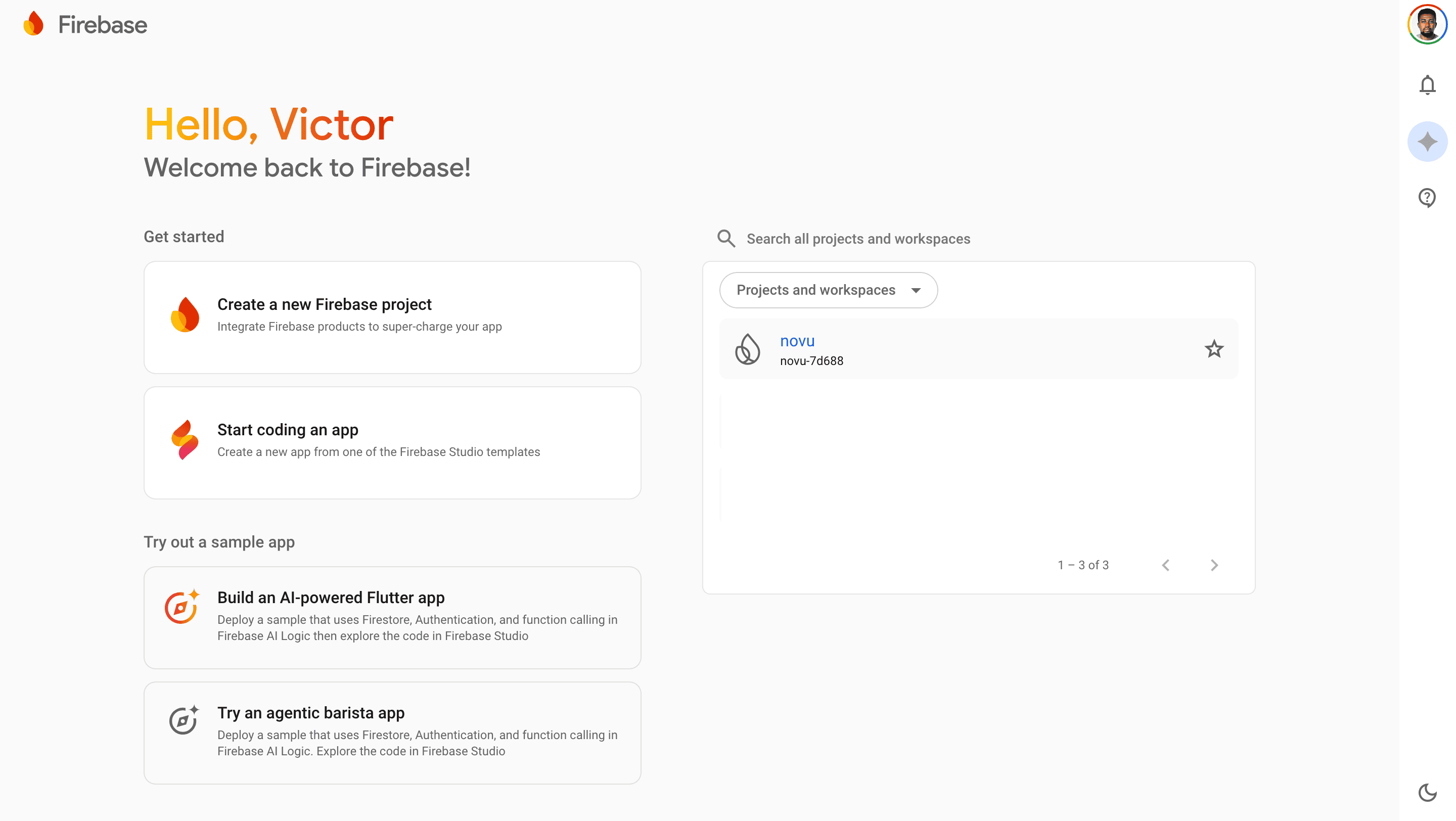 3. Click the gear icon ⚙️ next to **Project Overview**.
4. Select **Project settings**.
3. Click the gear icon ⚙️ next to **Project Overview**.
4. Select **Project settings**.
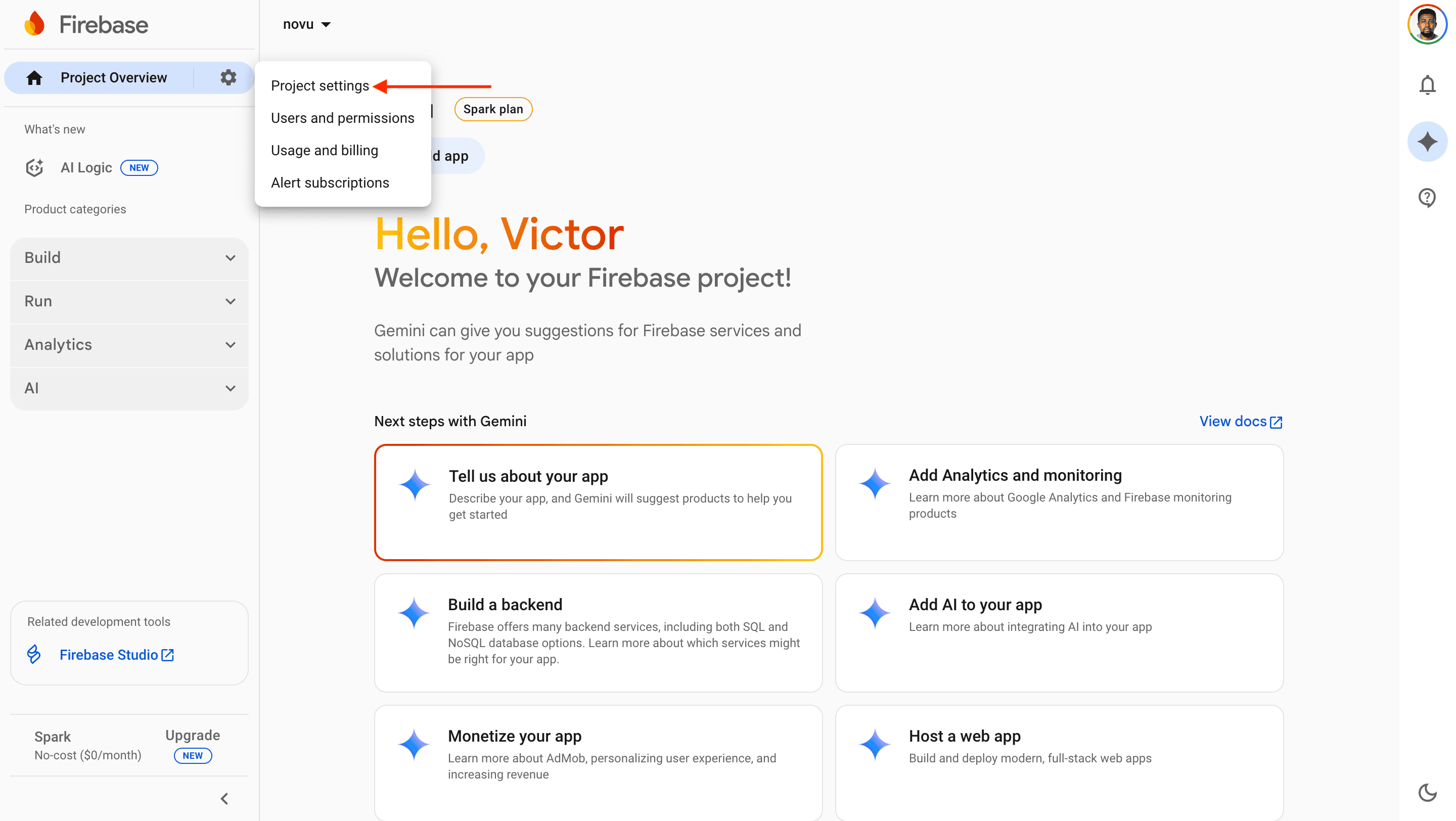 5. Click the **Service accounts** tab.
6. Click the **Generate new private key** button. A confirmation menu appears.
5. Click the **Service accounts** tab.
6. Click the **Generate new private key** button. A confirmation menu appears.
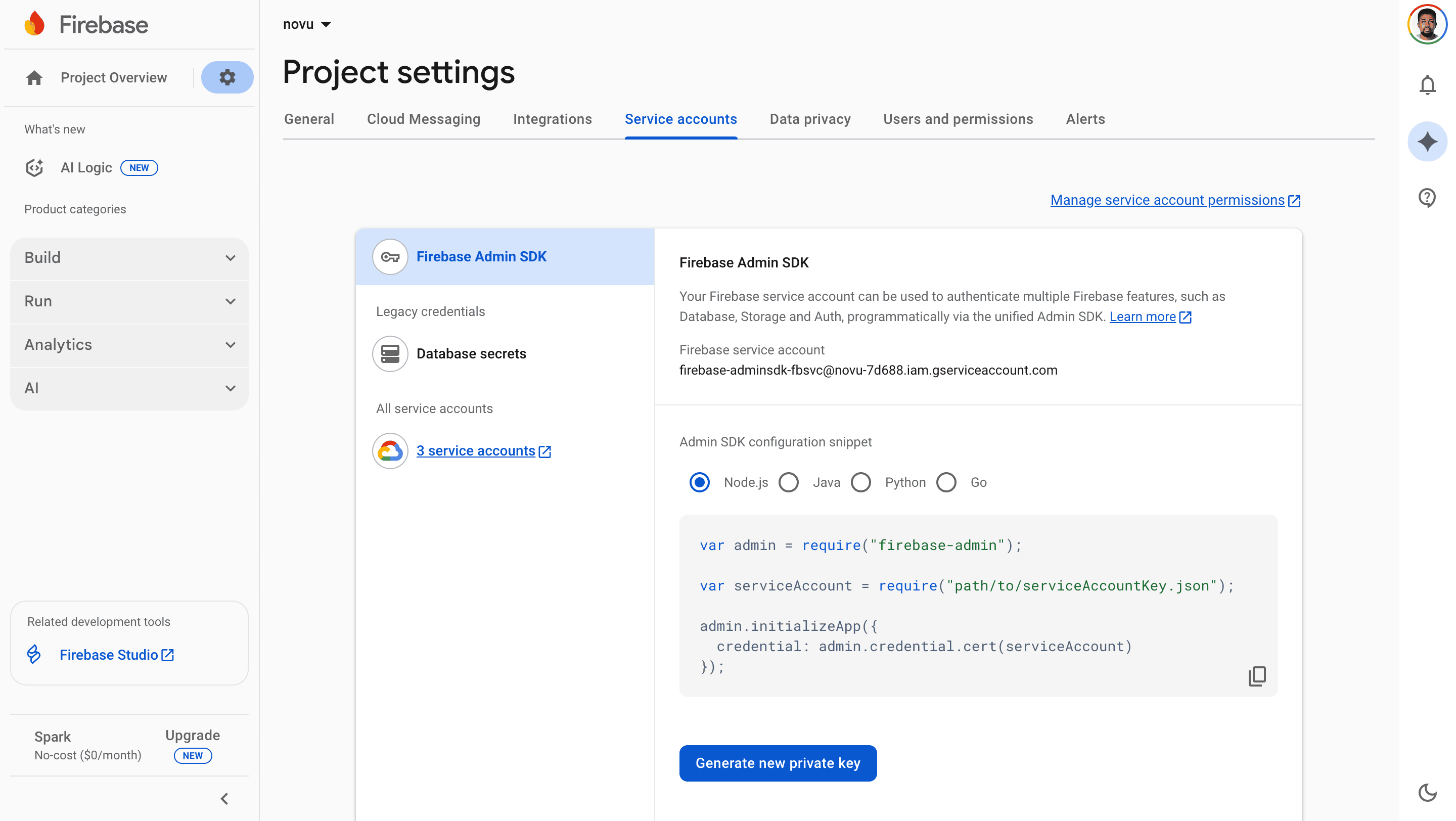 7. Click **Generate key** to download a JSON file containing your credentials.
 8. Open the downloaded JSON file and ensure it contains these fields:
```json theme={null}
{
"type": "service_account",
"project_id": "PROJECT_ID",
"private_key_id": "PRIVATE_KEY_ID",
"private_key": "PRIVATE_KEY",
"client_email": "FIREBASE_ADMIN_SDK_EMAIL",
"client_id": "CLIENT_ID",
"auth_uri": "https://accounts.google.com/o/oauth2/auth",
"token_uri": "https://oauth2.googleapis.com/token",
"auth_provider_x509_cert_url": "https://www.googleapis.com/oauth2/v1/certs",
"client_x509_cert_url": "CLIENT_X509_CERT_URL"
}
```
## Step 2: Connect FCM to Novu
Add the credentials to your FCM integration in the Novu dashboard.
1. Log in to the Novu dashboard.
2. Navigate to the **Integration Store**.
3. Click **Connect provider**.
4. Click the **Push** tab, then select **Firebase Cloud Messaging (FCM)**.
5. Open the JSON file you downloaded from Firebase in [Step 1](/platform/integrations/push/fcm#step-1-generate-your-service-account-key-from-firebase).
6. Copy the entire content of the JSON file and paste it into the **Service Account** field in the FCM integration modal.
8. Open the downloaded JSON file and ensure it contains these fields:
```json theme={null}
{
"type": "service_account",
"project_id": "PROJECT_ID",
"private_key_id": "PRIVATE_KEY_ID",
"private_key": "PRIVATE_KEY",
"client_email": "FIREBASE_ADMIN_SDK_EMAIL",
"client_id": "CLIENT_ID",
"auth_uri": "https://accounts.google.com/o/oauth2/auth",
"token_uri": "https://oauth2.googleapis.com/token",
"auth_provider_x509_cert_url": "https://www.googleapis.com/oauth2/v1/certs",
"client_x509_cert_url": "CLIENT_X509_CERT_URL"
}
```
## Step 2: Connect FCM to Novu
Add the credentials to your FCM integration in the Novu dashboard.
1. Log in to the Novu dashboard.
2. Navigate to the **Integration Store**.
3. Click **Connect provider**.
4. Click the **Push** tab, then select **Firebase Cloud Messaging (FCM)**.
5. Open the JSON file you downloaded from Firebase in [Step 1](/platform/integrations/push/fcm#step-1-generate-your-service-account-key-from-firebase).
6. Copy the entire content of the JSON file and paste it into the **Service Account** field in the FCM integration modal.
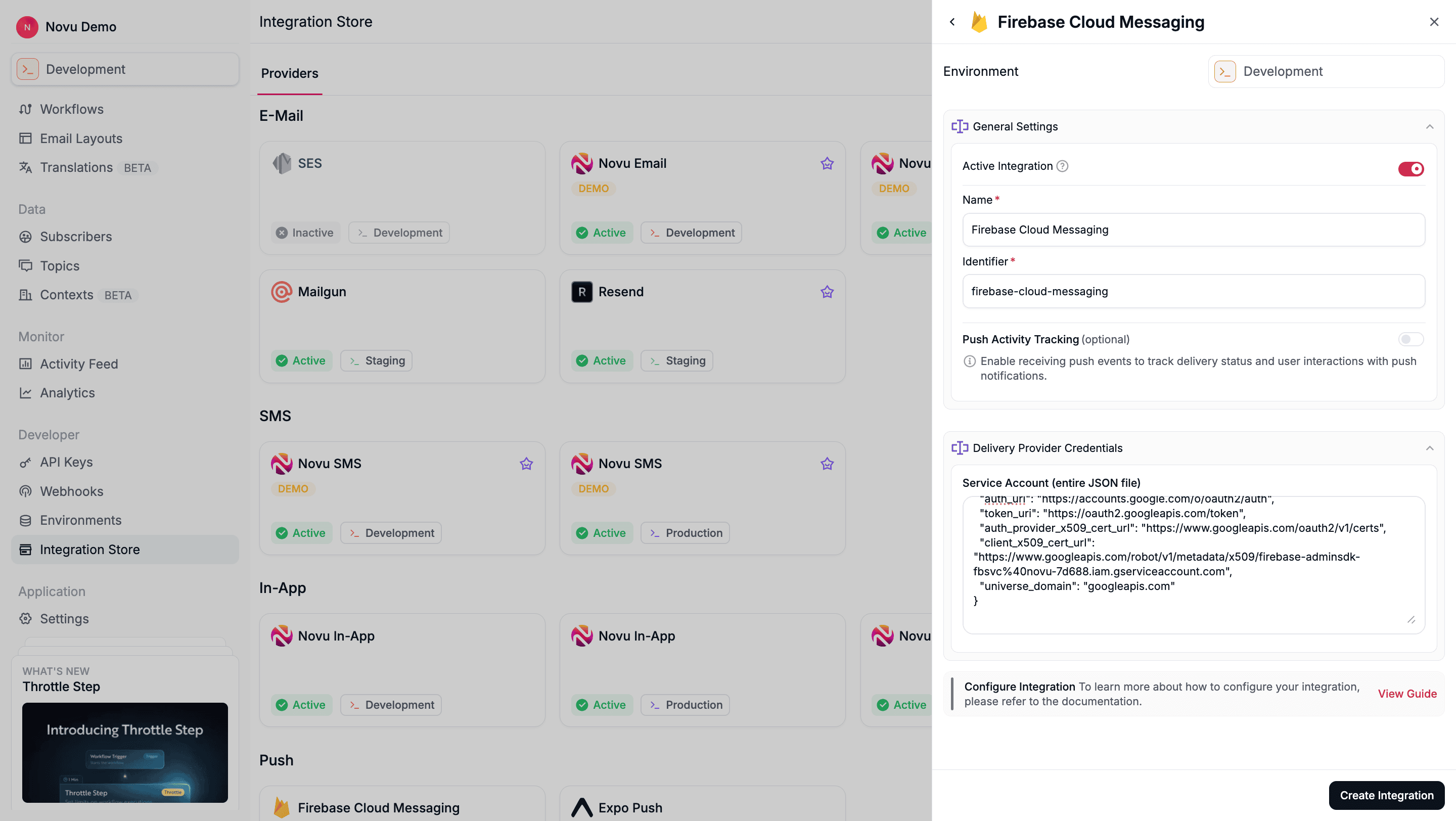 7. Click **Create Integration** to save the integration.
## Step 3: Register a subscriber's device token
Before Novu can send a push notification to your subscriber, you must associate their device's unique push token with their Novu subscriber profile.
You can do this by making an API call to [update the subscriber's credentials](/api-reference/subscribers/update-provider-credentials).
```typescript theme={null}
const novu = new Novu({ secretKey: "YOUR_SECRET_KEY_HERE",});
async function run() {
const result = await novu.subscribers.credentials.update({
providerId: ChatOrPushProviderEnum.Fcm,
credentials: {
deviceTokens: [
"token1",
"token2",
],
},
}, "subscriberId");
}
run();
```
```bash theme={null}
curl -L -X PUT 'https://api.novu.co/v1/subscribers//credentials' \
-H 'Content-Type: application/json' \
-H 'Accept: application/json' \
-H 'Authorization: ApiKey ' \
-d '{
"providerId": "fcm",
"credentials": {
"deviceTokens" : [
"token1",
"token2"
]
},
"integrationIdentifier": "string"
}'
```
Novu automatically removes invalid device tokens from a subscribers' profile and then sends the failure details to the `MESSAGE_FAILED` webhook.
## Step 4: Send a notification
Now you're ready to send a push notification. You can trigger a notification to a subscriber who has a registered device token.
```typescript theme={null}
import { Novu } from '@novu/api';
const novu = new Novu({
secretKey: "",
});
await novu.trigger({
workflowId: "workflowId",
to: {
subscriberId: 'SUBSCRIBER_ID',
},
payload: {
// Your payload data
},
});
```
## Using multiple FCM integrations
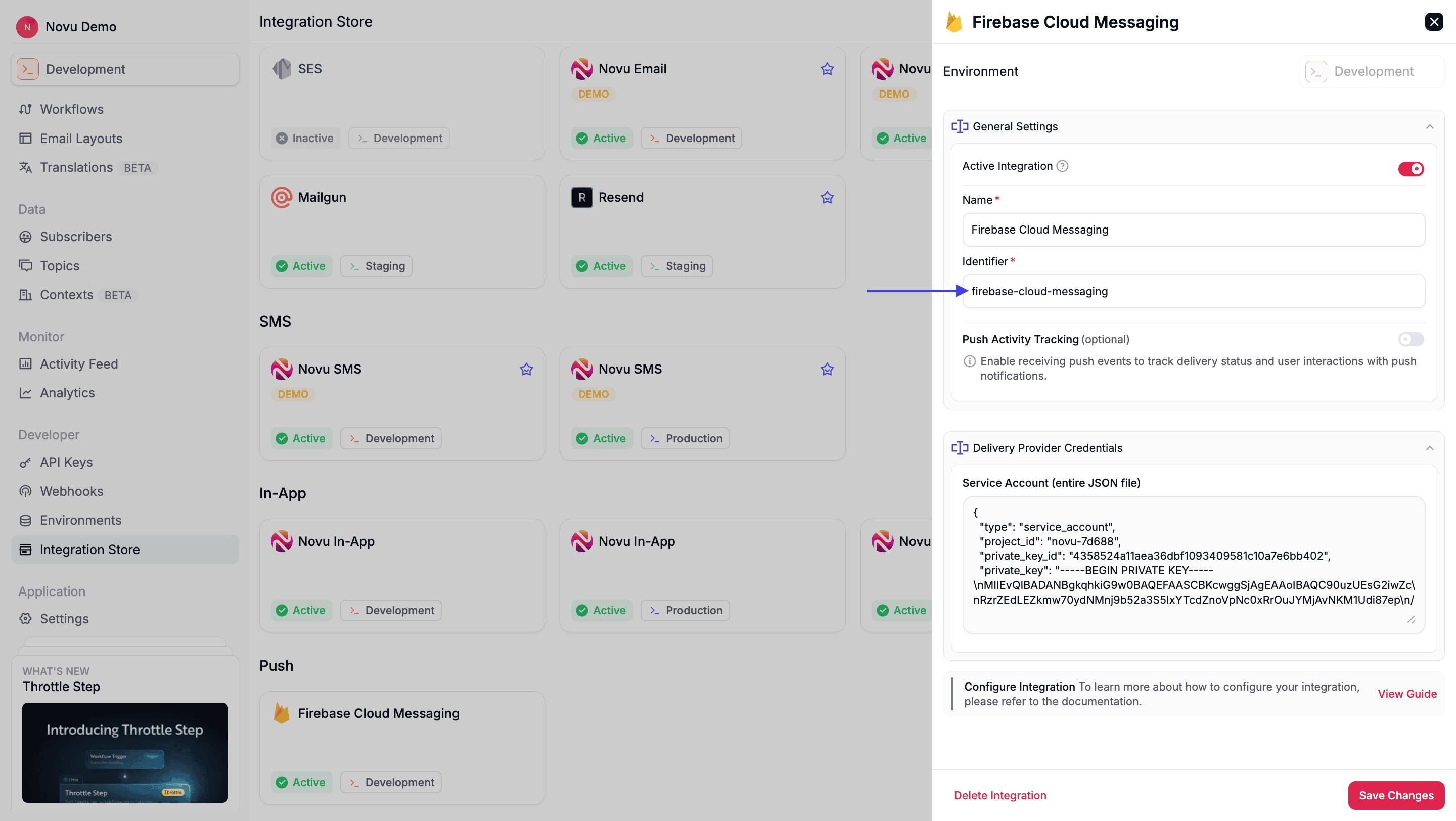
If you have multiple active FCM integrations, then you can specify which integration to associate the tokens with by providing the `integrationIdentifier`.
You can find this identifier in your Novu dashboard on the integration's settings page.
7. Click **Create Integration** to save the integration.
## Step 3: Register a subscriber's device token
Before Novu can send a push notification to your subscriber, you must associate their device's unique push token with their Novu subscriber profile.
You can do this by making an API call to [update the subscriber's credentials](/api-reference/subscribers/update-provider-credentials).
```typescript theme={null}
const novu = new Novu({ secretKey: "YOUR_SECRET_KEY_HERE",});
async function run() {
const result = await novu.subscribers.credentials.update({
providerId: ChatOrPushProviderEnum.Fcm,
credentials: {
deviceTokens: [
"token1",
"token2",
],
},
}, "subscriberId");
}
run();
```
```bash theme={null}
curl -L -X PUT 'https://api.novu.co/v1/subscribers//credentials' \
-H 'Content-Type: application/json' \
-H 'Accept: application/json' \
-H 'Authorization: ApiKey ' \
-d '{
"providerId": "fcm",
"credentials": {
"deviceTokens" : [
"token1",
"token2"
]
},
"integrationIdentifier": "string"
}'
```
Novu automatically removes invalid device tokens from a subscribers' profile and then sends the failure details to the `MESSAGE_FAILED` webhook.
## Step 4: Send a notification
Now you're ready to send a push notification. You can trigger a notification to a subscriber who has a registered device token.
```typescript theme={null}
import { Novu } from '@novu/api';
const novu = new Novu({
secretKey: "",
});
await novu.trigger({
workflowId: "workflowId",
to: {
subscriberId: 'SUBSCRIBER_ID',
},
payload: {
// Your payload data
},
});
```
## Using multiple FCM integrations
If you have multiple active FCM integrations, then you can specify which integration to associate the tokens with by providing the `integrationIdentifier`.
You can find this identifier in your Novu dashboard on the integration's settings page.
 ```typescript theme={null}
import { Novu } from '@novu/api';
const novu = new Novu({
secretKey: "",
});
await novu.subscribers.credentials.update(
{
providerId: "fcm",
// Use integrationIdentifier to store device tokens for a specific integration
integrationIdentifier: "string",
credentials: {
deviceTokens: [
"token1",
"token2"
]
},
},
"subscriberId"
);
```
## Using overrides to customize notifications
Novu lets you customize the behavior of push notifications by using the overrides field when triggering workflows. Overrides give you full control over message content and delivery parameters that aren’t configurable from the Novu workflow editor.
To learn more about how overrides work across all channels, see the [Trigger Overrides](/platform/integrations/trigger-overrides) documentation.
### Override FCM field
Overrides let you send platform-specific data that is not available in the workflow editor. The overrides field supports:
* `apns` overrides
* `android` overrides
* `webpush` overrides
* `fcmOptions` overrides
| Override field | Type / Interface | Link |
| -------------- | ---------------- | -------------------------------------------------------------------------------------------------------------------------------------------------------------------------------------------- |
| android | AndroidConfig | [https://firebase.google.com/docs/reference/admin/node/firebase-admin.messaging.androidconfig](https://firebase.google.com/docs/reference/admin/node/firebase-admin.messaging.androidconfig) |
| apns | ApnsConfig | [https://firebase.google.com/docs/reference/admin/node/firebase-admin.messaging.apnsconfig](https://firebase.google.com/docs/reference/admin/node/firebase-admin.messaging.apnsconfig) |
| webPush | WebpushConfig | [https://firebase.google.com/docs/reference/admin/node/firebase-admin.messaging.webpushconfig](https://firebase.google.com/docs/reference/admin/node/firebase-admin.messaging.webpushconfig) |
| fcmOptions | FcmOptions | [https://firebase.google.com/docs/reference/admin/node/firebase-admin.messaging.fcmoptions](https://firebase.google.com/docs/reference/admin/node/firebase-admin.messaging.fcmoptions) |
You can use these fields to customize how notifications are sent to Android, iOS via APNS, or web clients.
```typescript theme={null}
await novu.trigger({
workflowId: "workflowId",
to: {
subscriberId: "subscriberId",
},
payload: {
key: "value",
},
overrides: {
fcm: {
// For a data-only notification (silent push)
type: 'data',
data: {
custom_key: 'custom_value',
},
// Platform-specific overrides
android: {
// See FCM AndroidConfig options
},
apns: {
// See FCM ApnsConfig options
},
webPush: {
// See FCM WebpushConfig options
},
fcmOptions: {
// See FCM FcmOptions
}
},
},
});
```
### Override FCM notification content
By default, Novu sends the FCM notification content written in the step editor workflow. However, you can override the notification content by using the `overrides` field.
```typescript theme={null}
import { Novu } from '@novu/api';
const novu = new Novu({
secretKey: "",
// Required if using EU region
// serverURL: "https://eu.api.novu.co",
});
await novu.trigger({
workflowId: "workflowId",
to: {
subscriberId: "subscriberId",
},
payload: {
key: "value",
},
overrides: {
providers: {
fcm: {
type: "data",
// URL of an image to be displayed in the notification.
imageUrl: "https://domain.com/image.png",
// If type is not set, you can use the "data" override to send notification messages with optional data payload
data: {
key: "value",
},
// Check FCM Overrides section above for these types
android: {},
apns: {},
webPush: {},
fcmOptions: {},
},
},
},
});
```
Overrides can be applied at runtime to customize or enrich notifications based on user context, device type, or workflow logic.
## Sending notifications to FCM topics
[FCM topics](https://firebase.google.com/docs/cloud-messaging/android/topic-messaging) are used to send notifications to multiple devices at once. In the `overrides`, you need to specify the [topic](/platform/concepts/topics) you want to send the notification to.
```typescript theme={null}
import { Novu } from '@novu/api';
const novu = new Novu({
secretKey: "",
// Required if using EU region
// serverURL: "https://eu.api.novu.co",
});
await novu.trigger({
workflowId: "workflowId",
to: {
subscriberId: "subscriberId",
},
payload: {
key: "value",
},
overrides: {
providers: {
fcm: {
topic: "topic-123",
},
},
},
});
```
## Web push with relative links
Suppose you're using the Firebase (FCM) provider to send push notifications to web browsers via Novu and want users to be returned to the website after clicking the notification.
In that case, you must use the `link` property with a relative URL.
```typescript theme={null}
import { Novu } from '@novu/api';
const novu = new Novu({
secretKey: "",
// Required if using EU region
// serverURL: "https://eu.api.novu.co",
});
await novu.trigger({
workflowId: "workflowId",
to: {
subscriberId: "subscriberId",
},
payload: {
key: "value",
},
overrides: {
providers: {
fcm: {
webPush: {
fcmOptions: {
link: "/foo",
},
},
},
},
},
});
```
```bash theme={null}
curl --location --request POST 'https://url.to.our.selfhosted.novu' \
--header 'Authorization: ApiKey KEY' \
--header 'Content-Type: application/json' \
--data-raw '{
"name": "workflow-name",
"to": {
"subscriberId": "subscriberId"
},
"overrides": {
"fcm": {
"webPush": {
"fcm_options": {
"link": "/foo"
}
}
}
}
}'
```
## Frequently asked questions
As per Firebase [pricing](https://firebase.google.com/pricing), **Cloud Messaging** product is free to use. If other Firebase products are used, then the cost are charged per the product.
You might come across an error such as: `Sending message failed due to "The registration token is not a valid FCM registration token"`. This error happens because of an invalid or stale token. The fix for this is:
1. Remove the old tokens.
2. Generate a new token.
3. Save the new token into user subscribers.
Try to generate a new token after clearing device cache and retry with this fresh token.
This error occurs when your token is no longer valid. To fix this, generate a new token and use it.
This error occurs if the FCM integration is active, but the subscriber is missing from the FCM credentials (deviceTokens). The credentials (deviceTokens) for the subscriber needs to be set.
Desktop notifications for websites can be sent using FCM webpush.
```typescript theme={null}
import { Novu } from '@novu/api';
const novu = new Novu({
secretKey: "",
});
await novu.subscribers.credentials.update(
{
providerId: "fcm",
// Use integrationIdentifier to store device tokens for a specific integration
integrationIdentifier: "string",
credentials: {
deviceTokens: [
"token1",
"token2"
]
},
},
"subscriberId"
);
```
## Using overrides to customize notifications
Novu lets you customize the behavior of push notifications by using the overrides field when triggering workflows. Overrides give you full control over message content and delivery parameters that aren’t configurable from the Novu workflow editor.
To learn more about how overrides work across all channels, see the [Trigger Overrides](/platform/integrations/trigger-overrides) documentation.
### Override FCM field
Overrides let you send platform-specific data that is not available in the workflow editor. The overrides field supports:
* `apns` overrides
* `android` overrides
* `webpush` overrides
* `fcmOptions` overrides
| Override field | Type / Interface | Link |
| -------------- | ---------------- | -------------------------------------------------------------------------------------------------------------------------------------------------------------------------------------------- |
| android | AndroidConfig | [https://firebase.google.com/docs/reference/admin/node/firebase-admin.messaging.androidconfig](https://firebase.google.com/docs/reference/admin/node/firebase-admin.messaging.androidconfig) |
| apns | ApnsConfig | [https://firebase.google.com/docs/reference/admin/node/firebase-admin.messaging.apnsconfig](https://firebase.google.com/docs/reference/admin/node/firebase-admin.messaging.apnsconfig) |
| webPush | WebpushConfig | [https://firebase.google.com/docs/reference/admin/node/firebase-admin.messaging.webpushconfig](https://firebase.google.com/docs/reference/admin/node/firebase-admin.messaging.webpushconfig) |
| fcmOptions | FcmOptions | [https://firebase.google.com/docs/reference/admin/node/firebase-admin.messaging.fcmoptions](https://firebase.google.com/docs/reference/admin/node/firebase-admin.messaging.fcmoptions) |
You can use these fields to customize how notifications are sent to Android, iOS via APNS, or web clients.
```typescript theme={null}
await novu.trigger({
workflowId: "workflowId",
to: {
subscriberId: "subscriberId",
},
payload: {
key: "value",
},
overrides: {
fcm: {
// For a data-only notification (silent push)
type: 'data',
data: {
custom_key: 'custom_value',
},
// Platform-specific overrides
android: {
// See FCM AndroidConfig options
},
apns: {
// See FCM ApnsConfig options
},
webPush: {
// See FCM WebpushConfig options
},
fcmOptions: {
// See FCM FcmOptions
}
},
},
});
```
### Override FCM notification content
By default, Novu sends the FCM notification content written in the step editor workflow. However, you can override the notification content by using the `overrides` field.
```typescript theme={null}
import { Novu } from '@novu/api';
const novu = new Novu({
secretKey: "",
// Required if using EU region
// serverURL: "https://eu.api.novu.co",
});
await novu.trigger({
workflowId: "workflowId",
to: {
subscriberId: "subscriberId",
},
payload: {
key: "value",
},
overrides: {
providers: {
fcm: {
type: "data",
// URL of an image to be displayed in the notification.
imageUrl: "https://domain.com/image.png",
// If type is not set, you can use the "data" override to send notification messages with optional data payload
data: {
key: "value",
},
// Check FCM Overrides section above for these types
android: {},
apns: {},
webPush: {},
fcmOptions: {},
},
},
},
});
```
Overrides can be applied at runtime to customize or enrich notifications based on user context, device type, or workflow logic.
## Sending notifications to FCM topics
[FCM topics](https://firebase.google.com/docs/cloud-messaging/android/topic-messaging) are used to send notifications to multiple devices at once. In the `overrides`, you need to specify the [topic](/platform/concepts/topics) you want to send the notification to.
```typescript theme={null}
import { Novu } from '@novu/api';
const novu = new Novu({
secretKey: "",
// Required if using EU region
// serverURL: "https://eu.api.novu.co",
});
await novu.trigger({
workflowId: "workflowId",
to: {
subscriberId: "subscriberId",
},
payload: {
key: "value",
},
overrides: {
providers: {
fcm: {
topic: "topic-123",
},
},
},
});
```
## Web push with relative links
Suppose you're using the Firebase (FCM) provider to send push notifications to web browsers via Novu and want users to be returned to the website after clicking the notification.
In that case, you must use the `link` property with a relative URL.
```typescript theme={null}
import { Novu } from '@novu/api';
const novu = new Novu({
secretKey: "",
// Required if using EU region
// serverURL: "https://eu.api.novu.co",
});
await novu.trigger({
workflowId: "workflowId",
to: {
subscriberId: "subscriberId",
},
payload: {
key: "value",
},
overrides: {
providers: {
fcm: {
webPush: {
fcmOptions: {
link: "/foo",
},
},
},
},
},
});
```
```bash theme={null}
curl --location --request POST 'https://url.to.our.selfhosted.novu' \
--header 'Authorization: ApiKey KEY' \
--header 'Content-Type: application/json' \
--data-raw '{
"name": "workflow-name",
"to": {
"subscriberId": "subscriberId"
},
"overrides": {
"fcm": {
"webPush": {
"fcm_options": {
"link": "/foo"
}
}
}
}
}'
```
## Frequently asked questions
As per Firebase [pricing](https://firebase.google.com/pricing), **Cloud Messaging** product is free to use. If other Firebase products are used, then the cost are charged per the product.
You might come across an error such as: `Sending message failed due to "The registration token is not a valid FCM registration token"`. This error happens because of an invalid or stale token. The fix for this is:
1. Remove the old tokens.
2. Generate a new token.
3. Save the new token into user subscribers.
Try to generate a new token after clearing device cache and retry with this fresh token.
This error occurs when your token is no longer valid. To fix this, generate a new token and use it.
This error occurs if the FCM integration is active, but the subscriber is missing from the FCM credentials (deviceTokens). The credentials (deviceTokens) for the subscriber needs to be set.
Desktop notifications for websites can be sent using FCM webpush.