> ## Documentation Index
> Fetch the complete documentation index at: https://novu-c5de82d9-docs-homepage-redesign.mintlify.site/llms.txt
> Use this file to discover all available pages before exploring further.
# OneSignal Push Integration with Novu
> Connect OneSignal to Novu to send push notifications through notification workflows. Step-by-step credential setup.
This guide walks you through the entire process of configuring and using [OneSignal](https://onesignal.com/) with Novu, from getting your credentials to sending your first notification.
OneSignal supports sending messages via both [Apple Push Notification Service](https://developer.apple.com/documentation/usernotifications/setting_up_a_remote_notification_server) (APNs) and [Firebase Cloud Messaging](https://firebase.google.com/docs/cloud-messaging) (FCM).
## Configure Onesignal with Novu
Before you can send push notifications via OneSignal from Novu, you need to connect your OneSignal credentials.
### Step 1: Get your OneSignal credentials
To configure the OneSignal integration, you need an active account that has credentials for APNS, FCM, or both, and have access to two values from OneSignal app's settings:
* App ID
* App API Key
Follow [this OneSignal guide](https://developer.apple.com/help/account/keys/create-a-private-key) to see how to access your OneSignal `App ID` and `App API key`.
### Step 2: Connect Onesignal to Novu
Next, add these keys to your OneSignal integration in the Novu dashboard.
Log in to the Novu dashboard.
On the Novu dashboard, navigate to the **Integration Store**.
Click **Connect provider**.
Click the **Push** tab.
Select **OneSignal**.
In the OneSignal integration form, paste your **App ID** and **App API Key** into the corresponding fields.
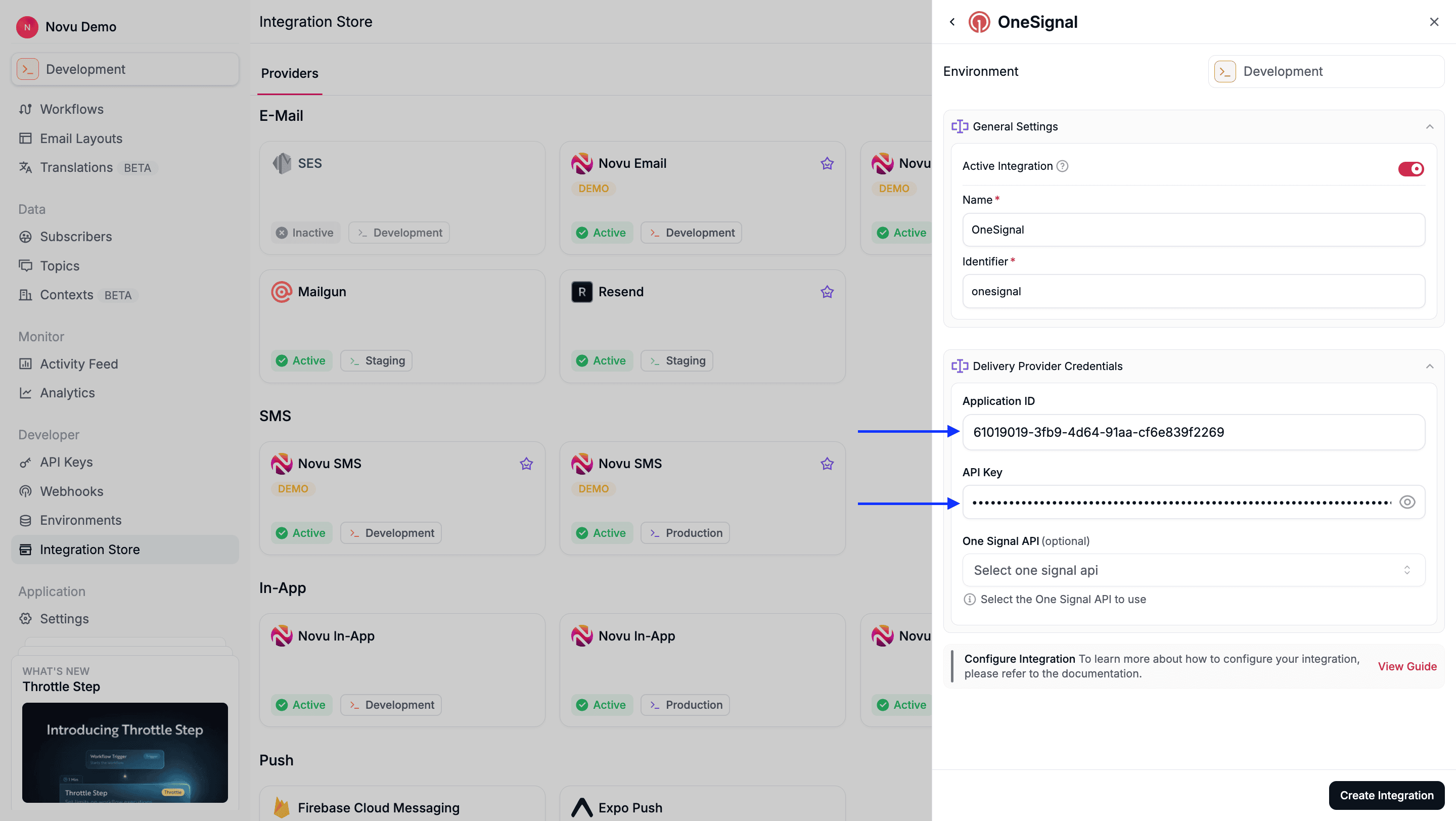 Click **Create Integration**.
## Using Onesignal with Novu
Once your integration is configured, you can start sending push notifications by registering your subscribers' `player_id` tokens and triggering a workflow.
### Step 1: Add subscriber device token
When you [set up the OneSignal SDK](https://documentation.onesignal.com/docs/onboarding-with-onesignal#step-1-setup-onesignal-sdk) in your application, your users are automatically assigned a unique OneSignal [`player_id`](https://documentation.onesignal.com/docs/users#player-id). This ID is used to target the user for push notifications.
To target a OneSignal user from Novu, you must register their `player_id` as the `deviceToken` for their Novu subscriber profile.
You can do this by making an API call to [update the subscriber's credentials](/api-reference/subscribers/update-provider-credentials).
```typescript theme={null}
import { Novu } from '@novu/api';
import { ChatOrPushProviderEnum } from "@novu/api/models/components";
const novu = new Novu({
secretKey: "",
// Required if using EU region
// serverURL: "https://eu.api.novu.co",
});
await novu.subscribers.credentials.update(
{
providerId: ChatOrPushProviderEnum.OneSignal,
// Use integrationIdentifier to store device tokens for a specific integration
integrationIdentifier: "string",
credentials: {
deviceTokens: [
"token1",
"token2",
"token3"
],
},
},
"subscriberId"
);
```
```bash theme={null}
curl -L -X PUT 'https://api.novu.co/v1/subscribers//credentials' \
-H 'Content-Type: application/json' \
-H 'Accept: application/json' \
-H 'Authorization: ApiKey ' \
-d '{
"providerId": "one-signal",
"deviceTokens": ["token1", "token2", "token3"],
"integrationIdentifier": "string"
}'
```
### Step 2: Send a notification
Now you're ready to send a push notification. [Create a workflow with a Push step](/platform/workflow/create-a-workflow) and trigger it. Novu sends the notification to all devices (player IDs) associated with the subscriber.
The example below demonstrates, how to [trigger a workflow](/platform/sdks/server/typescript) using Novu’s SDK.
```typescript theme={null}
import { Novu } from '@novu/api';
const novu = new Novu({
secretKey: "",
});
await novu.trigger({
workflowId: "workflowId",
to: {
subscriberId: 'SUBSCRIBER_ID',
},
payload: {
// Your payload data
},
});
```
## Using overrides to customize notifications
Novu provides an `overrides` field that lets you send additional OneSignal-specific message fields. You can use this to control how messages are displayed or to attach custom payloads.
The overrides field supports all OneSignal Create Notification parameters. Here is an example:
```typescript theme={null}
import { Novu } from '@novu/api';
const novu = new Novu({
secretKey: "",
// Required if using EU region
// serverURL: "https://eu.api.novu.co",
});
await novu.trigger({
workflowId: "workflowId",
to: {
subscriberId: "subscriberId",
},
payload: {
abc: 'def', // If the notification is a data notification, the payload will be sent as the data
},
overrides: {
subtitle: 'This is subtitle value',
mutableContent: 'Mutable content value',
// for android notification categories
channelId: 'category_id',
// for ios notification categories
categoryId: 'Category id',
// same value is used for all sizes and browsers
icon: 'https://image.com/icon.png',
// used for both android and ios
sound: 'sound file url',
},
});
```
## Using external user ID
By default, Novu uses `player_id` to send notifications, but you can select the `External ID` option in the OneSignal integration settings in Novu. If `External ID` option is selected, then `deviceTokens` stored in subscriber credentials for the OneSignal provider, are used as external user IDs.
By default, Novu uses player IDs to send notifications. If your OneSignal integration uses external user IDs, then you can switch this behavior in the OneSignal integration settings in Novu.
Once enabled, the `deviceTokens` stored in subscriber credentials are treated as external user IDs instead of player IDs.
Click **Create Integration**.
## Using Onesignal with Novu
Once your integration is configured, you can start sending push notifications by registering your subscribers' `player_id` tokens and triggering a workflow.
### Step 1: Add subscriber device token
When you [set up the OneSignal SDK](https://documentation.onesignal.com/docs/onboarding-with-onesignal#step-1-setup-onesignal-sdk) in your application, your users are automatically assigned a unique OneSignal [`player_id`](https://documentation.onesignal.com/docs/users#player-id). This ID is used to target the user for push notifications.
To target a OneSignal user from Novu, you must register their `player_id` as the `deviceToken` for their Novu subscriber profile.
You can do this by making an API call to [update the subscriber's credentials](/api-reference/subscribers/update-provider-credentials).
```typescript theme={null}
import { Novu } from '@novu/api';
import { ChatOrPushProviderEnum } from "@novu/api/models/components";
const novu = new Novu({
secretKey: "",
// Required if using EU region
// serverURL: "https://eu.api.novu.co",
});
await novu.subscribers.credentials.update(
{
providerId: ChatOrPushProviderEnum.OneSignal,
// Use integrationIdentifier to store device tokens for a specific integration
integrationIdentifier: "string",
credentials: {
deviceTokens: [
"token1",
"token2",
"token3"
],
},
},
"subscriberId"
);
```
```bash theme={null}
curl -L -X PUT 'https://api.novu.co/v1/subscribers//credentials' \
-H 'Content-Type: application/json' \
-H 'Accept: application/json' \
-H 'Authorization: ApiKey ' \
-d '{
"providerId": "one-signal",
"deviceTokens": ["token1", "token2", "token3"],
"integrationIdentifier": "string"
}'
```
### Step 2: Send a notification
Now you're ready to send a push notification. [Create a workflow with a Push step](/platform/workflow/create-a-workflow) and trigger it. Novu sends the notification to all devices (player IDs) associated with the subscriber.
The example below demonstrates, how to [trigger a workflow](/platform/sdks/server/typescript) using Novu’s SDK.
```typescript theme={null}
import { Novu } from '@novu/api';
const novu = new Novu({
secretKey: "",
});
await novu.trigger({
workflowId: "workflowId",
to: {
subscriberId: 'SUBSCRIBER_ID',
},
payload: {
// Your payload data
},
});
```
## Using overrides to customize notifications
Novu provides an `overrides` field that lets you send additional OneSignal-specific message fields. You can use this to control how messages are displayed or to attach custom payloads.
The overrides field supports all OneSignal Create Notification parameters. Here is an example:
```typescript theme={null}
import { Novu } from '@novu/api';
const novu = new Novu({
secretKey: "",
// Required if using EU region
// serverURL: "https://eu.api.novu.co",
});
await novu.trigger({
workflowId: "workflowId",
to: {
subscriberId: "subscriberId",
},
payload: {
abc: 'def', // If the notification is a data notification, the payload will be sent as the data
},
overrides: {
subtitle: 'This is subtitle value',
mutableContent: 'Mutable content value',
// for android notification categories
channelId: 'category_id',
// for ios notification categories
categoryId: 'Category id',
// same value is used for all sizes and browsers
icon: 'https://image.com/icon.png',
// used for both android and ios
sound: 'sound file url',
},
});
```
## Using external user ID
By default, Novu uses `player_id` to send notifications, but you can select the `External ID` option in the OneSignal integration settings in Novu. If `External ID` option is selected, then `deviceTokens` stored in subscriber credentials for the OneSignal provider, are used as external user IDs.
By default, Novu uses player IDs to send notifications. If your OneSignal integration uses external user IDs, then you can switch this behavior in the OneSignal integration settings in Novu.
Once enabled, the `deviceTokens` stored in subscriber credentials are treated as external user IDs instead of player IDs.