> ## Documentation Index
> Fetch the complete documentation index at: https://novu-c5de82d9-docs-homepage-redesign.mintlify.site/llms.txt
> Use this file to discover all available pages before exploring further.
# Push Webhook Push Integration with Novu
> Connect Push Webhook to Novu to send push notifications through notification workflows. Step-by-step credential setup.
This guide walks you through the entire process of configuring and using Push Webhook with Novu.
The Push Webhook provider is different from other push providers because it does not depend on a third-party service. Instead, Novu sends push notifications directly to a webhook URL that you control. This approach is ideal if you want full control over how notifications are processed, routed, or stored in your system.
## Configure Push Webhook with Novu
To configure Push Webhook, you must provide an endpoint URL for Novu to call and a secret HMAC key to verify the request's authenticity.
### Step 1: Get your webhook URL and secret key
Before connecting to Novu, you need two things:
* **Webhook URL**: This is your own API endpoint that will receive the `POST` request from Novu. For quick testing, you can use a service like [webhook.site](https://webhook.site/).
* **Secret HMAC Key:** This is a self-generated secret string. Novu will use it to encrypt the payload using the `HMAC SHA256` algorithm and send the hash in the `x-novu-signature` header. This lets you verify that the request is genuinely from Novu. See [how to generate a HMAC key](/platform/inbox/prepare-for-production#2-generate-hmac-hash-on-the-server-side).
Your webhook URL endpoint must be able to accept `POST` requests.
### Step 2: Connect Push Webhook to Novu
Next, add these keys to your Push Webhook integration in the Novu dashboard:
Log in to the Novu dashboard.
On the Novu dashboard, navigate to the **Integration Store**.
Click **Connect Provider**.
In the **Push** tab, select **Push Webhook**.
In the integration form, fill in the following fields:
* **Webhook URL:** The endpoint URL that you prepared in Step 1.
* **Secret HMAC Key:** The secret key used to sign webhook calls.
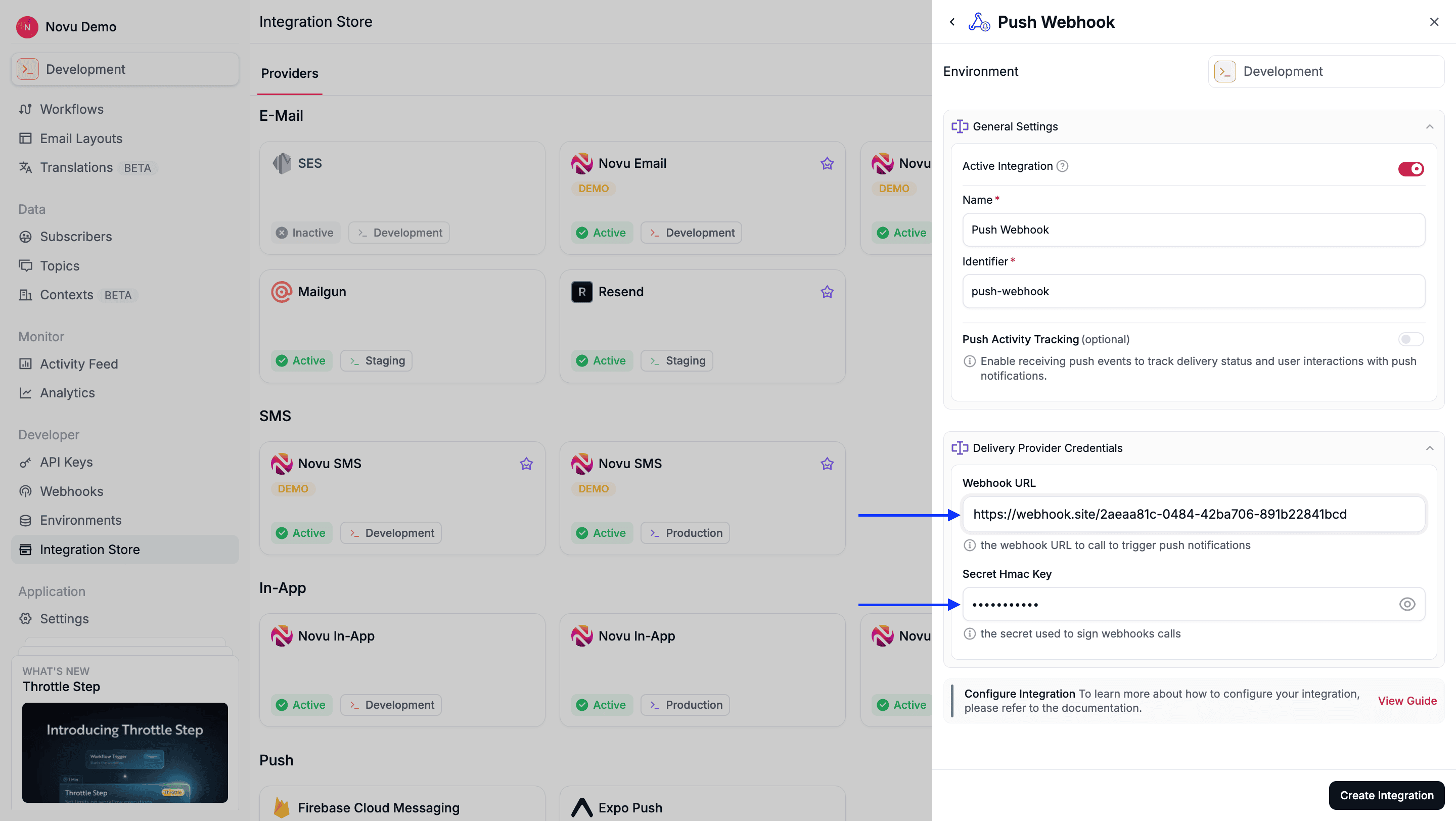 Click **Create Integration**.
## Using Push Webhook with Novu
Once configured, you must register a device token for your subscriber and trigger a workflow.
### Step 1: Add subscriber device token
This step is mandatory. Unlike other push providers that generate a unique token, for the Push Webhook, you must provide your own identifier.
Any random string can be used as a device token. This token is included in the webhook payload sent to your endpoint, allowing you to identify which user or device the notification is for.
```typescript theme={null}
import { Novu } from '@novu/api';
import { ChatOrPushProviderEnum } from "@novu/api/models/components";
const novu = new Novu({
secretKey: "",
// Required if using EU region
// serverURL: "https://eu.api.novu.co",
});
await novu.subscribers.credentials.update(
{
providerId: ChatOrPushProviderEnum.PushWebhook,
// Use integrationIdentifier to store device tokens for a specific integration
integrationIdentifier: "push-webhook-MnGLxp8uy",
credentials: {
deviceTokens: ["token1", "token2", "token3"],
},
},
"subscriberId"
);
```
```bash theme={null}
curl -L -X PUT 'https://api.novu.co/v1/subscribers//credentials' \
-H 'Content-Type: application/json' \
-H 'Accept: application/json' \
-H 'Authorization: ApiKey ' \
-d '{
"providerId": "push-webhook",
"deviceTokens": ['ANY_RANDOM_STRING'],
"integrationIdentifier": "push-webhook-MnGLxp8uy"
}'
```
### Step 2: Send a notification
Now you're ready to send a push notification. [Create a workflow with a Push step](/platform/workflow/create-a-workflow) and trigger it. Novu sends the notification payload to the webhook URL that you configured.
The example below demonstrates a simple trigger using Novu’s SDK.
```jsx theme={null}
import { Novu } from '@novu/api';
const novu = new Novu({
secretKey: "",
});
await novu.trigger({
workflowId: "workflowId",
to: {
subscriberId: 'SUBSCRIBER_ID',
},
payload: {
// This payload data will be included
// in the webhook request
custom_message: "This is custom message from payload.",
},
});
```
## Payload sent by Novu to webhook URL
When you trigger a workflow, Novu sends a `POST` request to your webhook URL with a JSON body similar to the one below.
The payload includes:
* The `title` and `content` from your workflow editor.
* The `target` (the device token you set).
* Your `overrides`.
* The full payload from your trigger.
* The subscriber's profile.
```json theme={null}
{
"target": ["subscriber-token-for-push-webhook-provider"],
"title": "Push Webhook message title",
"content": "push Webhook content body",
"overrides": {
"data": {
"custom_message": "this is custom message from payload push webhook demo"
}
},
"payload": {
"custom_message": "this is custom message from payload push webhook demo",
"__source": "test-workflow",
"subscriber": {
// subscriber fields
"_id": "65c0d71c0959a38e8857b131",
"_organizationId": "organizationId",
"_environmentId": "environmentId",
"firstName": "Pawan",
"lastName": "Jain",
"phone": "+123456789",
"subscriberId": "push-webhook-demo-subscriber-id",
"email": "pawan+push+web+hook+demo@domain.com",
"channels": [
{
"credentials": {
"deviceTokens": ["subscriber-token-for-push-webhook-provider"]
},
"_integrationId": "integrationId",
"providerId": "push-webhook"
}
],
"data": {
// custom data field of subscriber
"isDeveloper": "true"
},
"deleted": false,
"createdAt": "2024-02-05T12:39:56.379Z",
"updatedAt": "2024-02-05T12:54:08.684Z",
"__v": 0,
"id": "65c0d71c0959a38e8857b131"
},
"step": {
// digest variables
"digest": false,
"events": [],
"total_count": 0
}
}
}
```
## Checking authenticity
If you provided a secret HMAC key during configuration, then Novu will include a `x-novu-signature` header in the request. You can use this header to verify that the request is from Novu and not a malicious third party.
Here is an example of how to validate the hash:
```typescript theme={null}
import crypto from 'crypto';
// secret key added in step 3
const secretKey = 'YOUR_HMAC_SECRET_KEY';
// function to handle webhook url route request
async function acceptNovuPushWebHookRequest(request, response) {
const payloadSentByNovu = request.body;
const hmacHashSentByNovu = request.headers['x-novu-signature'];
const actualHashValue = crypto
.createHmac('sha256', secretKey)
.update(payloadSentByNovu, 'utf-8')
.digest('hex');
if (hmacHashSentByNovu === actualHashValue) {
// handle the notification
console.log('Request sent by Novu');
} else {
throw new Error('Not a valid request');
}
}
```
Click **Create Integration**.
## Using Push Webhook with Novu
Once configured, you must register a device token for your subscriber and trigger a workflow.
### Step 1: Add subscriber device token
This step is mandatory. Unlike other push providers that generate a unique token, for the Push Webhook, you must provide your own identifier.
Any random string can be used as a device token. This token is included in the webhook payload sent to your endpoint, allowing you to identify which user or device the notification is for.
```typescript theme={null}
import { Novu } from '@novu/api';
import { ChatOrPushProviderEnum } from "@novu/api/models/components";
const novu = new Novu({
secretKey: "",
// Required if using EU region
// serverURL: "https://eu.api.novu.co",
});
await novu.subscribers.credentials.update(
{
providerId: ChatOrPushProviderEnum.PushWebhook,
// Use integrationIdentifier to store device tokens for a specific integration
integrationIdentifier: "push-webhook-MnGLxp8uy",
credentials: {
deviceTokens: ["token1", "token2", "token3"],
},
},
"subscriberId"
);
```
```bash theme={null}
curl -L -X PUT 'https://api.novu.co/v1/subscribers//credentials' \
-H 'Content-Type: application/json' \
-H 'Accept: application/json' \
-H 'Authorization: ApiKey ' \
-d '{
"providerId": "push-webhook",
"deviceTokens": ['ANY_RANDOM_STRING'],
"integrationIdentifier": "push-webhook-MnGLxp8uy"
}'
```
### Step 2: Send a notification
Now you're ready to send a push notification. [Create a workflow with a Push step](/platform/workflow/create-a-workflow) and trigger it. Novu sends the notification payload to the webhook URL that you configured.
The example below demonstrates a simple trigger using Novu’s SDK.
```jsx theme={null}
import { Novu } from '@novu/api';
const novu = new Novu({
secretKey: "",
});
await novu.trigger({
workflowId: "workflowId",
to: {
subscriberId: 'SUBSCRIBER_ID',
},
payload: {
// This payload data will be included
// in the webhook request
custom_message: "This is custom message from payload.",
},
});
```
## Payload sent by Novu to webhook URL
When you trigger a workflow, Novu sends a `POST` request to your webhook URL with a JSON body similar to the one below.
The payload includes:
* The `title` and `content` from your workflow editor.
* The `target` (the device token you set).
* Your `overrides`.
* The full payload from your trigger.
* The subscriber's profile.
```json theme={null}
{
"target": ["subscriber-token-for-push-webhook-provider"],
"title": "Push Webhook message title",
"content": "push Webhook content body",
"overrides": {
"data": {
"custom_message": "this is custom message from payload push webhook demo"
}
},
"payload": {
"custom_message": "this is custom message from payload push webhook demo",
"__source": "test-workflow",
"subscriber": {
// subscriber fields
"_id": "65c0d71c0959a38e8857b131",
"_organizationId": "organizationId",
"_environmentId": "environmentId",
"firstName": "Pawan",
"lastName": "Jain",
"phone": "+123456789",
"subscriberId": "push-webhook-demo-subscriber-id",
"email": "pawan+push+web+hook+demo@domain.com",
"channels": [
{
"credentials": {
"deviceTokens": ["subscriber-token-for-push-webhook-provider"]
},
"_integrationId": "integrationId",
"providerId": "push-webhook"
}
],
"data": {
// custom data field of subscriber
"isDeveloper": "true"
},
"deleted": false,
"createdAt": "2024-02-05T12:39:56.379Z",
"updatedAt": "2024-02-05T12:54:08.684Z",
"__v": 0,
"id": "65c0d71c0959a38e8857b131"
},
"step": {
// digest variables
"digest": false,
"events": [],
"total_count": 0
}
}
}
```
## Checking authenticity
If you provided a secret HMAC key during configuration, then Novu will include a `x-novu-signature` header in the request. You can use this header to verify that the request is from Novu and not a malicious third party.
Here is an example of how to validate the hash:
```typescript theme={null}
import crypto from 'crypto';
// secret key added in step 3
const secretKey = 'YOUR_HMAC_SECRET_KEY';
// function to handle webhook url route request
async function acceptNovuPushWebHookRequest(request, response) {
const payloadSentByNovu = request.body;
const hmacHashSentByNovu = request.headers['x-novu-signature'];
const actualHashValue = crypto
.createHmac('sha256', secretKey)
.update(payloadSentByNovu, 'utf-8')
.digest('hex');
if (hmacHashSentByNovu === actualHashValue) {
// handle the notification
console.log('Request sent by Novu');
} else {
throw new Error('Not a valid request');
}
}
```