> ## Documentation Index
> Fetch the complete documentation index at: https://novu-c5de82d9-docs-homepage-redesign.mintlify.site/llms.txt
> Use this file to discover all available pages before exploring further.
# Pushpad Push Integration with Novu
> Connect Pushpad to Novu to send push notifications through notification workflows. Step-by-step credential setup.
This guide walks you through the entire process of configuring and using [Pushpad](https://pushpad.xyz) with Novu, from getting your credentials to sending your first notification.
[Pushpad](https://pushpad.xyz) is a web push service that supports sending notifications to all major browsers via FCM, Mozilla autopush, Windows Push Notification Services, and APNS, with just one simple API.
## Configure Pushpad with Novu
Before you can send notifications, you need to connect your Pushpad project to Novu by getting your credentials and adding them to your integration settings.
### Step 1: Get your Pushpad credentials
To configure the Pushpad integration, you need:
* An active Pushpad account
* A Pushpad auth token (found in the [account settings](https://pushpad.xyz/access_tokens))
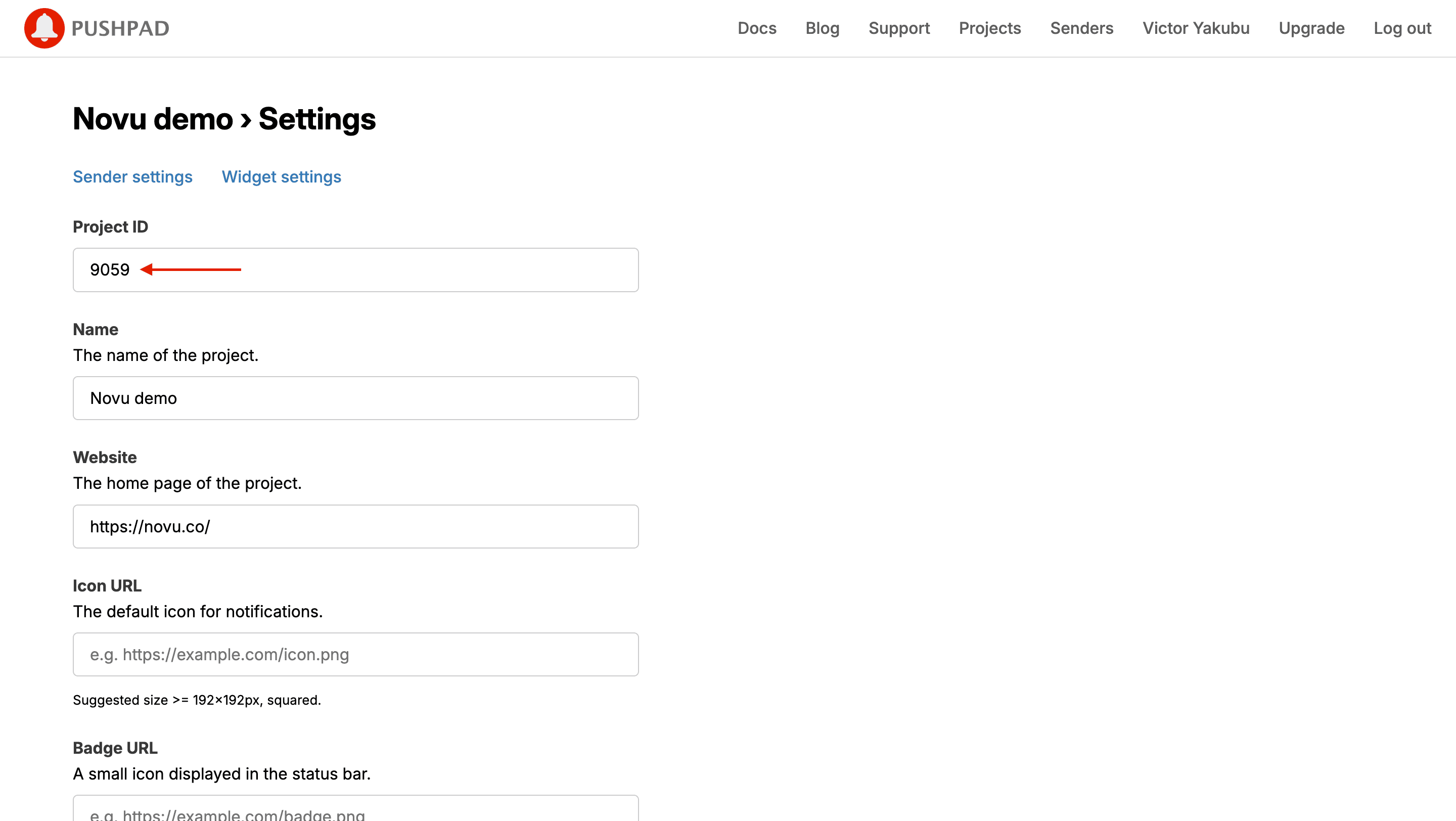
* Your Pushpad project ID (found in the project settings)
Log in to your Pushpad dashboard.
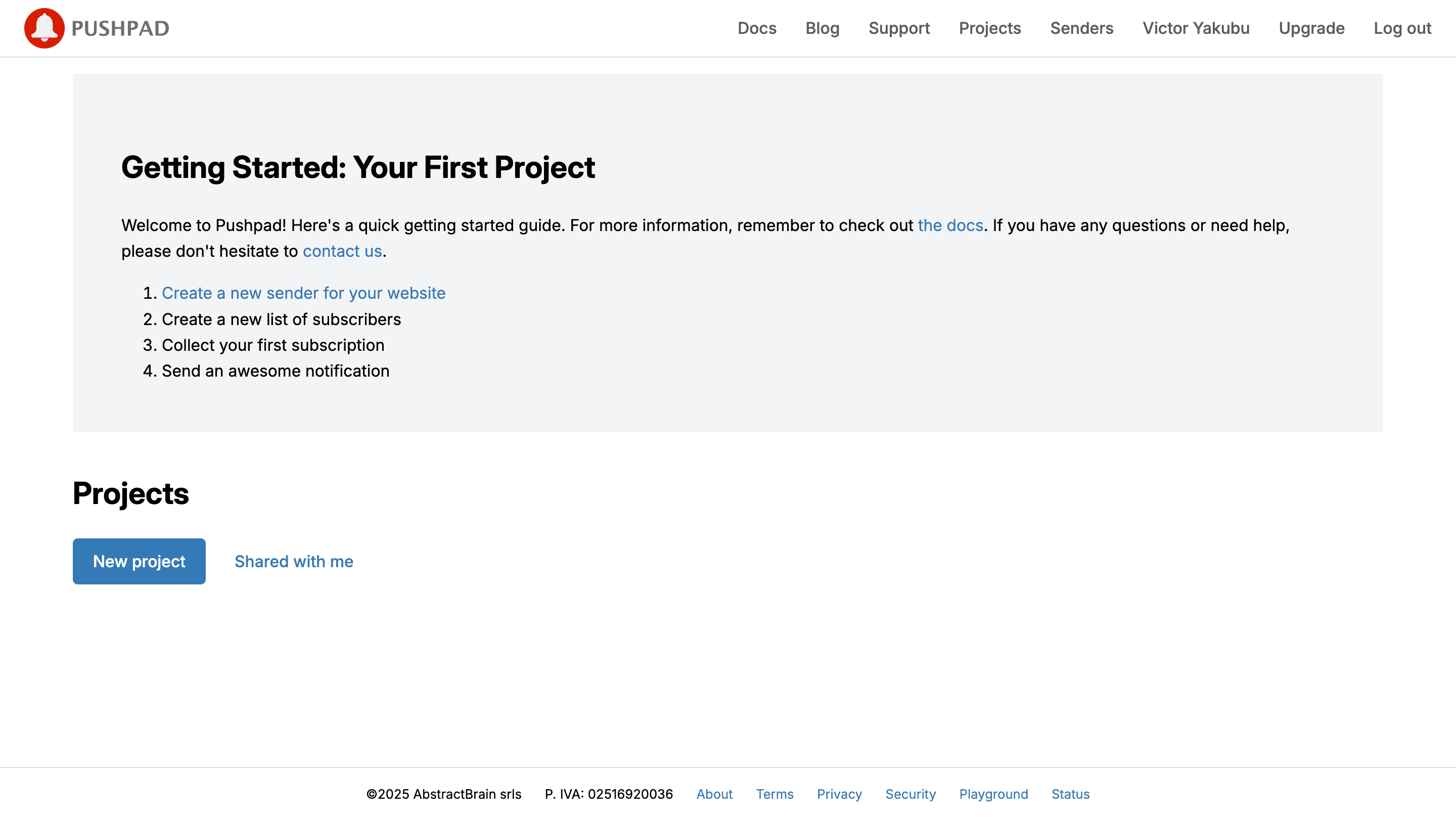
Click **New project** to create a project.
 Click **Settings** on the project page and record the **Project ID**. You need it to connect to Novu.
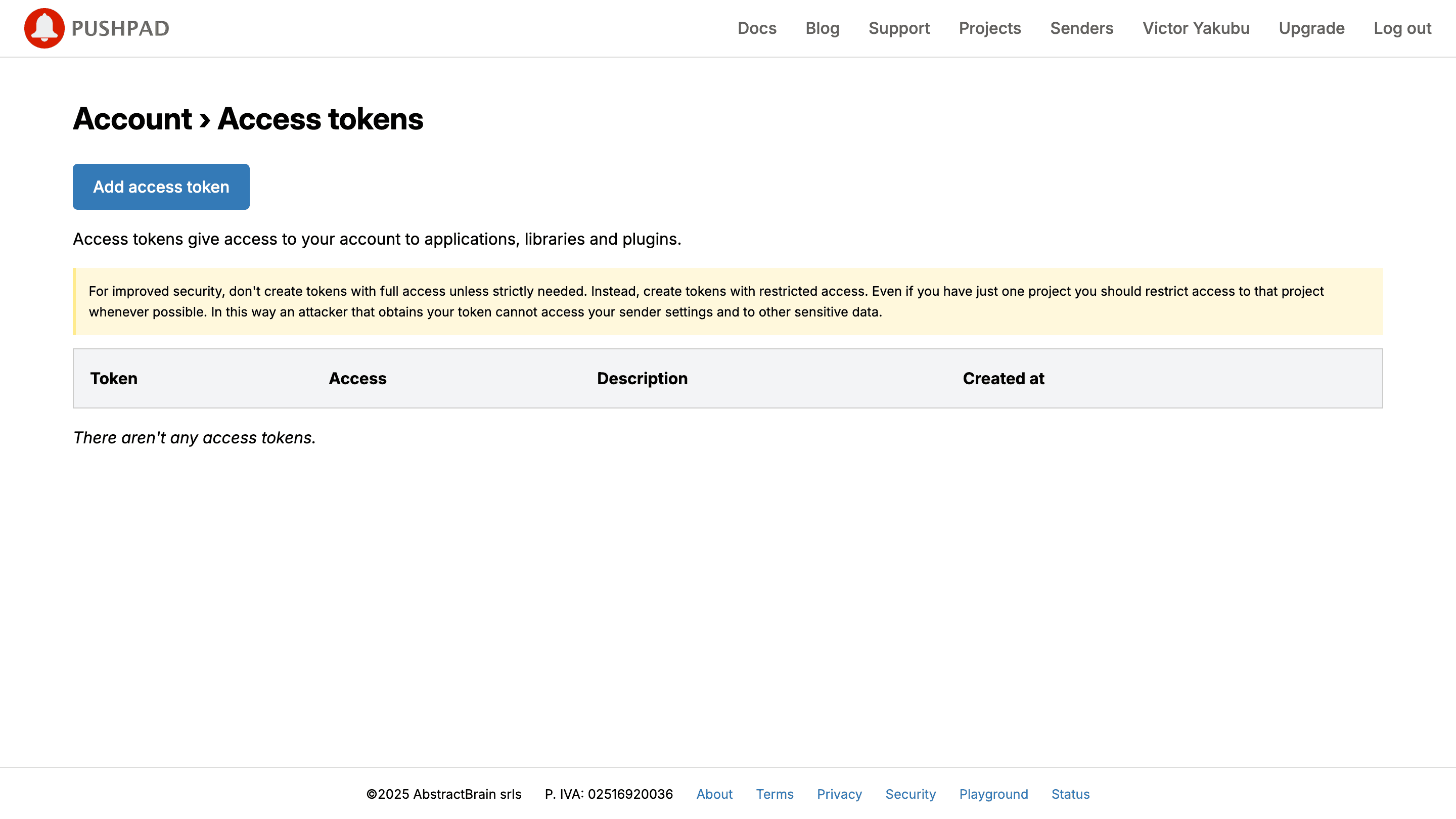
 Navigate to the [access token](https://pushpad.xyz/access_tokens) page.
Click **Add access token**.
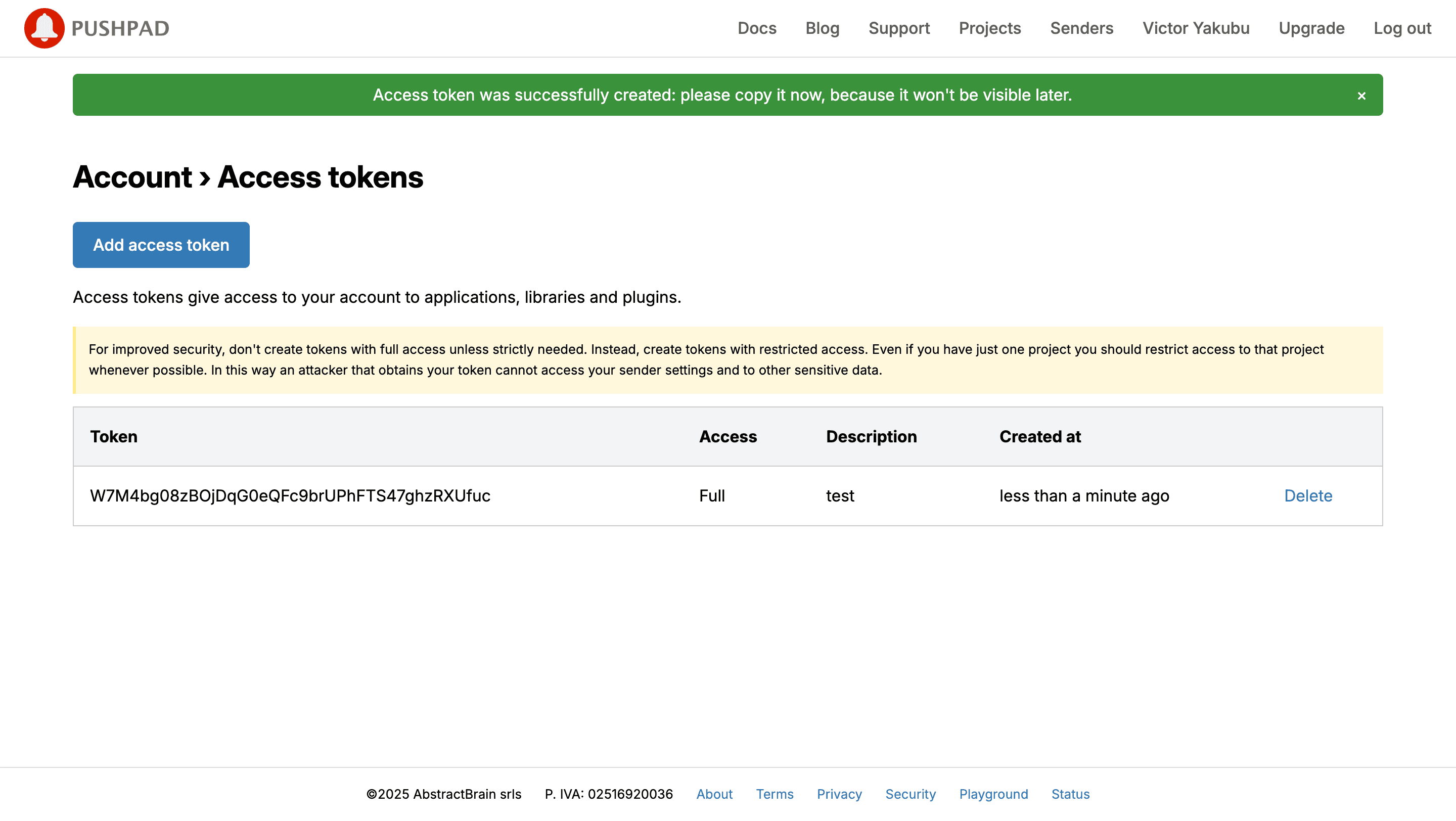
Fill in the required fields to create a new access token, or use your existing token if you already have one.
Navigate to the [access token](https://pushpad.xyz/access_tokens) page.
Click **Add access token**.
Fill in the required fields to create a new access token, or use your existing token if you already have one.
 Copy the generated token. You need it to connect to Novu.
 ### Step 2: Connect Pushpad to Novu
Add these credentials to your Pushpad integration in the Novu dashboard.
Log in to the Novu dashboard.
On the Novu dashboard, navigate to the **Integration Store**.
Click **Connect provider**.
Click the **Push** tab.
Select **Pushpad**.
In the Pushpad integration form, paste your access token and project ID from [Step 1](/platform/integrations/push/pushpad#step-1-get-your-pushpad-credentials) into the corresponding fields.
### Step 2: Connect Pushpad to Novu
Add these credentials to your Pushpad integration in the Novu dashboard.
Log in to the Novu dashboard.
On the Novu dashboard, navigate to the **Integration Store**.
Click **Connect provider**.
Click the **Push** tab.
Select **Pushpad**.
In the Pushpad integration form, paste your access token and project ID from [Step 1](/platform/integrations/push/pushpad#step-1-get-your-pushpad-credentials) into the corresponding fields.
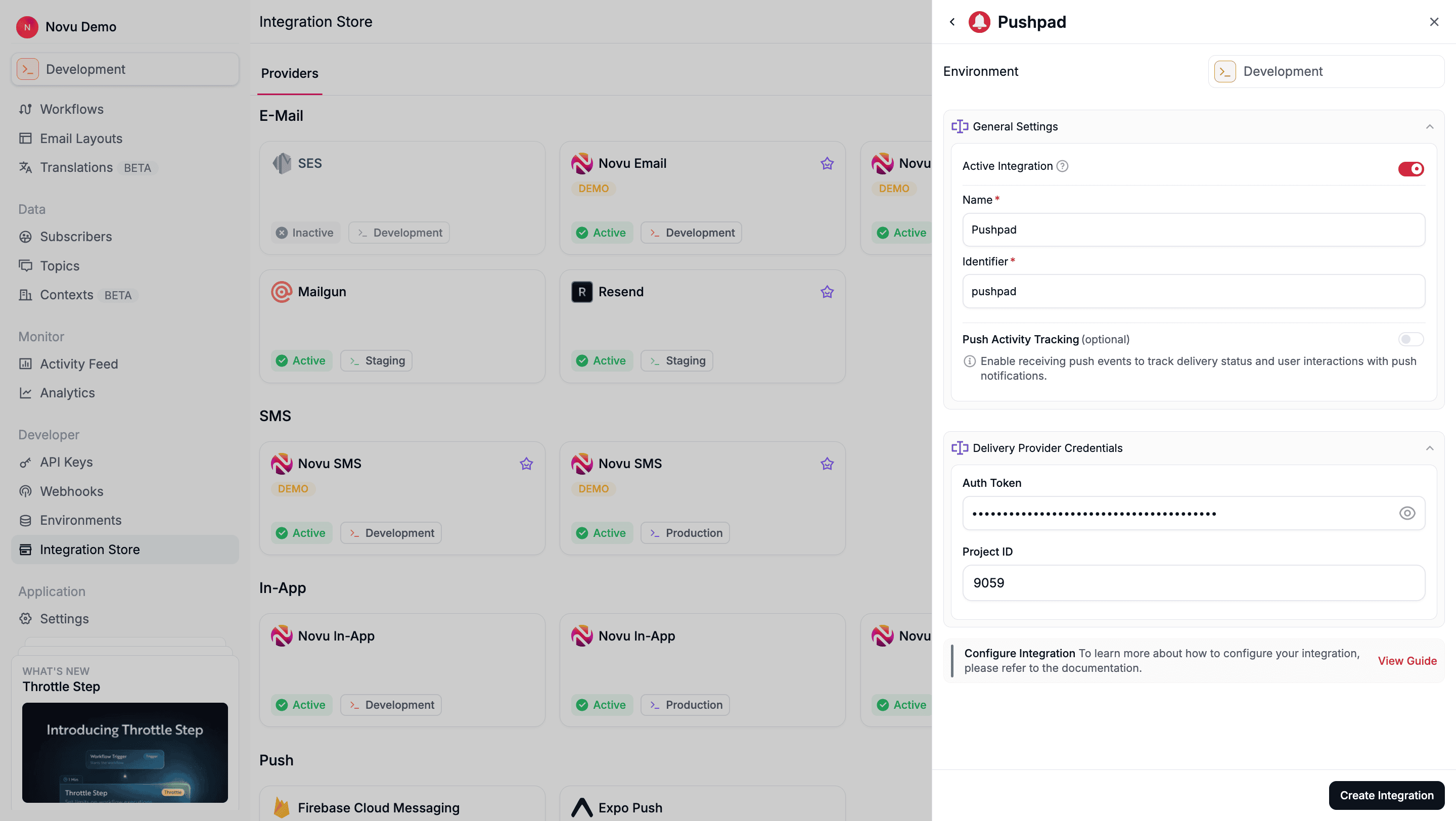 Click **Create Integration**.
## Using Pushpad with Novu
Once your integration is configured, in other to send push notification using the PushPad provider, you must do the following:
### Step 1: Add subscriber device token
After [setting up the Pushpad SDK](https://pushpad.xyz/docs/pushpad_pro_getting_started) on your website, you must [assign a user ID (uid)](https://pushpad.xyz/docs/identifying_users) to your users' push subscriptions.
This `uid` is the identifier Novu uses to target a specific browser. For example, if you use `pushpad('uid', 'user123')`, then `user123` is the ID you must register in Novu.
You can do this by making an API call to [update the subscriber's credentials](/api-reference/subscribers/update-provider-credentials).
```typescript theme={null}
import { Novu } from '@novu/api';
import { ChatOrPushProviderEnum } from "@novu/api/models/components";
const novu = new Novu({
secretKey: "",
// Required if using EU region
// serverURL: "https://eu.api.novu.co",
});
await novu.subscribers.credentials.update(
{
providerId: ChatOrPushProviderEnum.PushPad,
// Use integrationIdentifier to store device tokens for a specific integration
integrationIdentifier: "pushpad-MnGLxp8uy",
credentials: {
deviceTokens: ["token1", "token2", "token3"],
},
},
"subscriberId"
);
```
```bash theme={null}
curl -L -X PUT 'https://api.novu.co/v1/subscribers//credentials' \
-H 'Content-Type: application/json' \
-H 'Accept: application/json' \
-H 'Authorization: ApiKey ' \
-d '{
"providerId": "pushpad",
"deviceTokens": ['user123'],
"integrationIdentifier": "pushpad-MnGLxp8uy"
}'
```
### Step 2: Send a notification
Now you're ready to send a push notification. [Create a workflow with a Push step](/platform/workflow/create-a-workflow) and then trigger it. Novu sends the notification to the `uid`s associated with the subscriber.
The example below demonstrates a simple trigger using Novu’s SDK.
```typescript theme={null}
import { Novu } from '@novu/api';
const novu = new Novu({
secretKey: "",
// Required if using EU region
// serverURL: "https://eu.api.novu.co",
});
await novu.trigger({
workflowId: "workflowId",
to: {
subscriberId: "subscriberId",
},
payload: {},
});
```
Click **Create Integration**.
## Using Pushpad with Novu
Once your integration is configured, in other to send push notification using the PushPad provider, you must do the following:
### Step 1: Add subscriber device token
After [setting up the Pushpad SDK](https://pushpad.xyz/docs/pushpad_pro_getting_started) on your website, you must [assign a user ID (uid)](https://pushpad.xyz/docs/identifying_users) to your users' push subscriptions.
This `uid` is the identifier Novu uses to target a specific browser. For example, if you use `pushpad('uid', 'user123')`, then `user123` is the ID you must register in Novu.
You can do this by making an API call to [update the subscriber's credentials](/api-reference/subscribers/update-provider-credentials).
```typescript theme={null}
import { Novu } from '@novu/api';
import { ChatOrPushProviderEnum } from "@novu/api/models/components";
const novu = new Novu({
secretKey: "",
// Required if using EU region
// serverURL: "https://eu.api.novu.co",
});
await novu.subscribers.credentials.update(
{
providerId: ChatOrPushProviderEnum.PushPad,
// Use integrationIdentifier to store device tokens for a specific integration
integrationIdentifier: "pushpad-MnGLxp8uy",
credentials: {
deviceTokens: ["token1", "token2", "token3"],
},
},
"subscriberId"
);
```
```bash theme={null}
curl -L -X PUT 'https://api.novu.co/v1/subscribers//credentials' \
-H 'Content-Type: application/json' \
-H 'Accept: application/json' \
-H 'Authorization: ApiKey ' \
-d '{
"providerId": "pushpad",
"deviceTokens": ['user123'],
"integrationIdentifier": "pushpad-MnGLxp8uy"
}'
```
### Step 2: Send a notification
Now you're ready to send a push notification. [Create a workflow with a Push step](/platform/workflow/create-a-workflow) and then trigger it. Novu sends the notification to the `uid`s associated with the subscriber.
The example below demonstrates a simple trigger using Novu’s SDK.
```typescript theme={null}
import { Novu } from '@novu/api';
const novu = new Novu({
secretKey: "",
// Required if using EU region
// serverURL: "https://eu.api.novu.co",
});
await novu.trigger({
workflowId: "workflowId",
to: {
subscriberId: "subscriberId",
},
payload: {},
});
```