> ## Documentation Index
> Fetch the complete documentation index at: https://novu-c5de82d9-docs-homepage-redesign.mintlify.site/llms.txt
> Use this file to discover all available pages before exploring further.
# Translations
> Learn how to translate your workflow step content into multiple languages
Novu supports multi-language translations for workflows, allowing notifications to dynamically adapt to each of your subscriber's preferred language. You can enable, configure, and manage translations across your notification workflows from the Novu dashboard.
The translations feature is in `beta` and available on `Team` and `Enterprise` [plans](https://novu.co/pricing).
Each workflow can support multiple locales. Novu automatically selects the correct translation based on the subscriber’s locale.
Novu currently supports locale codes in `language_REGION` format only, for example, `en_US`, `fr_FR`. Language-only locale codes such as `en` are not supported.
Benefits:
* Deliver notifications in the subscriber's preferred language
* Customize content per workflow or layout
* Improve communication across geographies
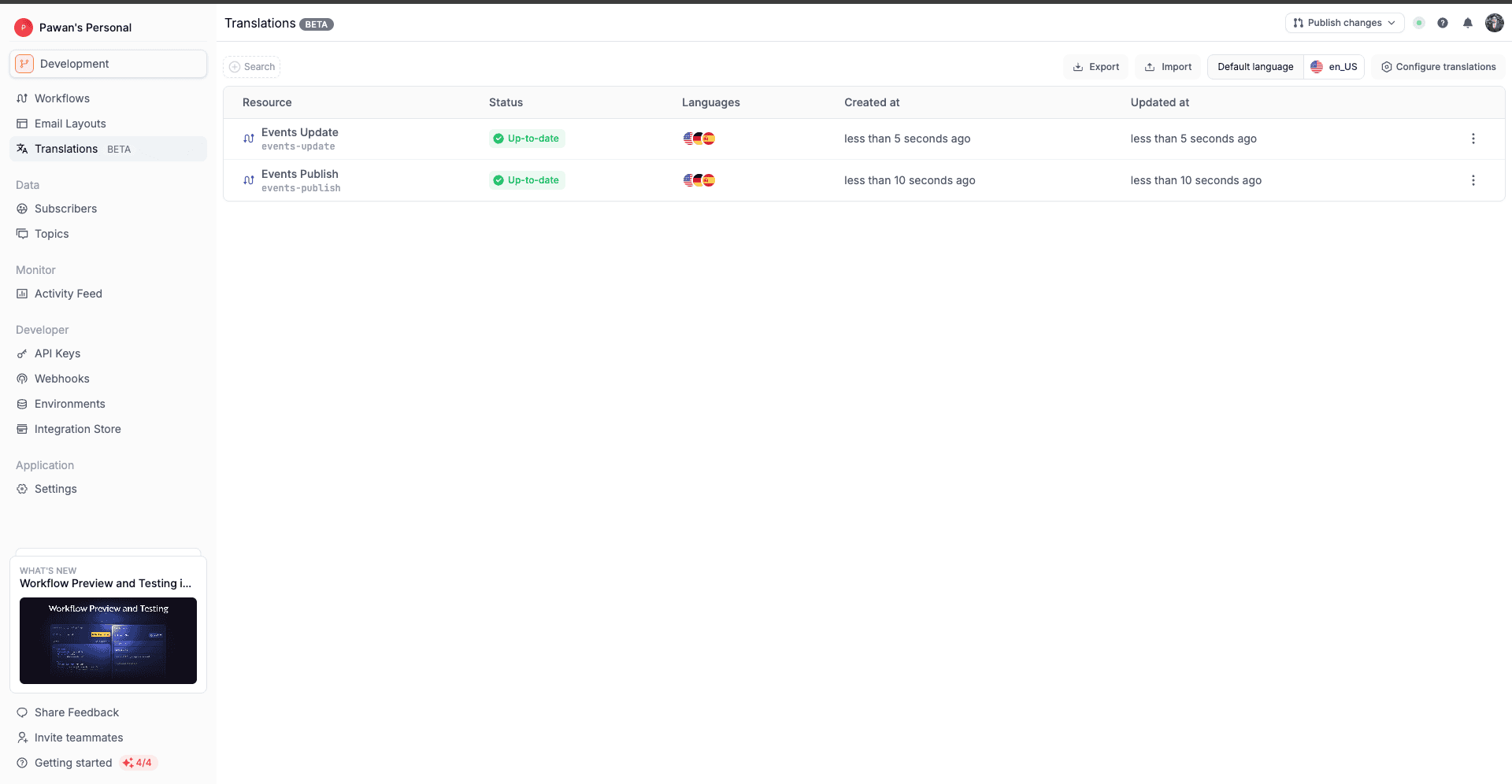
Manage translations from the [translation page](https://dashboard.novu.co/translations) in the Novu dashboard. Set a default language and add target languages as needed.
## Enabling translations
To use translations for a workflow, you need to enable them on the workflow level.
### While creating a new workflow
* Turn on the **Enable Translations** toggle
* Set the default locale, such as `en_US` or `en_GB`
* Add the target locales you wish to support, such as `fr_FR`, `es_ES`, `ja_JP`
### While editing an existing workflow
* Open an existing workflow
* Turn on the **Enable Translations** toggle
* You don't need to take any action if the toggle is already on
You can configure the default and targeted locales on the [translation page](https://dashboard.novu.co/translations).
## Translation groups
A translation group contains all language variants for a workflow identified by a unique workflow ID.
You can:
* Search for groups on the translations page
* View status per locale ('Outdated' or 'Up to date')
* Import or export translations for a specific locale, such as `en_US`
* Import or export translations for all workflows where translations are enabled
## Translation JSON format
Each locale supports JSON-based translation files. For example, the `en_US.json` file contains the default translations for the workflow. You can update the translation JSON files using the JSON editor on the translation page.
```json theme={null}
{
"in-app": {
"title": "Welcome to Novu!",
"message": "Hi {{subscriber.firstName}}, let's get started!"
},
"email": {
"subject": "Get Started",
"body": "Thank you for joining us, {{subscriber.fullName}}"
}
}
```
You can update translations by editing the JSON files in the editor on the translations page or by exporting and re-uploading them.
## Exporting and importing translations
If you prefer to create/update translations in a JSON file outside the Novu dashboard, you can do so by exporting and importing them.
### How to export translations
1. Navigate to the translations page.
2. Select the workflow you want to export translations for
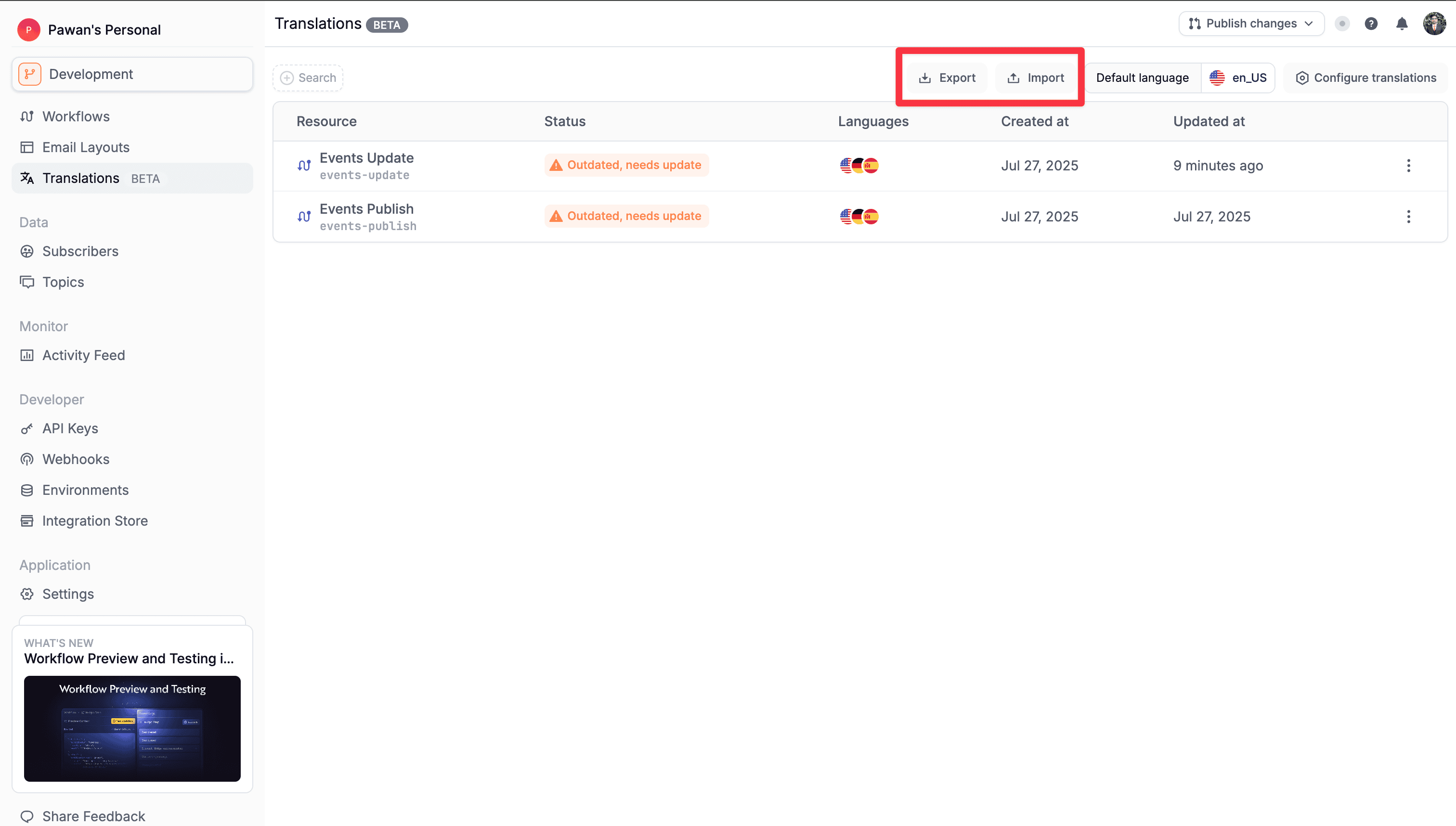
* To export the default locale for all workflows with translations enabled, click the **Export** button.
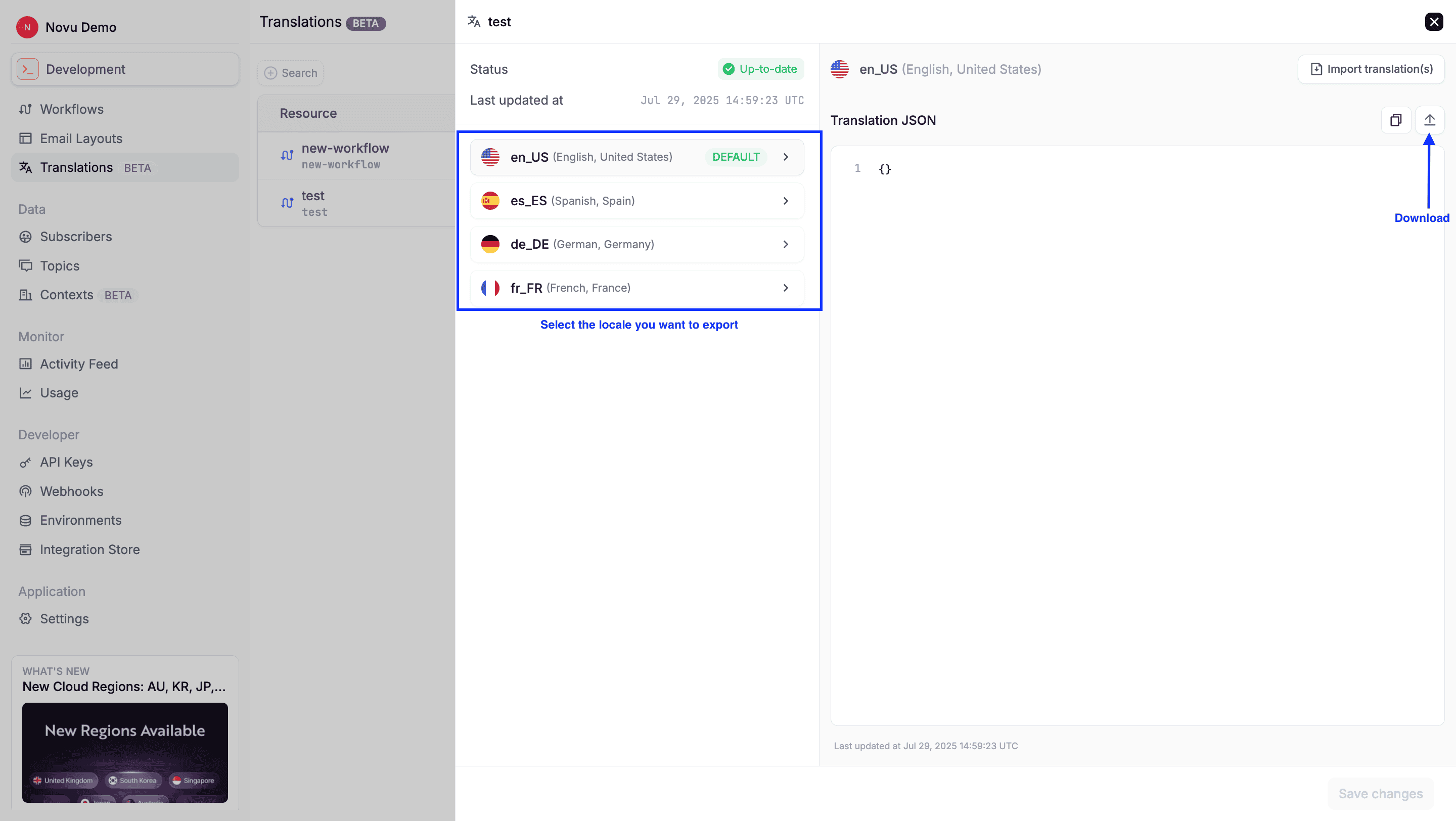
3. Select the workflow locale you want to export.
4. Click the download icon to download the latest translation JSON file for the selected locale.
### How to import translations
1. Navigate to the translations page.
2. Select the workflow you want to import translations into.
* To import locale into all workflows with translations enabled, click the **Import** button.
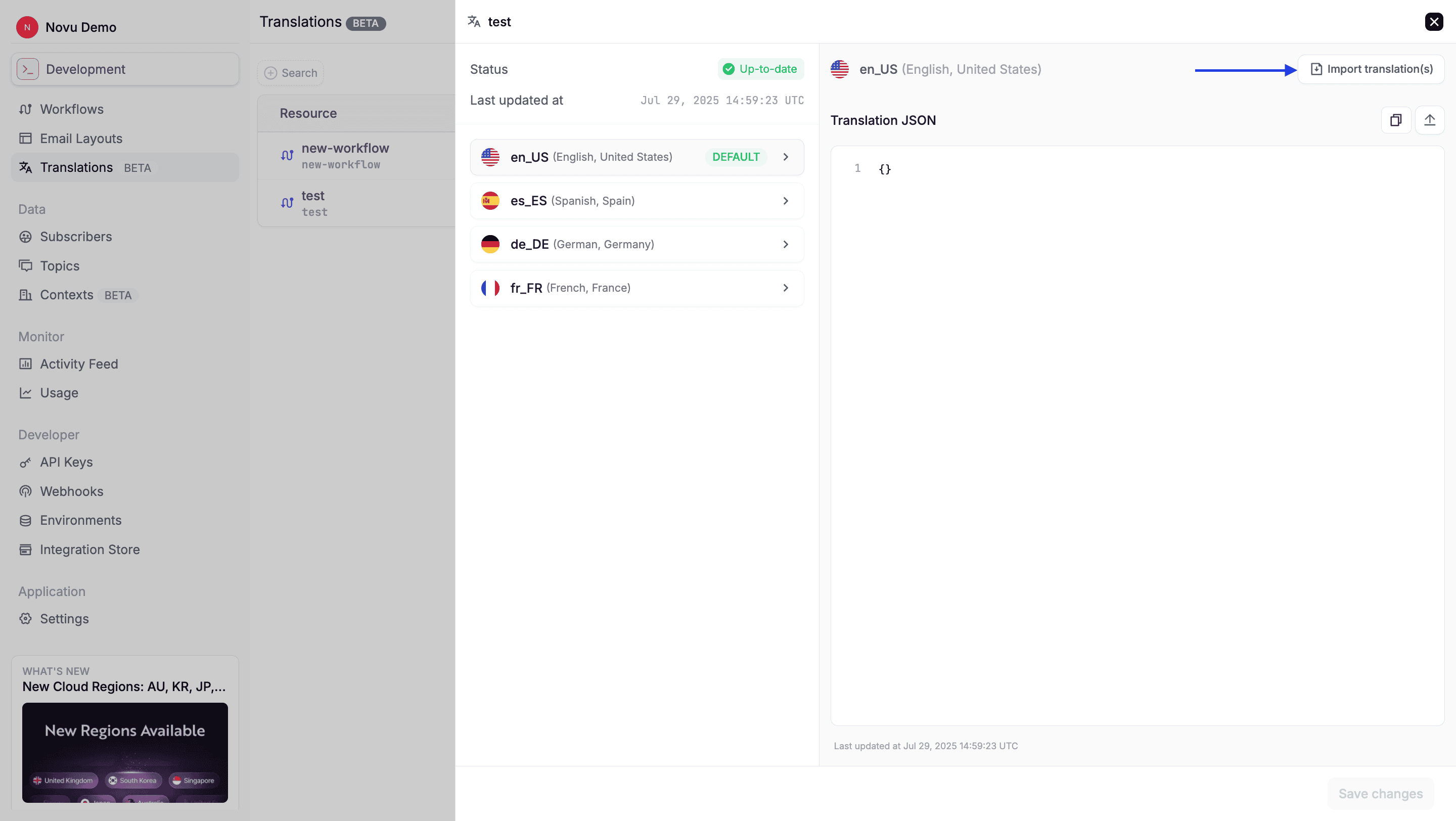
3. Click on the locale, such as `en_US`, now click on the **Import translation(s)** button to upload the translation JSON file.
Translation files must be named using the `language_REGION.json` format, for example, `en_US.json`, `fr_FR.json`. Novu detects the locale automatically using the file name.
Translation changes in default locale such as `en_US` will mark other locales as *Outdated, needs update*
### Master JSON file
Master JSON file is a JSON file that contains the default locale's translations keys of all the workflows where translations are enabled. You can import or export this file from the translations page. Below is an example of a master JSON file:
```json theme={null}
{
"workflows": {
"events-publish": {
"key": "value"
},
"events-update": {
"subject": "A new update",
"content": "{{payload.eventName}} event has been updated"
}
}
}
```
## Using translation keys in step content editor
In Email or In-App editors, use `{{t.key}}` to insert a translatable string. If the key already exists for the locale, it appears in the suggestions list.
Clicking **Add to Translations** automatically adds a new key to default locale.
Example:
```html theme={null}
{{t.subject}} → "Let's get you started"
{{t.product.details.description}}
```
## Testing translations
Use the Preview Context to:
* Simulate subscriber locale such as `fr_FR` or `ru_RU`
* Preview step content for the selected language.
* Update or correct missing translations on the fly.
## Keeping translations up to date
Any edit to the default locale will invalidate others. You’ll see a warning: `Outdated, needs update`. Re-export the default, update translated files, and re-upload.
## Disabling translations
A translation group can be disabled by clicking on the three dots and selecting **Disable & delete translations**. This action is irreversible and removes all associated translation data.
## Translation in email layouts
Translations feature in layouts works the same as in email steps. You can use `{{t.key}}` to insert a translatable string. If the key already exists for the locale, it appears in the suggestions list. To use translations in layouts, you need to enable translations in the layout settings. Checkout the below example video on how to use translations in layouts.
## Manage translations via CLI
The Novu CLI can download translation files from Novu Cloud to your machine, or upload local JSON files back to your workspace. This is useful for version control, bulk edits, and CI workflows.
Use `npx novu` (or a globally installed `novu` binary) with your Novu secret key and API URL to pull or push translations.
### Pull translations
`novu translations pull` downloads all translation files from Novu Cloud into a local directory (default: `./translations`).
```bash theme={null}
# Pull to the default directory (./translations)
npx novu translations pull -s YOUR_SECRET_KEY
# Pull to a custom directory
npx novu translations pull -s YOUR_SECRET_KEY -d ./my-translations
# Use the EU API endpoint
npx novu translations pull -s YOUR_SECRET_KEY -a https://eu.api.novu.co
```
| Option | Description |
| ------------------------ | -------------------------------------------------- |
| `-s, --secret-key ` | Your Novu secret key (required unless set via env) |
| `-a, --api-url ` | Novu API base URL (default: `https://api.novu.co`) |
| `-d, --directory ` | Output directory (default: `./translations`) |
### Push translations
`novu translations push` uploads translation JSON files from a local directory to Novu Cloud (default directory: `./translations`).
```bash theme={null}
# Push from the default directory (./translations)
npx novu translations push -s YOUR_SECRET_KEY
# Push from a custom directory
npx novu translations push -s YOUR_SECRET_KEY -d ./my-translations
# Use the EU API endpoint
npx novu translations push -s YOUR_SECRET_KEY -a https://eu.api.novu.co
```
| Option | Description |
| ------------------------ | ------------------------------------------------------------------ |
| `-s, --secret-key ` | Your Novu secret key (required unless set via env) |
| `-a, --api-url ` | Novu API base URL (default: `https://api.novu.co`) |
| `-d, --directory ` | Directory containing locale JSON files (default: `./translations`) |
### File layout and format
Files should use locale codes in the `language_REGION` form and contain valid JSON, for example:
```
translations/
├── en_US.json
├── fr_FR.json
├── es_ES.json
└── de_DE.json
```
Example content:
```json theme={null}
{
"workflows": {
"welcome": {
"subject": "Welcome to our platform!",
"body": "Thank you for joining us."
}
}
}
```
This matches the same `language_REGION.json` naming rules used when importing via the dashboard.
### Environment variables
You can avoid repeating flags by setting:
```bash theme={null}
export NOVU_SECRET_KEY="your_secret_key_here"
export NOVU_API_URL="https://api.novu.co" # or https://eu.api.novu.co for EU
npx novu translations pull
npx novu translations push
```
### Tips
* Back up or commit existing translations before running **push**, so you can recover from mistakes.
* Validate JSON locally (for example with your editor or `jq`) before pushing.
* Run **pull** once to confirm the on-disk layout matches what Novu expects before automating in CI.
Never commit Novu secret keys. Use environment variables or your CI provider’s secrets store for `NOVU_SECRET_KEY`.
## Best practices
* Always finalize your default content before exporting.
* Avoid hardcoded language in the content editor.
* Use variables and translation keys consistently.
* Set subscriber locale properly to deliver notifications in the correct language.
* Ensure subscriber locales are mapped to a supported `language_REGION` format before sending them to Novu.
 ## Enabling translations
To use translations for a workflow, you need to enable them on the workflow level.
### While creating a new workflow
* Turn on the **Enable Translations** toggle
* Set the default locale, such as `en_US` or `en_GB`
* Add the target locales you wish to support, such as `fr_FR`, `es_ES`, `ja_JP`
### While editing an existing workflow
* Open an existing workflow
* Turn on the **Enable Translations** toggle
* You don't need to take any action if the toggle is already on
You can configure the default and targeted locales on the [translation page](https://dashboard.novu.co/translations).
## Translation groups
A translation group contains all language variants for a workflow identified by a unique workflow ID.
You can:
* Search for groups on the translations page
* View status per locale ('Outdated' or 'Up to date')
* Import or export translations for a specific locale, such as `en_US`
* Import or export translations for all workflows where translations are enabled
## Translation JSON format
Each locale supports JSON-based translation files. For example, the `en_US.json` file contains the default translations for the workflow. You can update the translation JSON files using the JSON editor on the translation page.
```json theme={null}
{
"in-app": {
"title": "Welcome to Novu!",
"message": "Hi {{subscriber.firstName}}, let's get started!"
},
"email": {
"subject": "Get Started",
"body": "Thank you for joining us, {{subscriber.fullName}}"
}
}
```
You can update translations by editing the JSON files in the editor on the translations page or by exporting and re-uploading them.
## Exporting and importing translations
If you prefer to create/update translations in a JSON file outside the Novu dashboard, you can do so by exporting and importing them.
### How to export translations
1. Navigate to the translations page.
2. Select the workflow you want to export translations for
* To export the default locale for all workflows with translations enabled, click the **Export** button.
3. Select the workflow locale you want to export.
4. Click the download icon to download the latest translation JSON file for the selected locale.
## Enabling translations
To use translations for a workflow, you need to enable them on the workflow level.
### While creating a new workflow
* Turn on the **Enable Translations** toggle
* Set the default locale, such as `en_US` or `en_GB`
* Add the target locales you wish to support, such as `fr_FR`, `es_ES`, `ja_JP`
### While editing an existing workflow
* Open an existing workflow
* Turn on the **Enable Translations** toggle
* You don't need to take any action if the toggle is already on
You can configure the default and targeted locales on the [translation page](https://dashboard.novu.co/translations).
## Translation groups
A translation group contains all language variants for a workflow identified by a unique workflow ID.
You can:
* Search for groups on the translations page
* View status per locale ('Outdated' or 'Up to date')
* Import or export translations for a specific locale, such as `en_US`
* Import or export translations for all workflows where translations are enabled
## Translation JSON format
Each locale supports JSON-based translation files. For example, the `en_US.json` file contains the default translations for the workflow. You can update the translation JSON files using the JSON editor on the translation page.
```json theme={null}
{
"in-app": {
"title": "Welcome to Novu!",
"message": "Hi {{subscriber.firstName}}, let's get started!"
},
"email": {
"subject": "Get Started",
"body": "Thank you for joining us, {{subscriber.fullName}}"
}
}
```
You can update translations by editing the JSON files in the editor on the translations page or by exporting and re-uploading them.
## Exporting and importing translations
If you prefer to create/update translations in a JSON file outside the Novu dashboard, you can do so by exporting and importing them.
### How to export translations
1. Navigate to the translations page.
2. Select the workflow you want to export translations for
* To export the default locale for all workflows with translations enabled, click the **Export** button.
3. Select the workflow locale you want to export.
4. Click the download icon to download the latest translation JSON file for the selected locale.
 ### How to import translations
1. Navigate to the translations page.
2. Select the workflow you want to import translations into.
* To import locale into all workflows with translations enabled, click the **Import** button.
3. Click on the locale, such as `en_US`, now click on the **Import translation(s)** button to upload the translation JSON file.
### How to import translations
1. Navigate to the translations page.
2. Select the workflow you want to import translations into.
* To import locale into all workflows with translations enabled, click the **Import** button.
3. Click on the locale, such as `en_US`, now click on the **Import translation(s)** button to upload the translation JSON file.
 ## Using translation keys in step content editor
In Email or In-App editors, use `{{t.key}}` to insert a translatable string. If the key already exists for the locale, it appears in the suggestions list.
Clicking **Add to Translations** automatically adds a new key to default locale.
Example:
```html theme={null}
{{t.subject}} → "Let's get you started"
{{t.product.details.description}}
```
## Testing translations
Use the Preview Context to:
* Simulate subscriber locale such as `fr_FR` or `ru_RU`
* Preview step content for the selected language.
* Update or correct missing translations on the fly.
## Keeping translations up to date
Any edit to the default locale will invalidate others. You’ll see a warning: `Outdated, needs update`. Re-export the default, update translated files, and re-upload.
## Disabling translations
A translation group can be disabled by clicking on the three dots and selecting **Disable & delete translations**. This action is irreversible and removes all associated translation data.
## Translation in email layouts
Translations feature in layouts works the same as in email steps. You can use `{{t.key}}` to insert a translatable string. If the key already exists for the locale, it appears in the suggestions list. To use translations in layouts, you need to enable translations in the layout settings. Checkout the below example video on how to use translations in layouts.
## Manage translations via CLI
The Novu CLI can download translation files from Novu Cloud to your machine, or upload local JSON files back to your workspace. This is useful for version control, bulk edits, and CI workflows.
Use `npx novu` (or a globally installed `novu` binary) with your Novu secret key and API URL to pull or push translations.
### Pull translations
`novu translations pull` downloads all translation files from Novu Cloud into a local directory (default: `./translations`).
```bash theme={null}
# Pull to the default directory (./translations)
npx novu translations pull -s YOUR_SECRET_KEY
# Pull to a custom directory
npx novu translations pull -s YOUR_SECRET_KEY -d ./my-translations
# Use the EU API endpoint
npx novu translations pull -s YOUR_SECRET_KEY -a https://eu.api.novu.co
```
| Option | Description |
| ------------------------ | -------------------------------------------------- |
| `-s, --secret-key
## Using translation keys in step content editor
In Email or In-App editors, use `{{t.key}}` to insert a translatable string. If the key already exists for the locale, it appears in the suggestions list.
Clicking **Add to Translations** automatically adds a new key to default locale.
Example:
```html theme={null}
{{t.subject}} → "Let's get you started"
{{t.product.details.description}}
```
## Testing translations
Use the Preview Context to:
* Simulate subscriber locale such as `fr_FR` or `ru_RU`
* Preview step content for the selected language.
* Update or correct missing translations on the fly.
## Keeping translations up to date
Any edit to the default locale will invalidate others. You’ll see a warning: `Outdated, needs update`. Re-export the default, update translated files, and re-upload.
## Disabling translations
A translation group can be disabled by clicking on the three dots and selecting **Disable & delete translations**. This action is irreversible and removes all associated translation data.
## Translation in email layouts
Translations feature in layouts works the same as in email steps. You can use `{{t.key}}` to insert a translatable string. If the key already exists for the locale, it appears in the suggestions list. To use translations in layouts, you need to enable translations in the layout settings. Checkout the below example video on how to use translations in layouts.
## Manage translations via CLI
The Novu CLI can download translation files from Novu Cloud to your machine, or upload local JSON files back to your workspace. This is useful for version control, bulk edits, and CI workflows.
Use `npx novu` (or a globally installed `novu` binary) with your Novu secret key and API URL to pull or push translations.
### Pull translations
`novu translations pull` downloads all translation files from Novu Cloud into a local directory (default: `./translations`).
```bash theme={null}
# Pull to the default directory (./translations)
npx novu translations pull -s YOUR_SECRET_KEY
# Pull to a custom directory
npx novu translations pull -s YOUR_SECRET_KEY -d ./my-translations
# Use the EU API endpoint
npx novu translations pull -s YOUR_SECRET_KEY -a https://eu.api.novu.co
```
| Option | Description |
| ------------------------ | -------------------------------------------------- |
| `-s, --secret-key