

- A Novu account.
- A Slack workspace where you can install apps.
- Node.js on your machine.
Add a Novu agent to my app
1
Create your agent
- Go to the Novu dashboard.
- In the sidebar, click Agents.
- Click Create agent.
-
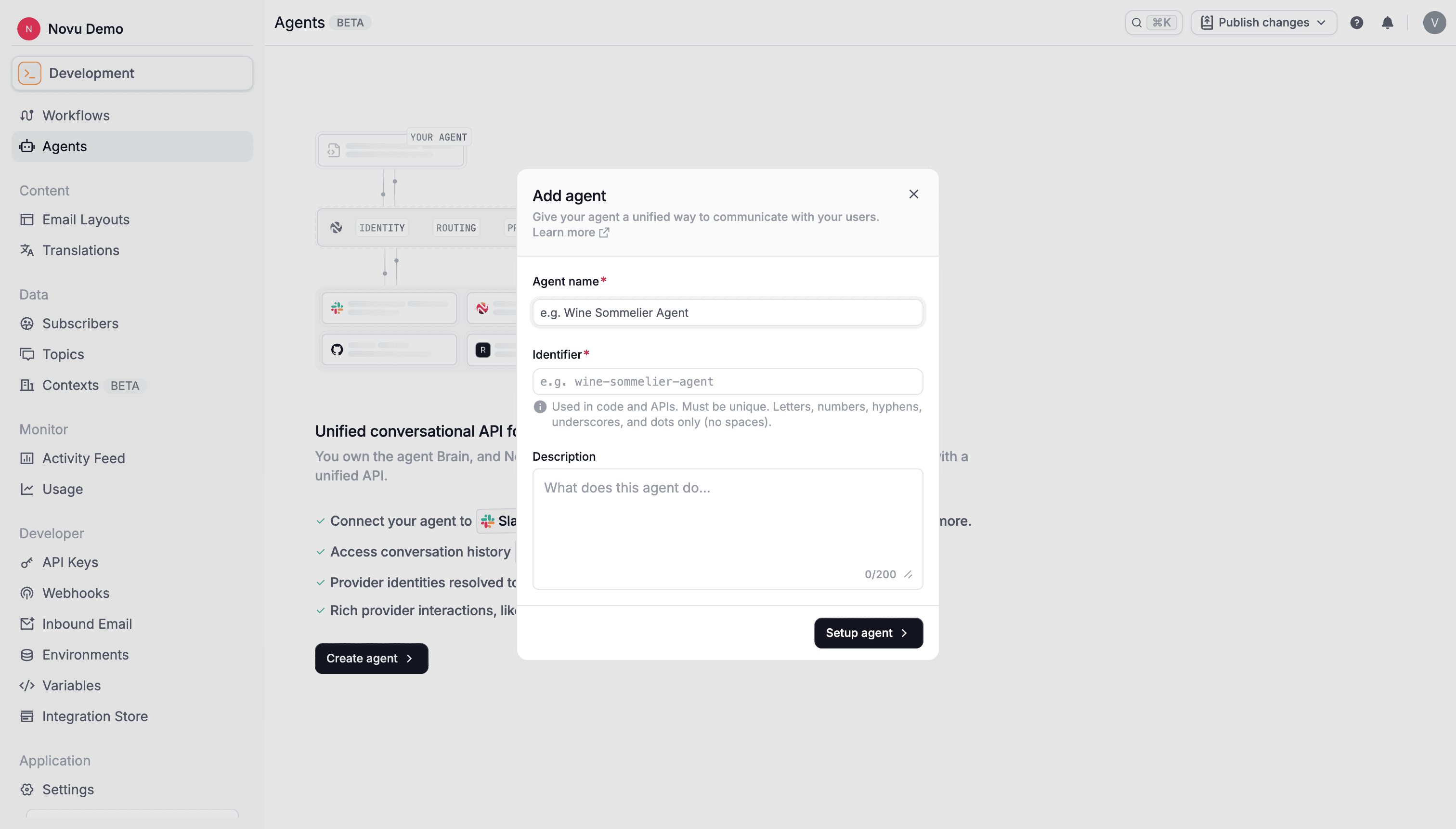
Fill in the required fields:
- Agent name: Display name for your agent.
- Identifier: Unique slug used in code. Cannot be changed after creation.
- Description: Optional.
-
Click Set up agent.
2
Select a provider
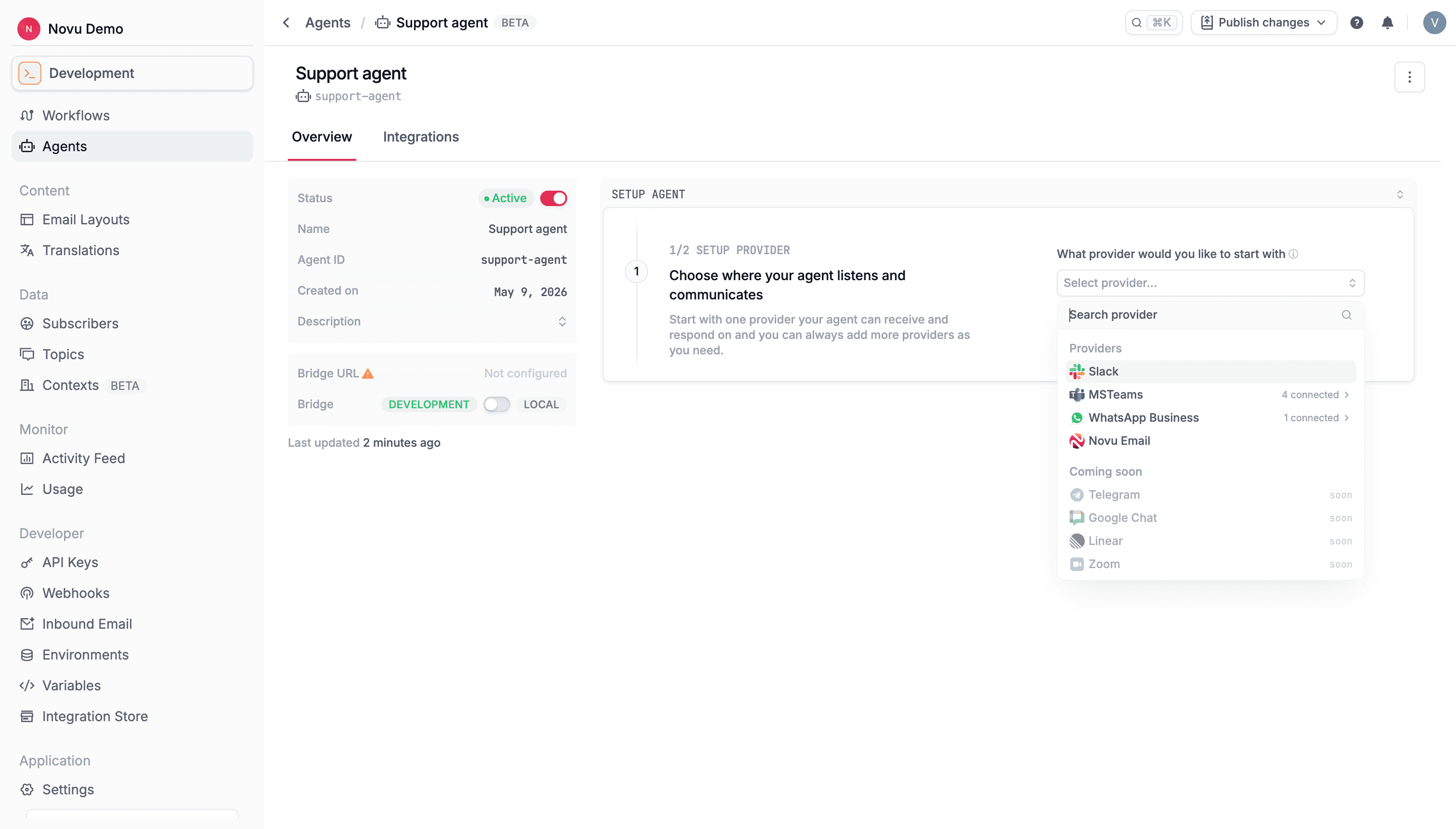
- On the setup page, open Select provider.
-
Select Slack.
3
Create a Slack app
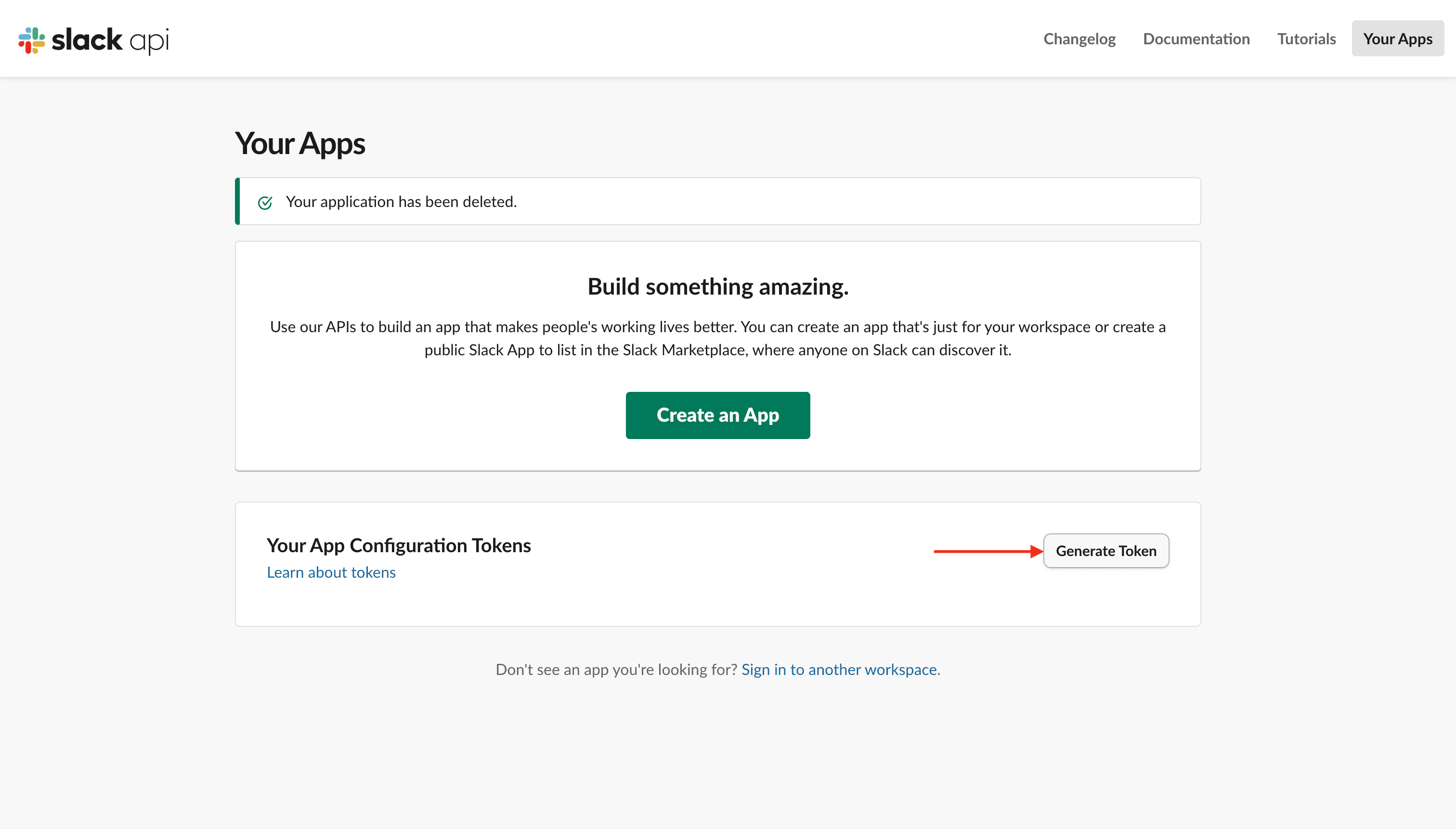
Novu can create the Slack app using a Slack App Configuration Token.- Click Slack App Configuration Token to open Slack API apps.
- Under Your App Configuration Tokens, click Generate Token.
- Select your workspace and click Generate.
- Copy the token.
- In Novu, paste the token and click Create app.
The configuration token is used once to create your Slack app and is not stored by Novu.
4
Install the app in your workspace
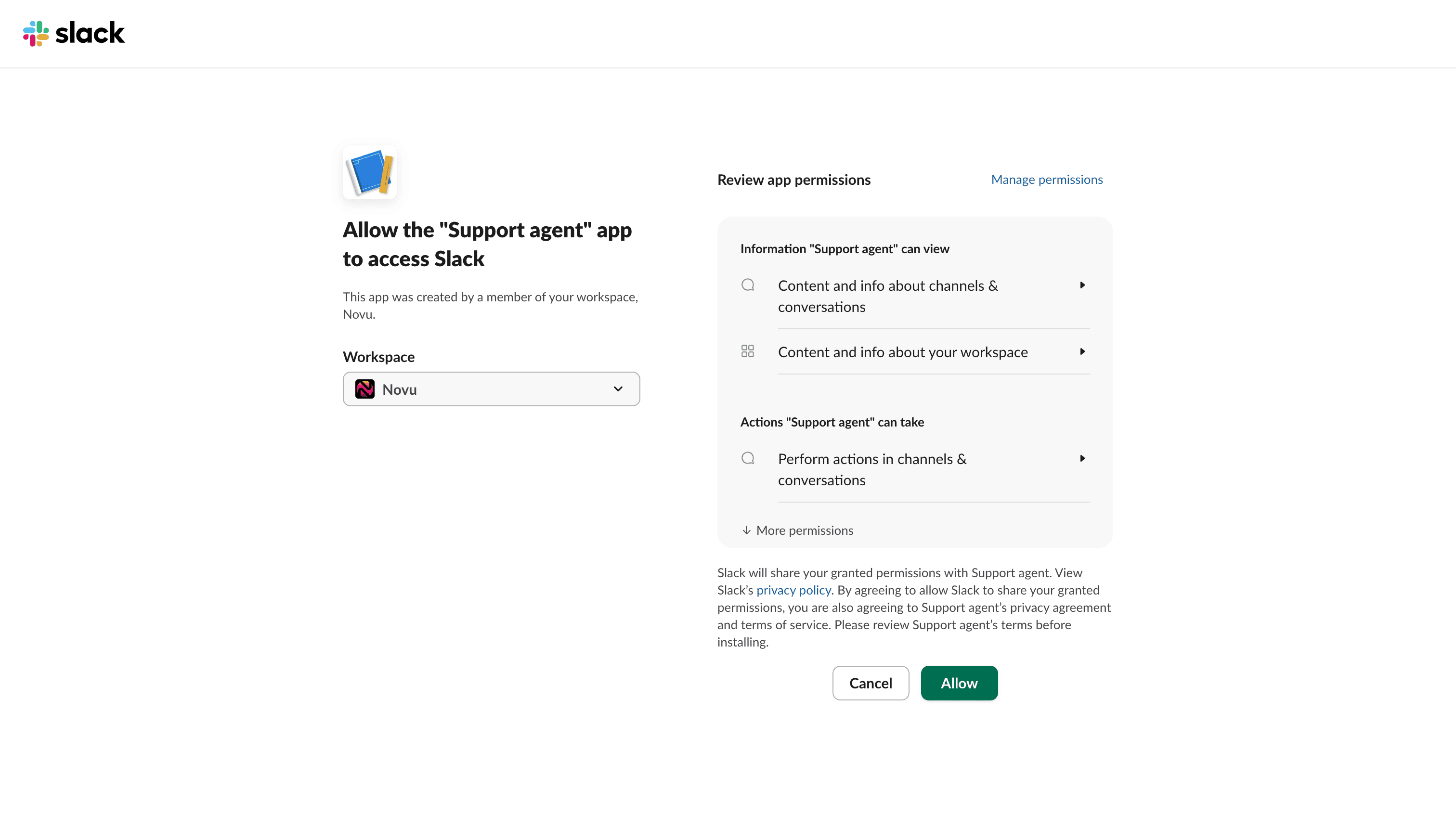
- Click Install agent (the label may include your agent name, for example Install My Agent).
-
Review permissions in Slack and click Allow.
5
Scaffold your agent project
Copy the scaffold command from the dashboard:6
Start your agent locally
7
Send a message
Message your bot in Slack. YouronMessage handler runs and the reply appears in the thread.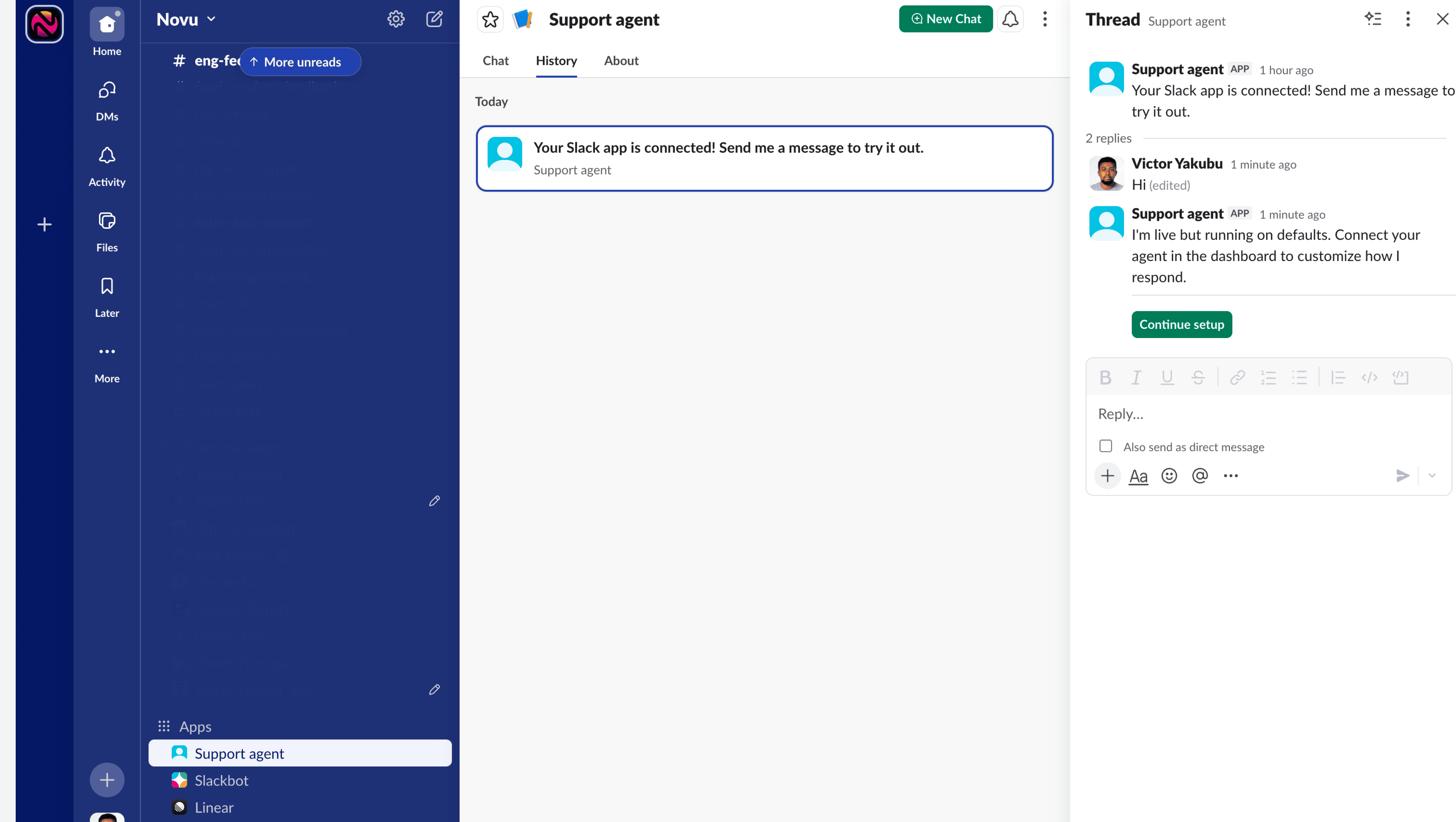
app/novu/agents/ to customize behavior. See Handle events for all event types.Next steps
Handle events
Respond to actions, reactions, and resolution events.
Reply
Markdown, attachments, and interactive cards.
Signals
Metadata, workflow triggers, and conversation resolution.
Connect your first agent
Full support-bot walkthrough with an LLM.