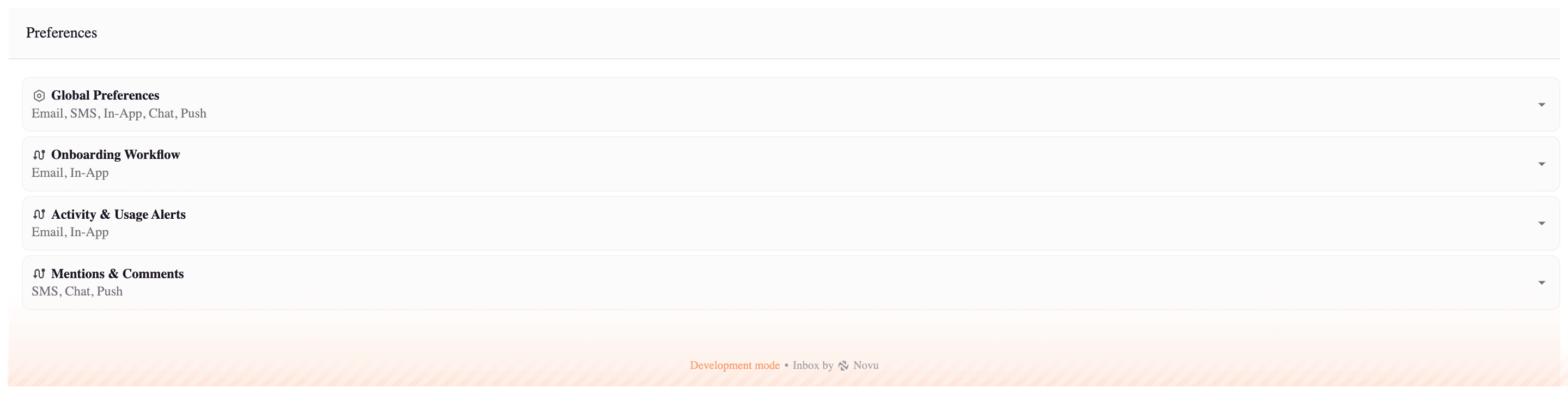
A workflow marked as “critical” on the Novu dashboard cannot be disabled by the user and will not appear in their preferences UI. You can override this behavior by setting the
criticality field in the preferencesFilter prop.You can also hide any workflow from appearing in the subscriber preferences UI using the appearance prop. To learn more, refer to the documentation on styling the Inbox UI elements.
Global preferences
Global preferences apply across all workflows. For example, a subscriber can turn off an email or SMS channels globally, ensuring that they don’t receive notifications through that channel from any workflow.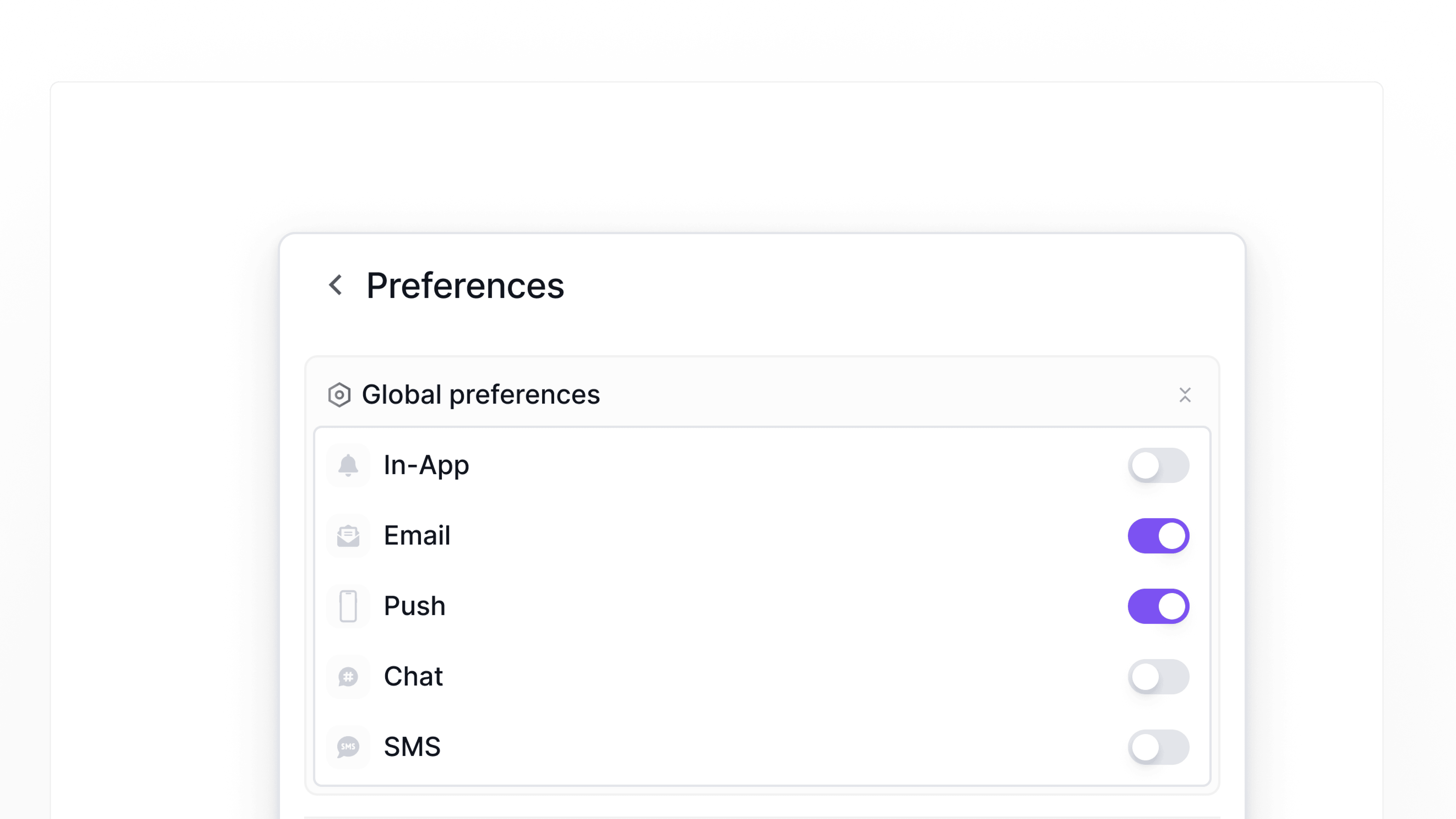
Hide global preferences UI
Global preferences are always shown in the preferences list and cannot be removed, but you can hide it from the UI if necessary by using appearance prop.Workflow-specific preferences
Each workflow has its own set of channel preferences in the Inbox UI, where your subscribers can control how they receive notifications for that specific workflow. For example, a subscriber might prefer to receive email notifications for an account updates workflow but in-app notifications for security alerts.The name given to a workflow in the Novu dashboard is the name your subscribers will see in their preferences UI.
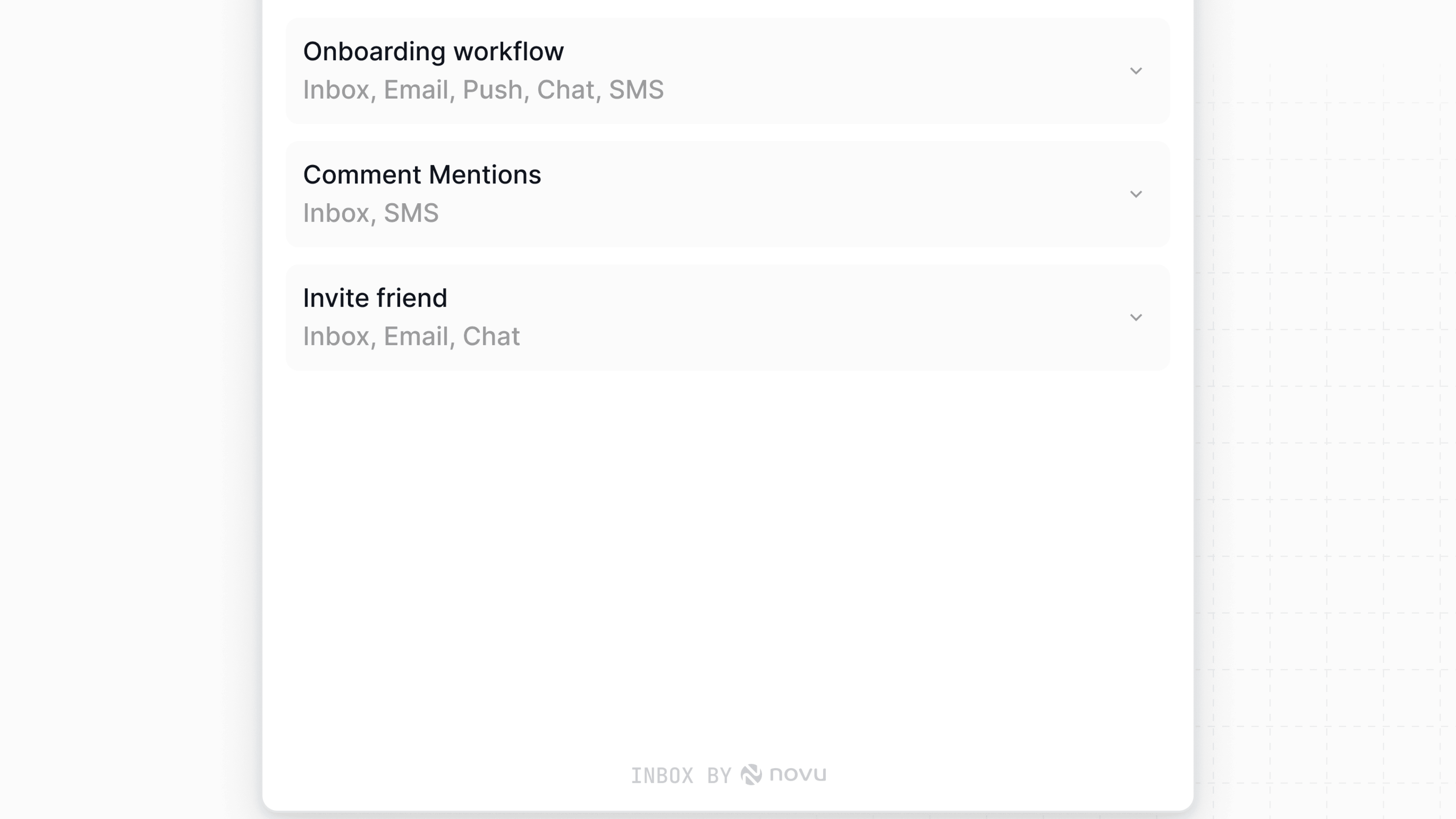
Learn how to configure channel steps in a workflow in the Create a Workflow guide.
Filter preferences
Use thepreferencesFilter prop on the Inbox component to control which workflows are shown in the subscriber preferences list. You can filter workflows based on their assigned tags or their criticality level (critical or non-critical).
Filter by tags
This filtering works by matching the tags you provide in the prop with the tags assigned to the workflows. Only workflows with matching tags will be visible to the subscriber in their preferences UI.Filter by workflow criticality
You can also filter which workflows are displayed based on whether they are marked as “critical”. By default, only non-critical workflows are shown. You can change this behavior using thecriticality key with WorkflowCriticalityEnum.
Possible values are:
WorkflowCriticalityEnum.NON_CRITICAL: (Default) Only shows non-critical workflows.WorkflowCriticalityEnum.CRITICAL: Only shows critical workflows.WorkflowCriticalityEnum.ALL: Shows all workflows, including critical ones.
Combining tags and criticality
You can combine tags and criticality filters to create more specific views. For example, the code below will display all workflows (both critical and non-critical) that have the ‘general’, ‘admin’, or ‘security’ tags.Group preferences
Use thepreferenceGroups prop on the Inbox component to organize workflows into meaningful sections in the subscriber preferences UI.
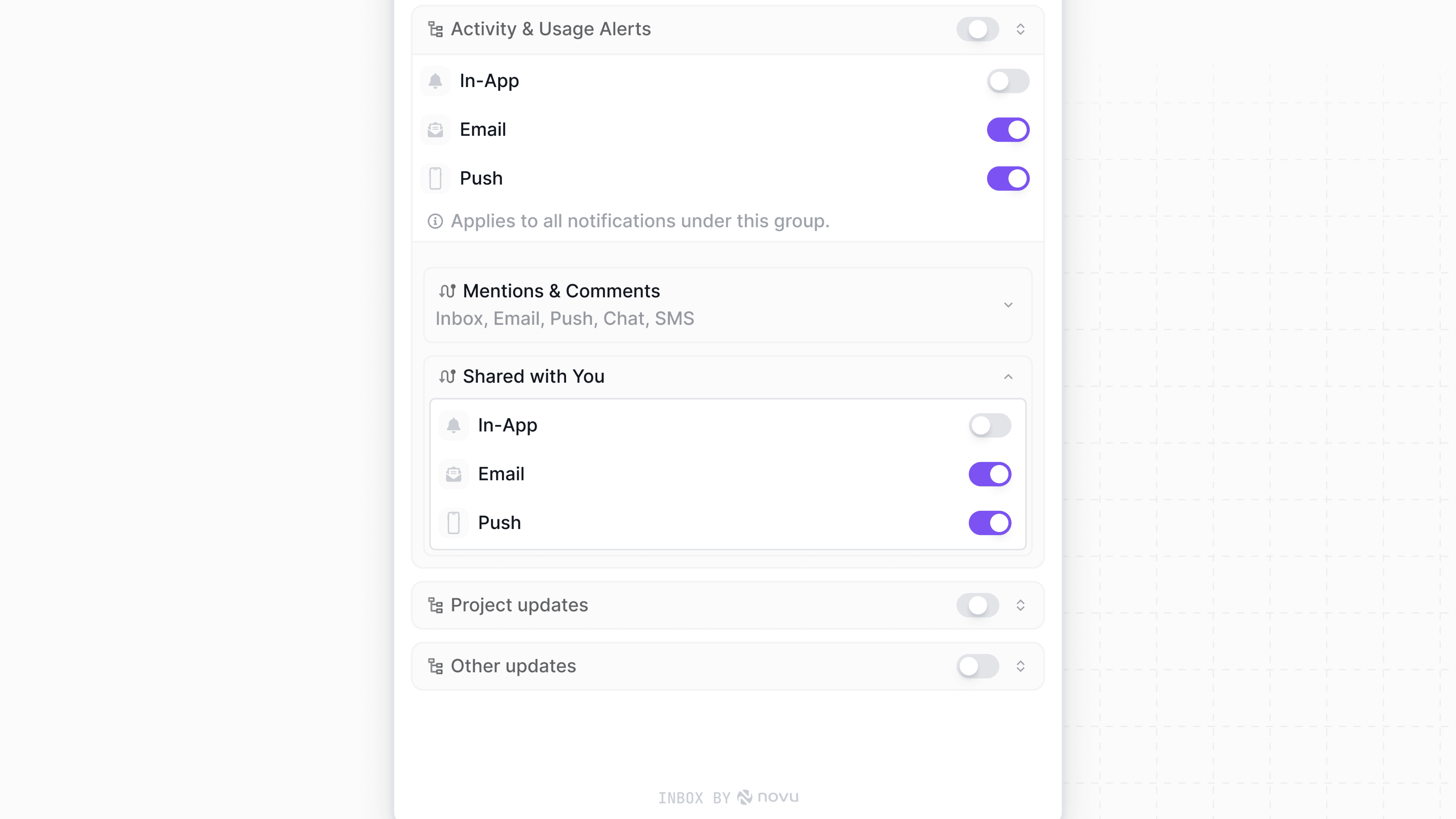
- name: The display name for the group
- filter: The filter logic (object or function) to determine which workflows belong in the group
Grouping preference is supported in client-side SDKs starting from version 3.4.0.
Group by tags
Use an object with atags key to group workflows that share specific tags.
Group by tags and workflow IDs
Combinetags and workflowIds for more targeted grouping.
Group all workflows
You can group all workflows under a single, descriptive heading like “All Notifications” or “General” to improve organization.Group using custom logic
You can define your own logic to group preferences by passing a function to thefilter key. This function receives an object containing a preferences array, where each item represents a workflow preference, including both subscriber settings and workflow metadata.
Each item in the preferences array includes a workflow object with properties like name, slug, and identifier. You can use these fields to implement your grouping logic.
Sort preferences
Use thepreferencesSort prop on the Inbox component to customize the order in which workflows are displayed in the subscriber preferences list. This prop accepts a custom comparison function, similar to JavaScript’s Array.sort() method.
The comparison function receives two preference objects (a, b) as arguments and should return:
- A negative number if
ashould come beforeb. - A positive number if
bshould come beforea. - Zero if the order of
aandbdoesn’t matter.
workflow property with metadata you can use for sorting, such as name, tags, slug, and identifier.
Sort alphabetically
You can sort workflows alphabetically by name in the preferences UISort by priority tag
You can implement more complex logic to meet your specific needs. This example prioritizes workflows tagged with “priority”, placing them at the top of the list. All other workflows are then sorted alphabetically by name.Sorting within groups
You can usepreferencesSort together with preferenceGroups. In this case, sorting is applied within each group; this lets you both organize workflows into sections and control their order inside those sections.
For example, after grouping workflows by their functions, you can then sort the workflows alphabetically within each of those groups.
Conditionally display preferences
This approach can also be used to show or hide elements. The example below hides the global preferences settings by checking thepreference.level property.
Use Preferences outside the Inbox UI
You don’t have to display the Preferences UI inside the default Inbox component. Novu provides two main ways to build a custom preference experience for your subscribers.- Component
- Hook
Use the Preferences component to display the preferences UI anywhere in your application, such as in a dedicated settings page without showing the full Inbox component. This gives you more control over the layout and placement of the preferences experience in your application.