

Template variables
Template variables are placeholders that are resolved at workflow execution time and replaced with actual values when a notification is rendered. They allow templates to reference data from the workflow trigger payload, subscriber profile, workflow metadata, and outputs from previous steps. To insert a variable into a notification template, use double curly braces:You can configure all template variables from the template editor to fit your use case.
Payload variables
Payload variables represent the structured data available to a workflow through its payload schema. This payload data can originate from the event trigger or be defined and managed directly in the workflow’s payload schema. Payload variables are accessed using thepayload namespace:
To learn how payload data is defined and validated, see the Payload schema documentation.
Subscriber variables
Subscriber variables expose data associated with the recipient of a notification. They allow you to personalize message content based on who the notification is for, making each delivery feel contextual and relevant. Subscriber variables are accessed using thesubscriber namespace:
subscriber.firstName, subscriber.lastName, and subscriber.email. Custom attributes are stored under the data object and can be accessed using subscriber.data.*.
To learn more about subscriber metadata and profile structure, refer to the Subscriber documentation.
Workflow variables
Workflow variables provide access to metadata defined on the workflow that is being executed such as the workflow:- Severity level
- Tags
- Name
- Description
- Workflow identifier
workflow namespace:
Environment variables
Values stored in the environment variables are available to all workflows in that environment. They are accessed using theenv namespace:
To learn how to create and manage environment variables, refer to Environment variables.
Digest variables
Digest variables expose the data produced by a Digest step and are available to all channel steps that run after that digest step. They allow you to summarize, list, or otherwise represent multiple events that were grouped during the digest window. Digest variables are accessed under thesteps namespace and are scoped to the specific digest step.
Digest variables are only available in steps that follow a Digest step. They are not available before the digest runs.
- Digest step variables: Raw values produced by the digest step
- Digest template helpers: Preformatted helpers built on top of those raw values
Digest step variables
Digest step variables expose the underlying data collected during the digest window. These variables hold values only.-
steps.digest-step.events: The
steps.digest-step.eventsvariable is an array that contains all the events collected by the digest step. Each item in the array represents a digested event, including the payload with which the workflow was triggered.You can loop through it to build dynamic message lists, such as comment summaries or blog post digests, or use LiquidJS filters. -
steps.digest-step.eventCount: The
steps.digest-step.eventCountvariable holds the total number of events collected during the digest step window.It is an integer value and can be used directly in the template editor or passed into LiquidJS filters like pluralize to generate grammatically correct summaries.
Digest template helpers
Digest template helpers are preconfigured template variables designed to simplify common digest use cases. Internally, they are built by combining digest step variables with LiquidJS filters. They exist to reduce template complexity and eliminate repetitive logic.-
steps.digest-step.countSummary: The
countSummaryvariable returns a human-readable summary of the total number of digested events with correct pluralization applied. This helper is built usingsteps.digest-step.eventCountand the LiquidJSpluralizefilter. When used, it inserts logic equivalent to:For example, if the digest collected five events, then the output would be:You can use this helper when you want a concise count without manually managing plural rules. -
steps.digest-step.sentenceSummary: The
sentenceSummaryvariable returns a sentence-style string listing key items from the digested events array, such as a list of names, and gracefully handles formatting depending on the number of items present. This helper is built usingsteps.digest-step.eventsand the LiquidJStoSentencefilter. When thesentenceSummaryvariable is used in the template editor, it inserts logic equivalent to:If the events contain names “Radek”, “Dima”, and five more users, then the result would be:You can configure thetoSentencefilter from the template editor by passing:- A key path to extract from each item, for example,
payload.name. This is a required argument. - The number of items to display before collapsing.
- The suffix to use for remaining items, for example, “others”.
- A key path to extract from each item, for example,
Context variables
Context variables come from context data. Once a context is created either through the Novu dashboard or API, its data becomes available in all channel template editors and can be referenced using the context namespace.To learn how to create and manage context data, and how to use the context data in the template editor, refer to Context.
Apply logic with LiquidJS
All Novu template editors support LiquidJS. This allows you to add logic and control flow to your notification content, including conditional rendering, iteration, and value transformation directly inside channel template editors.Autocomplete suggestions are not available inside control statements like
{% if %} or {% for %}.Conditional rendering
You can use the conditional statements in LiquidJSif-else statements to control whether content is shown based on a condition.
When comparing string values in Liquid conditional statements, always use single quotes (
'value'). Double quotes ("value") are not supported.Iteration and loops
You can loop over arrays using{% for %} loop. This is useful when rendering lists of items, events, or grouped data.
Filters and transformations
You can use filters to transform values before rendering them. Filters are applied using the pipe (|) symbol and can be chained.
Configure variables
Novu provides a built-in variable configuration UI in the template editor that allows you to apply LiquidJS filters to variable output.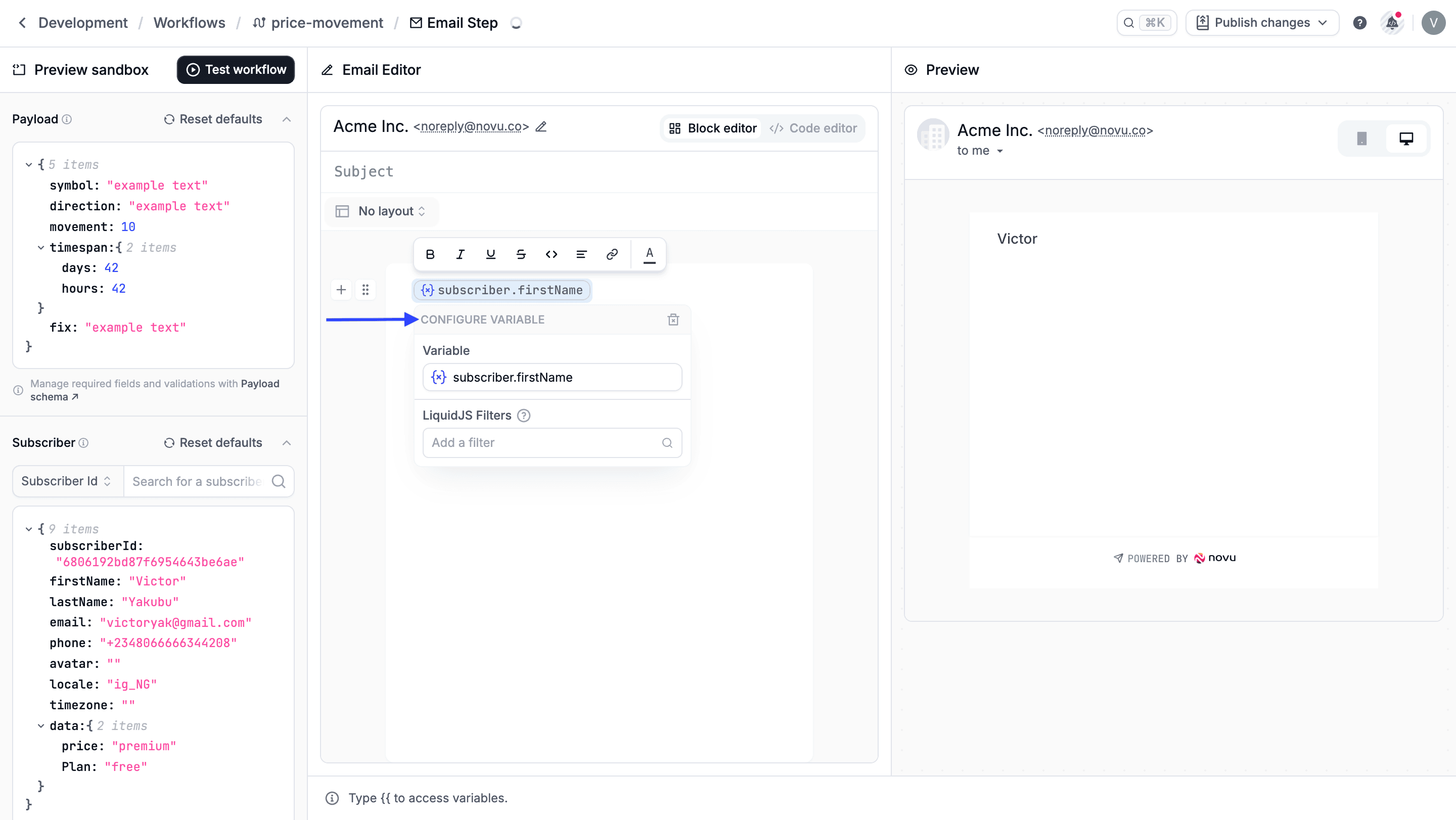
- Apply Liquid filters
- Reorder applied filters