

Setting up Sendchamp
1
Get your API Key
- Sign up or Login to your Sendchamp account
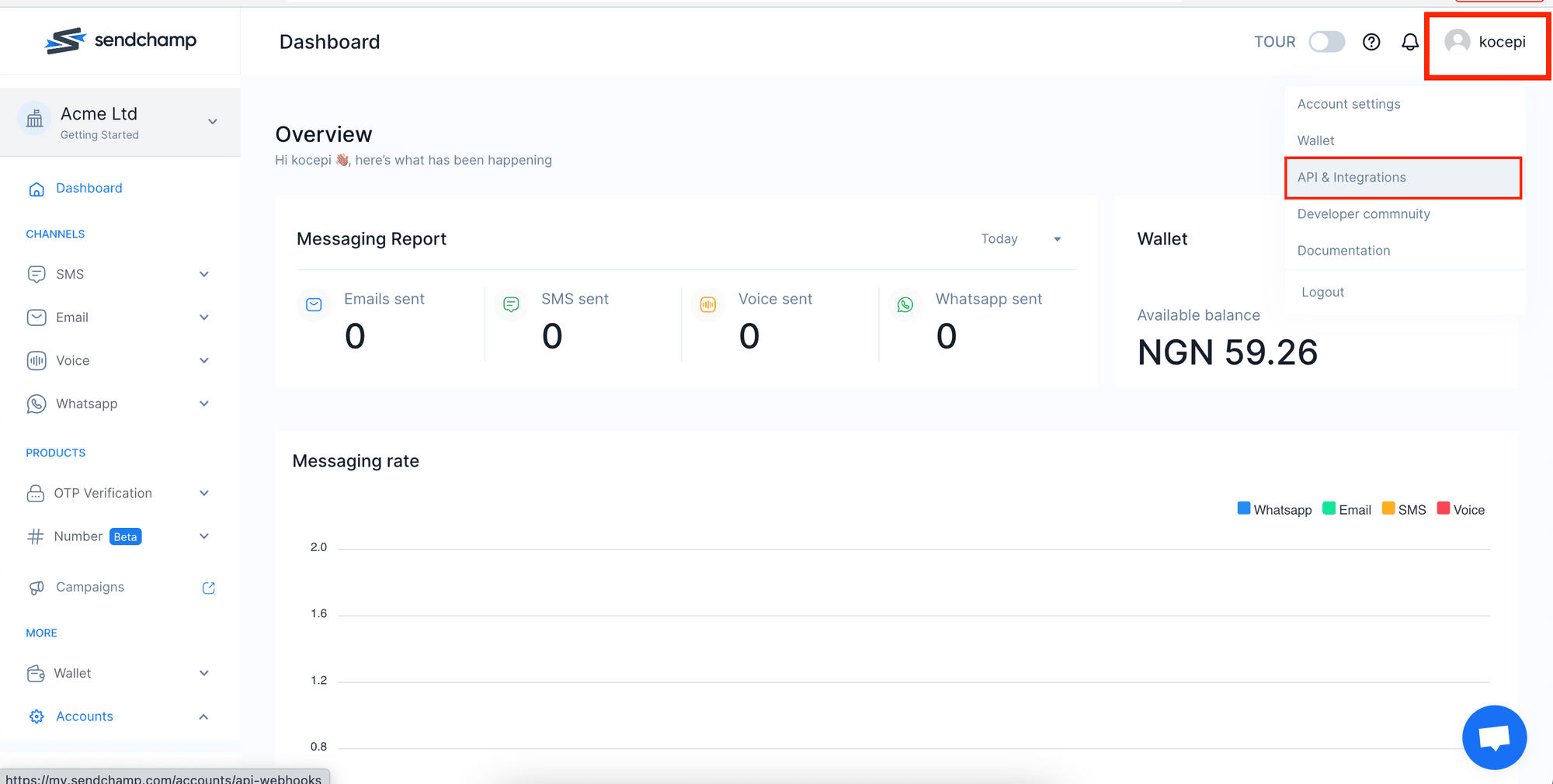
- Click on the Avatar icon in the top right corner of the screen
- Select
API & Integrationsfrom the drop-down menu
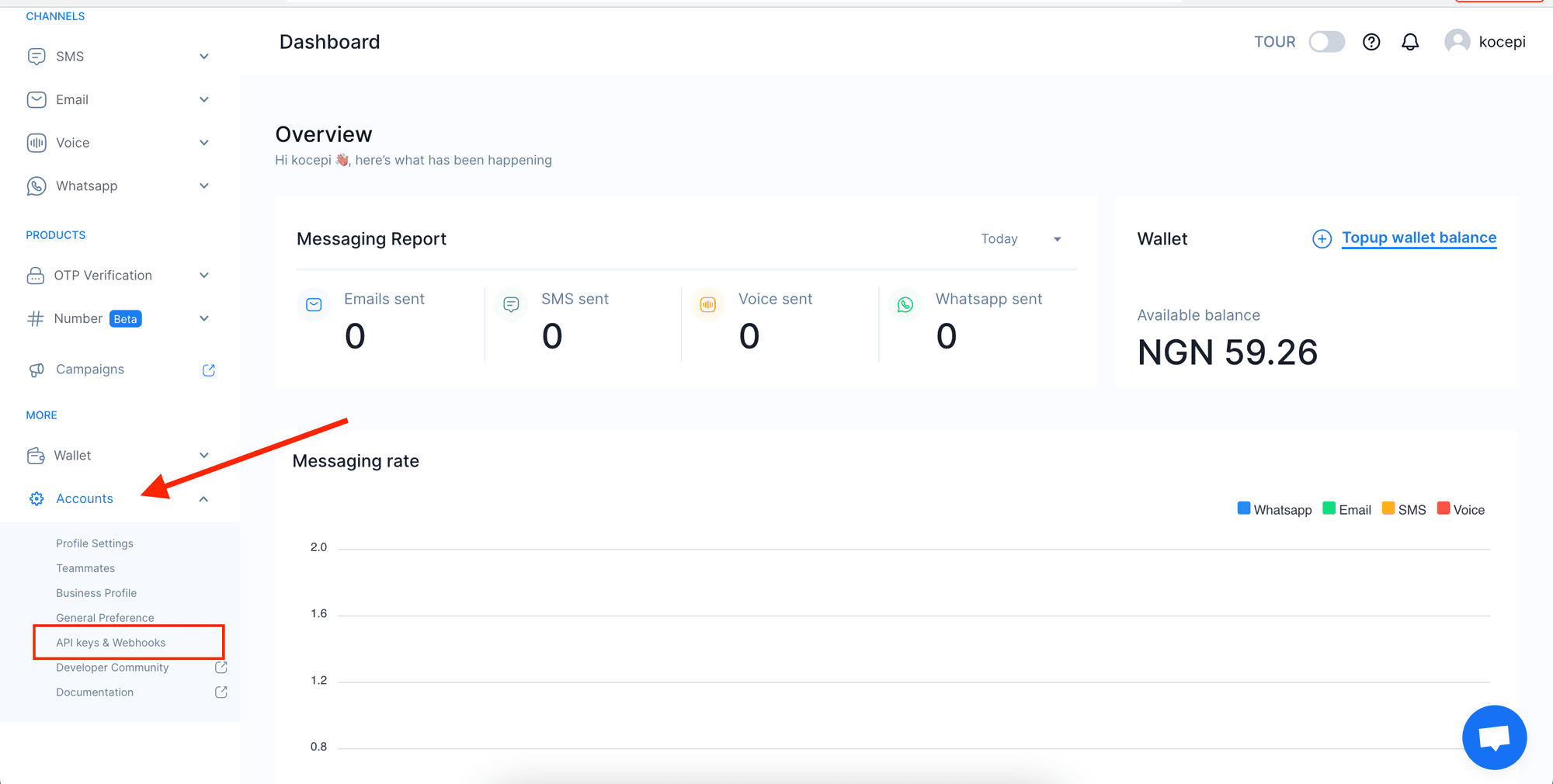
- Scroll to the bottom of the sidebar and click on
Accounts - Click on
API keys & Webhooksfrom the dropdown
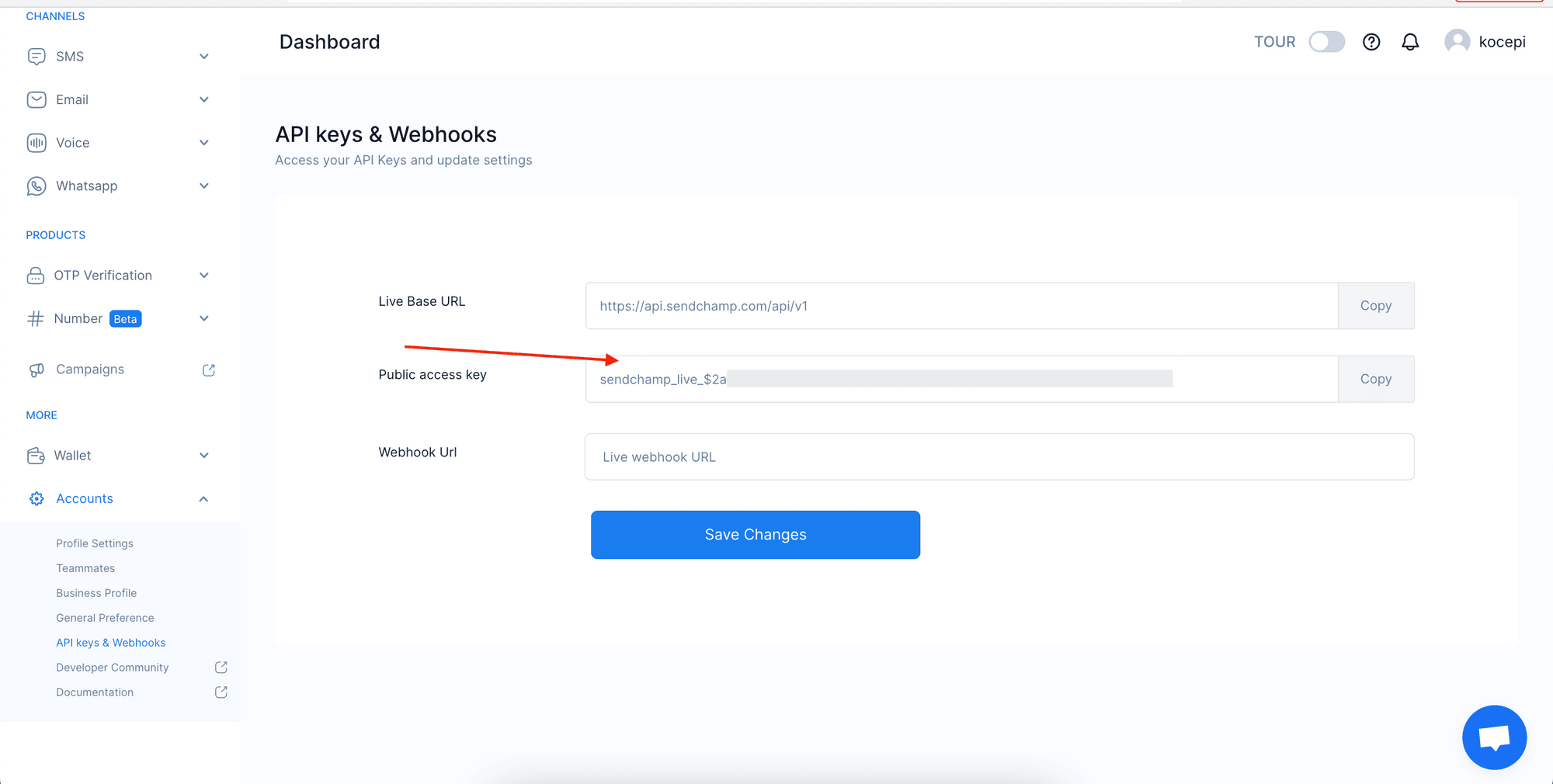
- On the API Keys page, copy the Public access key
2
Set up your Sender ID
The Sender ID represents the sender of the message to your customers.To view your Sender IDs: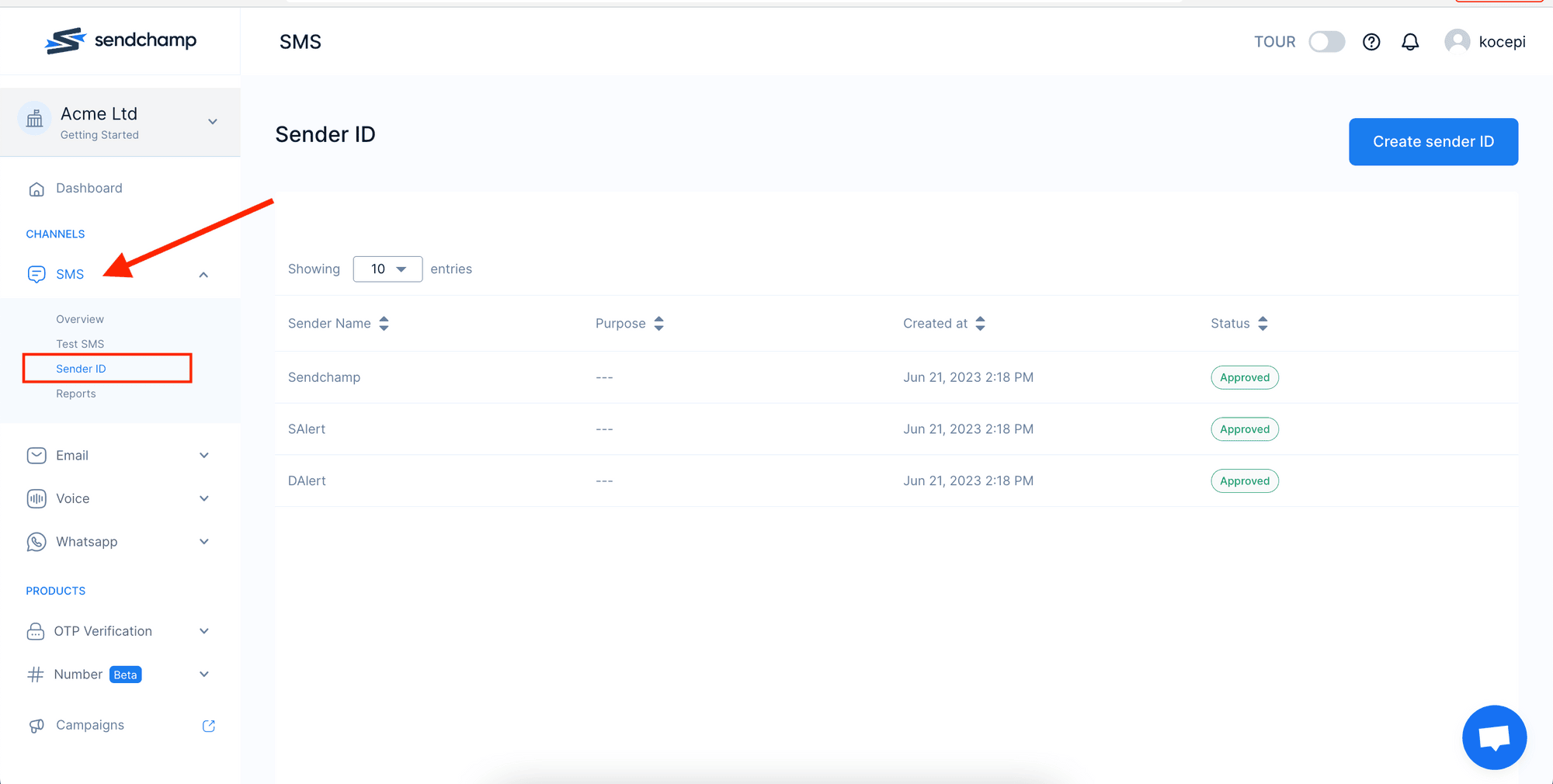
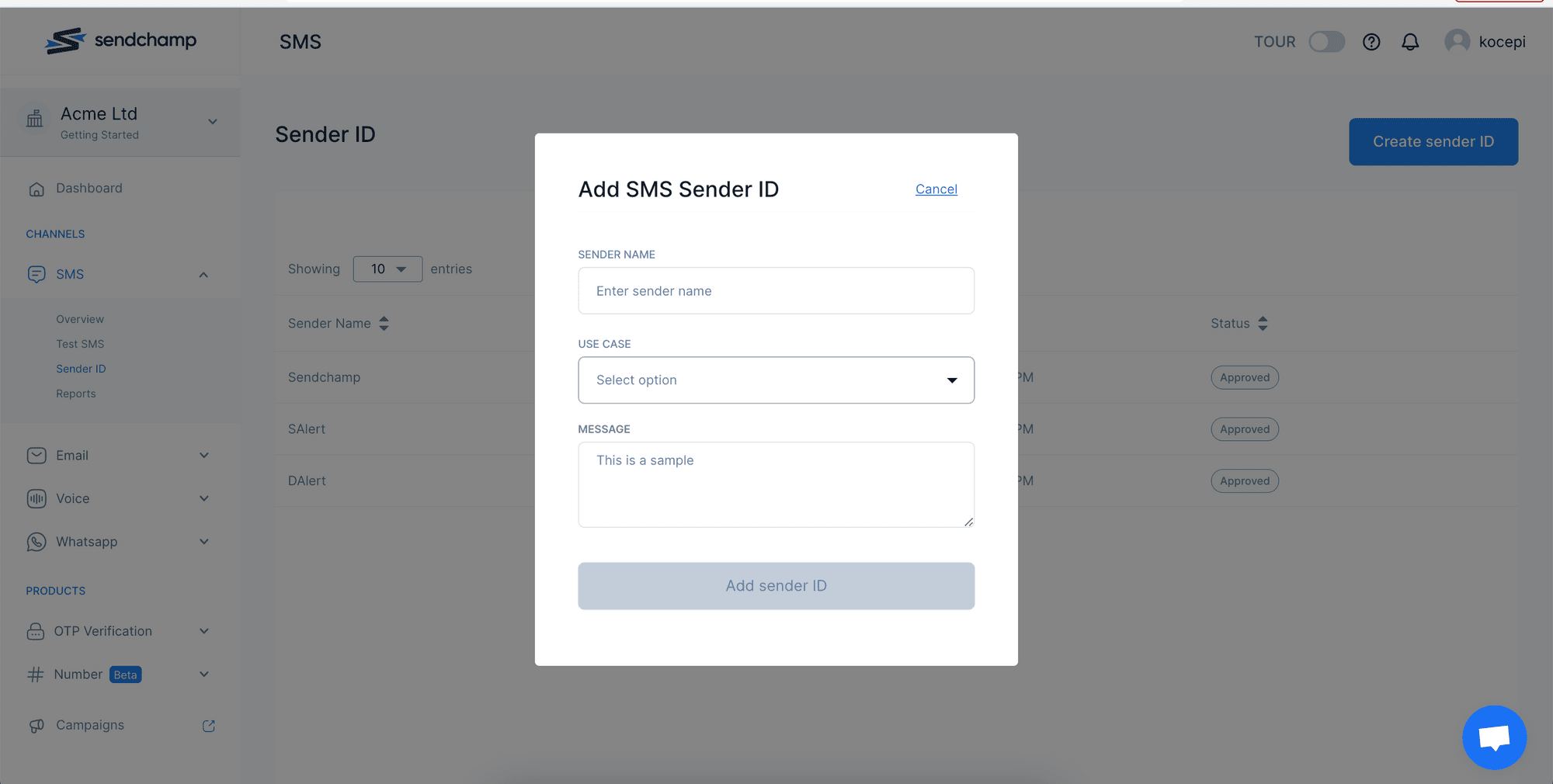
- On the sidebar menu, click on
SMS - Select
Sender IDfrom the dropdown options - You’ll find a list of your Sender IDs
- Click on the
Create Sender IDbutton - Fill in the form
- Click on
Add Sender IDbutton
Wait for your Sender ID to be approved before using it as the from field on the Novu platform.
3
Connect Sendchamp to Novu
- Visit the Integrations page on Novu
- Click the “Add a provider” button
- Locate Sendchamp under the SMS section and click on the Connect button
- Enter your Sendchamp API Key
- Fill in the
Fromfield with your approved Sender ID - Click on the
Disabledbutton and mark it asActive - Click on the Connect button